
If you already use an AI agent such as Instinct, you can let it run your digital signage. You give it an API key from your workspace, and from then on you can message it the way you would message a colleague: "put the lunch menu on the cafe screen", "is the lobby TV online?", "undo that".
Last updated October 2026.
This post is for people who already have an InfoSlides workspace. It takes three steps and needs no code.
1. Create an API key
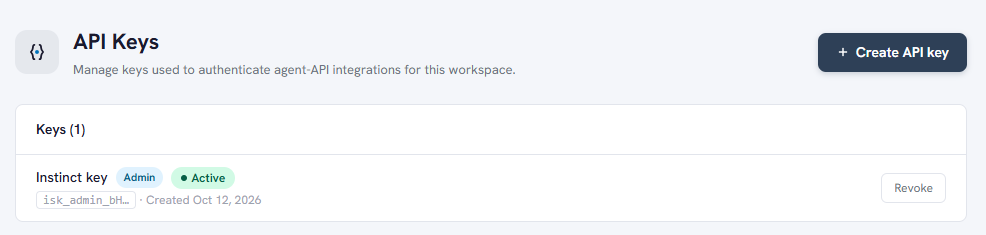
- Sign in at infoslides.app and open Settings → API Keys. You need to be a workspace admin to see this page.
- Click Create API key. Give it a name you will recognise later, for example Instinct.
- Choose the key type Admin. (The other type, Data Provider, can only update the live data on specific slides. It is meant for a till or a booking system, not for an agent.)
- Copy the key. It starts with
isk_admin_and is shown only once.
2. Treat the key like a password
An admin key can do anything a workspace admin can do. Give it only to an agent you trust, keep it out of shared chats and documents, and give each agent its own key. If you stop using an agent, or think a key has leaked, click Revoke next to it on the same page. The agent loses access straight away, and nothing else in your workspace changes.
3. Give the key to your agent
Send your agent the key together with the address of the InfoSlides guide, so it knows how to use it. Something like this works:
Connect to my InfoSlides account. Read the guide at
https://infoslides.app/agents.md and use this API key:
isk_admin_...
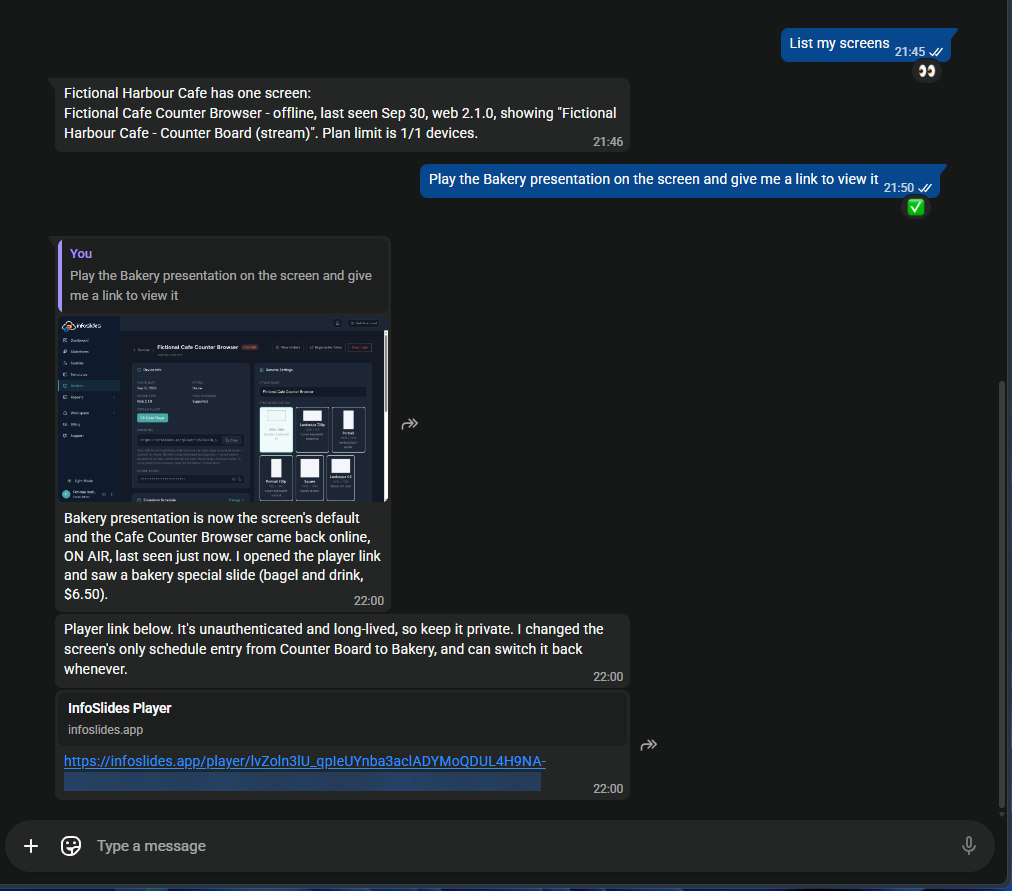
A good first test is to ask it to list your screens. If it answers with the names you gave them in InfoSlides, it is connected.
Things you can ask
Use the names you already use. The agent finds the screen, slideshow or slide by name, so you never need an ID.
Check on your screens
- "List my screens."
Each screen's name, what it plays and whether it is online. - "What is on the lobby screen right now?"
- "Are any of my screens offline?"
- "Why is the cafe screen black?"
The agent checks the screen, its schedule and its slideshow, and tells you what it found and what to do about it.
Change what plays
- "Play the Q1 results on the meeting room screen until 3."
The slides go up and the screen returns to its normal schedule at 3. If something is in the way, such as another schedule, the agent asks you one plain question first. - "Switch the cafe screens to the lunch specials from 11 to 2 every day."
- "Hide the second slide in the Welcome slideshow."
The slide stops playing but stays in the slideshow, so you can bring it back. - "Undo that."
Reverts the last change. Undo is available for 24 hours.
Update the content
- "Fish of the day is 2,490 today."
Updates the price on a live data slide, without opening a slide editor. - "Make a slide that says we close at 4 on Friday and add it to the Lobby slideshow."
InfoSlides designs the slide and the agent adds it.
In a hurry
- "Put the evacuation map on every screen now."
Takes over every screen at once. - "End the takeover."
Every screen goes back to what it was playing.
New TV
- "Pair the TV showing free-star-45 and call it Reception."
A TV running the InfoSlides app shows a short nickname on its pairing screen. Read it out and the agent connects that TV to your workspace.
Build live data slides from scratch
On a paid plan your agent can also build a live data slide from nothing: design the template, create the source that feeds it, add the slide to a slideshow and push data to it. The free plan includes one such slide, so you can try the idea before you upgrade.
- "Make a live slide for today's specials with a name, a price and a photo for each, and put it in the Cafe slideshow."
- "Create a source for it and give me the key to push data with."
- "Set the specials to: cinnamon bun 650, sourdough 1,200, rye bread 890."
Connect your own systems
An agent that can write code, such as Claude, can also write a small program that sits between InfoSlides and a system you already run: a till, a sales system, an ERP or a booking system. The program watches for something to happen in that system and updates your slides when it does. Nobody has to remember to change the screen.
Example: a bakery screen driven by the till's stock levels
A bakery's till knows how much of each product is left. An hour before closing, the program checks the stock. Anything with more than a handful left goes on the "End of day" slide at 30% off, and a product drops off the slide as soon as it sells out. The screen in the window shows what is still on the shelf, at a price that moves it, and the bakery throws less away. To see what a finished small business screen looks like, open the sample bakery screen.
You could start with a request like this:
Write a small program that reads stock levels from our till
every 15 minutes after 16:00. If more than 6 of a product are
left, add it to the "End of day" slide in InfoSlides at 30% off.
Remove a product from the slide when it sells out.
Give the program its own Data Provider key, bound to that one slide. If the key leaks, the most it can do is change that slide.
More ideas along the same lines:
- A restaurant takes a dish off the menu board when the kitchen marks it as sold out. See the sample restaurant screen.
- A shop shows today's sales target and how close the team is to it. More ideas for retail screens.
- A workshop or warehouse shows orders that are ready for pickup as they are finished.
- A gym or pool shows how full it is right now, from the door counter.
- An office shows open support tickets, or the meeting rooms that are free. More ideas for office screens.
- A hotel shows today's events and the restaurant's opening hours from the booking system. See the sample hotel lobby screen.
Check the result
Your agent tells you what it did, and it can get the details wrong. After a change that matters, look at the screen, or ask the agent to show you what the screen is playing. Most changes can be undone for 24 hours, so a mistake is one message away from being fixed.
Questions people ask
Does this work on the free plan?
Yes. If you ask for something your plan does not include, the agent tells you it is not on the plan.
Can I see what the agent changed?
Yes. Changes made with the key appear in your workspace like any other change, and the API Keys page shows when each key was last used.
Can I use more than one agent?
Yes. Create one key per agent, so you can revoke one without affecting the others.
Other ways to connect
If your assistant is ChatGPT, Claude, Gemini or Copilot, you do not need a key. Those connect to https://infoslides.app/mcp and you sign in with your InfoSlides account instead. See our posts on Visual Studio Code and on Gemini for the steps, or the developers page for every way to connect.
More agents are adding InfoSlides as a built-in connection, among them Meta's Muse, Claude and ChatGPT. We will write a post for each one as it becomes available, with the steps for that agent.
Developers can find the full reference in the API documentation and agents.md.