
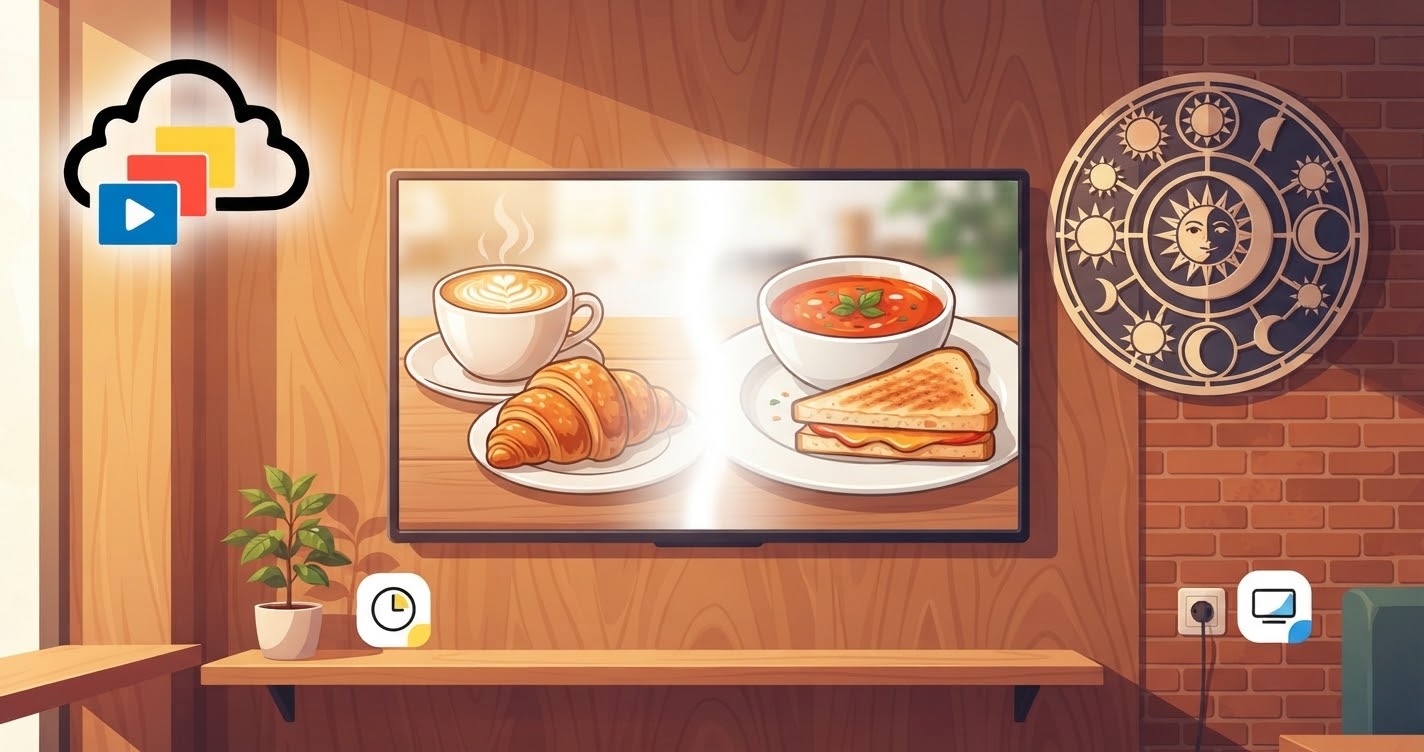
When a screen depends on someone remembering to change it, it goes wrong in predictable ways: the breakfast menu is still up at 2 PM, or last weekend's discount is still advertised on Monday. Digital signage dayparting fixes the routine part by switching content on a schedule. A temporary takeover handles the unplanned part, such as a flash sale.
This post explains how both work in InfoSlides, how they interact, and what they do not do.
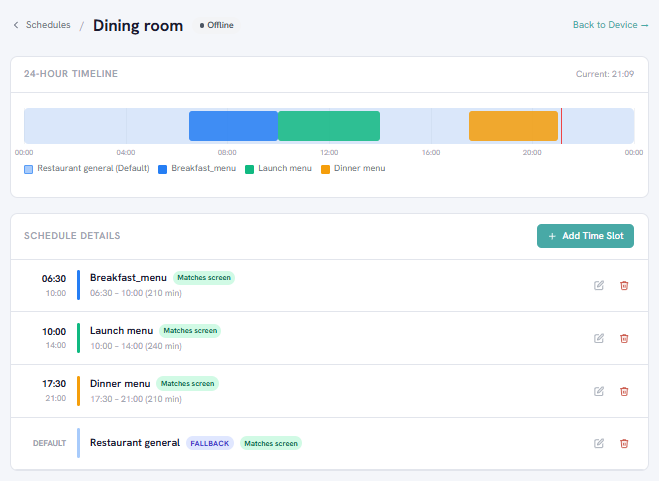
What is dayparting?
Dayparting means showing different content at different times of the day or on different days of the week. In InfoSlides you give a screen one or more time windows, each with a slideshow, and a default slideshow that plays when no window applies. Times are read in your workspace time zone, which you set in the workspace settings.
Some examples:
- Cafés and bistros: pastries and coffee in the morning, soups and sandwiches from 11:00.
- Gyms and fitness studios: morning class timetable early in the day, personal training and evening class slots later.
- Retail: weekday offers from Monday to Thursday, weekend offers from Friday.
- Clinics and salons: check-in reminders in the morning, booking promotions later in the day.
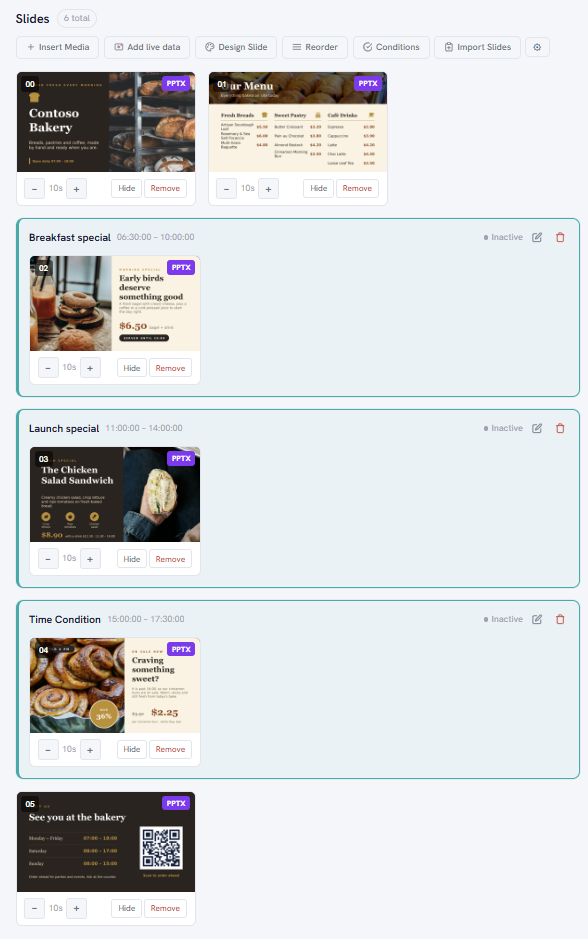
It's also possible to set up a schedule within a single slideshow. On the picture above, one slide is active based on the time of day.
Temporary takeovers for promotions that were not planned
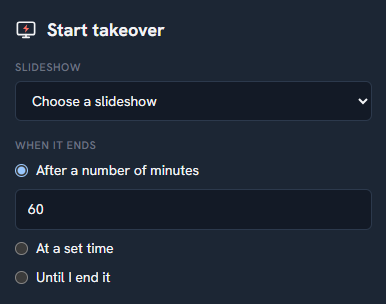
Say it is a slow, rainy Tuesday and you decide to run a 90-minute offer on hot drinks. Editing the regular schedule for that would mean changing it twice, once to start the offer and once to undo it. A takeover avoids that. You create it with three choices:
- The slideshow to show. It is an ordinary slideshow you already have.
- When it ends. Set a duration, an end time, or end it yourself.
- Which screens. One screen, such as the one in the shop window, or several screens in your workspace.
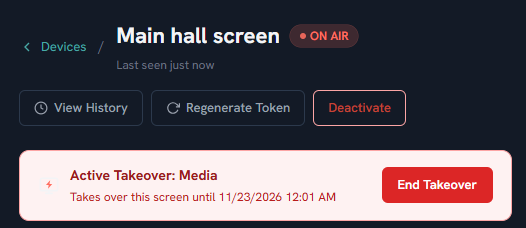
While a takeover is active it plays instead of the schedule. When it ends, each screen goes back to whatever its schedule says at that moment, so there is nothing to clean up. You can also end a takeover early from the device page.
What plays when several things apply
A screen follows the same order every time, from highest to lowest:
- An active takeover. If two overlap, the newest wins.
- A time window that matches the current time and day.
- The default schedule entry.
- The slideshow paired directly to the screen.
Different screens, different jobs
Each screen has its own schedule, so you can match content to where the screen hangs. A shop window screen can run offers, the checkout screen can show add-ons or a review QR code, and a staff room screen can show internal notices. See broadcast channels if you want one slideshow on many screens.
What it does not change
- Time windows on the same screen cannot overlap. InfoSlides rejects an overlapping window when you save it.
- A screen needs an internet connection to receive schedule changes and takeovers.
- A takeover plays an existing slideshow. You prepare that slideshow before you start the takeover.
- You need no extra hardware. InfoSlides runs on the smart TV you already own, as covered on the small business digital signage page.
Questions about dayparting and takeovers
What is dayparting in digital signage?
Showing different content at set times of day or days of the week, switched automatically.
Which time zone does a schedule use?
Your workspace time zone. Check it in the workspace settings before you build windows.
What happens when a takeover ends?
Each affected screen returns to what its schedule says at that time.
Can I take over every screen at once?
Yes, you can pick one screen or several screens in your workspace.
Which plan includes this?
The free plan covers one screen. Plan allowances, including advanced scheduling, are listed on the pricing page.
Try it on one screen
Pair a TV, add two slideshows and give them a morning and an afternoon window. If you have not set up a screen yet, how to set up a digital menu board for your restaurant walks through it.