
Most screens in a reception, a café or a staff room are ordinary TVs. Many of them already have a Fire TV Stick in the HDMI port, or could have one for the price of a lunch. Until now, the way to use one for Fire TV digital signage with InfoSlides was the TV's web browser. Today the InfoSlidesTV app is on the Amazon Appstore, so a Fire TV can play your slideshows the same way an Android TV or LG TV does.
Last updated November 2026.
What the app does on a Fire TV
The InfoSlides app has one job: play what your workspace assigns to that screen, full screen, without anyone touching it.
- Your slides as they are. PowerPoint and Google Slides decks, images and video clips, mixed in one slideshow.
- Live slides. Weather, news headlines and other live data slides update on their own.
- Your schedule. A breakfast menu in the morning and the lunch menu later, set once in the web app.
- Recovery on its own. After a network drop or a power cut, the app reconnects and carries on playing.
- Built for a remote. The code field has focus when the app opens, and the back button returns from playback to the start screen.
Set up Fire TV digital signage in three steps
1. Install InfoSlides
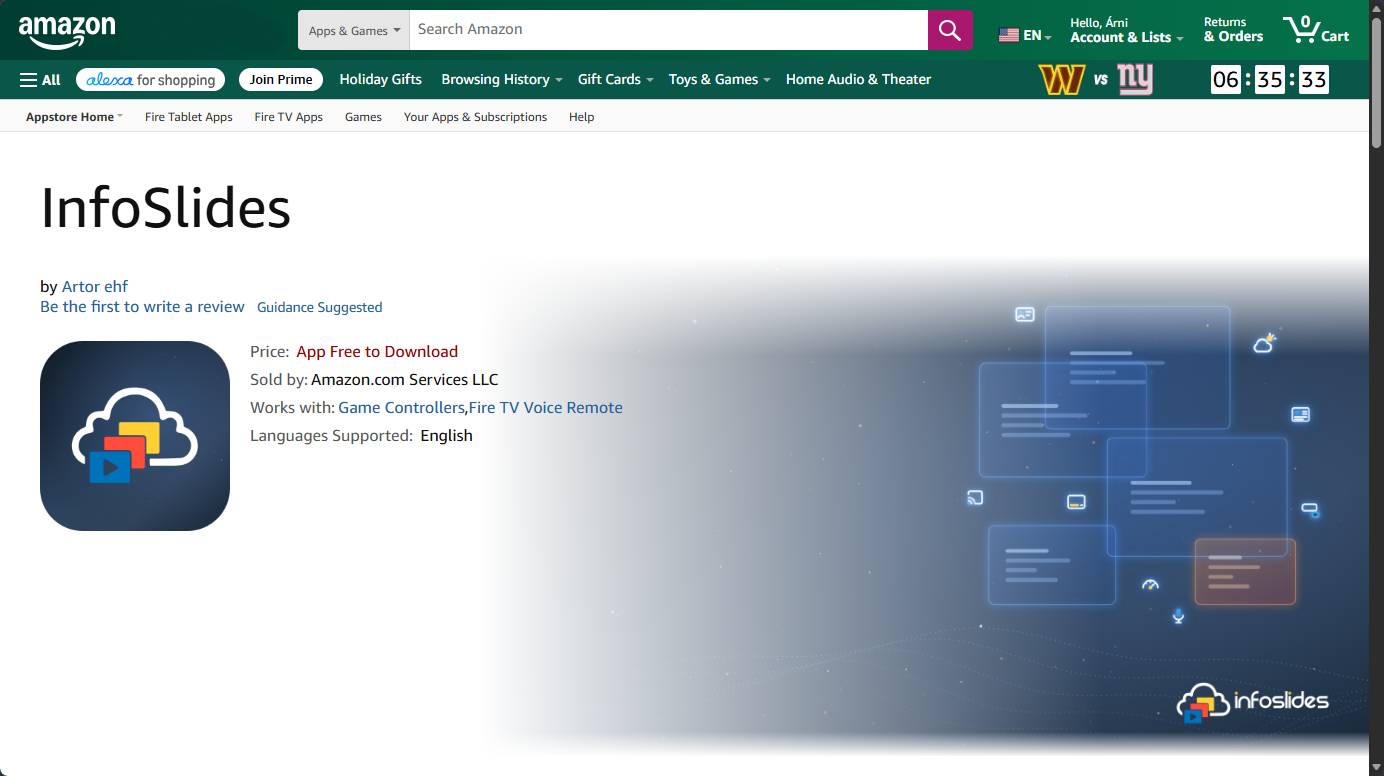
On the Fire TV, open the Appstore, search for InfoSlides and select Get. You can also send it to your Fire TV from the Amazon Appstore listing in a browser.
2. Get a pairing code
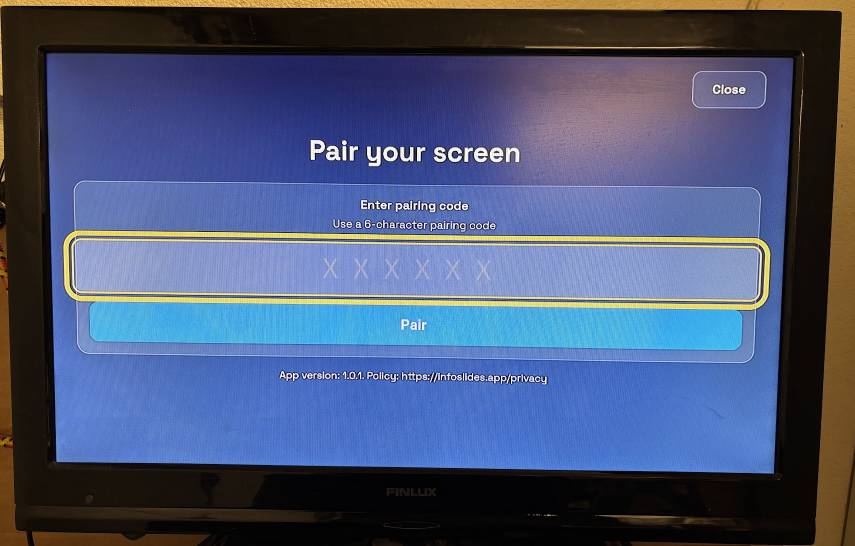
In InfoSlides, open Devices and add a device. Give it a name, such as Reception TV, and InfoSlides shows a 6-character pairing code.
3. Enter the code on the TV
Open InfoSlidesTV, type the code with the remote and select Pair. A short countdown runs, then the slideshow assigned to that screen starts. In Devices, the screen is listed as an Amazon Fire device, so you can tell it apart from your other screens.
Video stream or HTML playback
A screen can play its slideshow in two ways. As a video stream, the slides are rendered on our servers into one continuous video. In HTML playback mode, the TV shows each slide itself, which keeps small text sharp and lets live slides update between rounds. The Fire TV app supports both, and you choose per screen in the web app. If you are new to this, getting your PowerPoint slides to a TV explains how a deck becomes a screen.
What to know before you install
- You need an InfoSlides workspace. Accounts, slideshows and schedules are managed in the InfoSlides web app on a computer or phone. The TV app only plays.
- Pairing is by code. On Fire TV you type the 6-character code with the remote. The phone QR pairing that some of our other TV apps show is not part of the Fire TV app.
- It needs an internet connection. The app streams content and reports to your workspace that the screen is online.
Questions people ask
Can I use a Fire TV Stick for digital signage?
Yes. Install InfoSlidesTV from the Amazon Appstore, pair it with a code from your InfoSlides workspace, and the TV plays your slideshows full screen on its schedule.
Which Fire TV devices does the app run on?
Fire TV Sticks, the Fire TV Cube and TVs with Fire TV built in. The Amazon Appstore listing shows whether your device is supported before you install.
Does the Fire TV need to stay on all the time?
The TV and the stick need power while the screen should show something. If the power goes and comes back, the app reconnects and resumes.
Can I still use the browser on a Fire TV?
The app is the better choice: it opens full screen and is made for the remote. For TVs without an app, how to install the InfoSlidesTV app on your screen also covers browser pairing.
What can I show on it?
Menus, opening hours, offers, notices and live information. Showing live weather on a hotel lobby TV is one example, and digital signage for small businesses has more.
Does it cost anything?
The app is free. The InfoSlides free plan includes one screen, so you can try it with the TV you already have.