

The people who run digital signage in a cafe, a clinic or an office lobby are rarely at a desk. Changing what a TV shows has meant finding a laptop, logging in and clicking through menus. With Google's Gemini you can do it by saying what you want: "hide the Christmas slide", "what is on the lobby screen right now?", "turn off the news ticker".
Last updated October 2026.
InfoSlides connects to Gemini in two ways. The main one is an extension for Gemini CLI and Antigravity, which works for any account. The second is a custom app in the Gemini app, which Google currently offers only to some accounts. This post shows both, and says plainly where each one has limits.
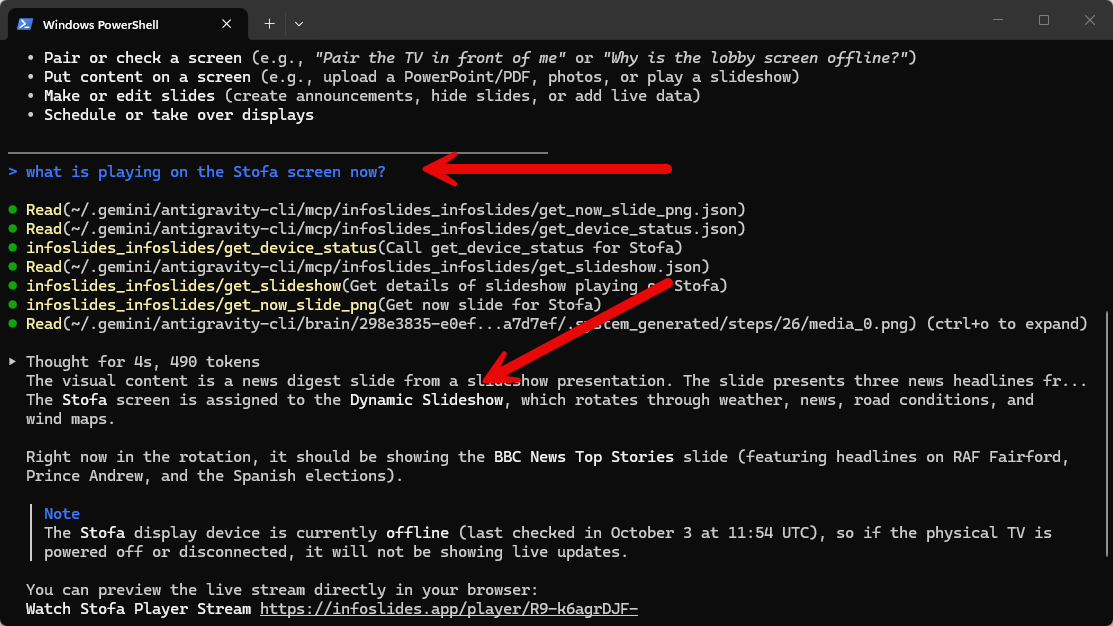
On the picture above the Antigravity CLI is answering a question about what is playing on a specific screen.
What you can ask your digital signage
Each of these is something a person actually says. Gemini finds the right screen or slide by the name you use, so you do not need an ID or an InfoSlides menu.
- "What is on the lobby screen right now?"
Gemini looks up the screen, says whether it is online and which slideshow it plays, and can show you a picture of the current slide. - "Hide the Christmas slide."
The slide stops playing. It stays in the slideshow, so you can bring it back later. - "Turn off the news ticker on the Lobby slideshow."
One change, and Gemini tells you what changed and where. - "Why is the cafe screen black?"
Gemini checks the screen and lists the likely causes, most likely first: offline, nothing scheduled, every slide hidden, a failed render. - "Play the Q1 slides on the lobby screen until five."
The slideshow plays as a temporary takeover and the normal schedule returns afterwards. - "Undo that."
The last change is reverted. Undo is available for 24 hours after a change.
Option 1: Gemini CLI or Antigravity
This route is for developers and anyone comfortable in a terminal. The extension runs the InfoSlides tool server (the same one described in our CLI and MCP post) on your own computer and gives Gemini the full set of tools, including uploading a .pptx or .pdf from your disk. It also bundles the Digital Signage Assistant skill, a guide that teaches the agent how to run screens well.
1. Install the infoslides program
The extension needs the infoslides program on your computer, and it cannot install it for you. Download the archive for your system from the latest release, extract infoslides, and put it in a folder on your PATH. Check it with:
infoslides --version2. Add InfoSlides to Gemini CLI or Antigravity
In Gemini CLI, one command installs the extension:
gemini extensions install https://github.com/arnibj/InfoSlides.MCPIn Antigravity, install the agy program first. On Windows, in PowerShell:
irm https://antigravity.google/cli/install.ps1 | iexOn macOS and Linux:
curl -fsSL https://antigravity.google/cli/install.sh | bashOpen a new terminal and check it with agy --version. Then download the InfoSlides repository and install it as a plugin from that folder:
git clone https://github.com/arnibj/InfoSlides.MCP
agy plugin install ./InfoSlides.MCP
The plugin adds the InfoSlides tools and the Digital Signage Assistant skill. Check it with agy plugin list, which should show infoslides with skills and mcpServers. Antigravity installs plugins from a folder on your computer, so unlike Gemini CLI this takes two commands and needs Git, or you can download the repository as a zip and extract it.
3. Connect your workspace
If you already have an InfoSlides workspace, sign in once from the terminal:
infoslides auth loginOr set an API key from your workspace settings in the INFOSLIDES_API_KEY environment variable. If you do not have a workspace yet, leave both out and ask Gemini to set one up. It can create a workspace on the free plan.
4. Ask
Start Gemini CLI or agy and ask any of the questions above. Tools that replace or delete something are marked as such, so your assistant can ask before it runs them. Check the result of any change before you rely on it.
Option 2: The Gemini app
Availability first. Google currently offers custom apps in the Gemini app only to some accounts: you need to be 18 or over and in the United States, signed in with a personal Google account (not a work or school account), with Keep Activity turned on, and using the app in English. If your account does not qualify, the Connected Apps page does not show a way to add a custom app, and the terminal route below is the way to use InfoSlides with Gemini. Google can change these conditions, so check its help page first.
If your account qualifies, this route needs no terminal and no download. You add InfoSlides to Gemini as a custom app, using its address, and sign in with your InfoSlides account. Google only lets you add a custom app in the Gemini web app on a computer. Once it is added, it also works in the Gemini mobile app on your phone. The steps below follow Google's help page.
- On a computer, go to gemini.google.com and sign in with your personal Google account.
- At the bottom, click Settings, then Connected Apps.
- Under Custom apps, find the field for adding a custom app and paste the InfoSlides server address:
https://infoslides.app/mcp. Click Next. InfoSlides supports dynamic client registration, so you do not need to enter any credentials. - Gemini opens an InfoSlides page asking you to sign in and approve the connection. Check what it asks for and approve it. InfoSlides only acts in the workspace of the account you sign in with.
- Ask about your screens. To make sure Gemini uses InfoSlides for a prompt, type
@and choose InfoSlides.
Two differences from the terminal route:
- No uploads from your computer. The Gemini app cannot read files on your disk, so a photo or slideshow goes in by web address instead. Putting a file on your screens works best from the dashboard, or from Gemini CLI.
- No skill. The Gemini app cannot load the Digital Signage Assistant skill. InfoSlides sends a short set of instructions with the connection instead, so asking in plain words ("put this photo on the lobby screen for an hour") works best.
Gemini also asks you to confirm any action that changes something before it runs, which fits well with a tool that can replace what a screen shows.
Which one should you use?
| Gemini CLI or Antigravity | Gemini app | |
|---|---|---|
| Who it suits | Developers, technical owners, anyone who works in a terminal | Anyone who runs screens and uses the Gemini app |
| Install | The infoslides program, then the extension | Paste one address and sign in |
| Tools | All of them, including uploads from your disk | All except uploads from your disk |
| Skill | Bundled | Not supported by the app |
| Where it runs | On your computer | InfoSlides' hosted server |
You stay in control
- Your own sign-in. Every request goes to InfoSlides with your own credentials. The assistant can do what your role in the workspace allows, and nothing more.
- Marked actions. Tools that replace or delete something are marked as such, so Gemini can ask before running them.
- Undo. Most changes can be reverted for 24 hours.
- Disconnect any time. Remove an app under Connected apps in your InfoSlides settings. For the CLI, remove the extension or the API key.
Questions people ask
Does InfoSlides work with Gemini?
Yes. You can add it to Gemini CLI or Antigravity as an extension. In the Gemini app it can be added as a custom app, where Google offers that to your account.
Do I need to install anything?
For Gemini CLI and Antigravity you install the infoslides program and the extension. For the Gemini app you install nothing: you paste an address and sign in, if your account can add custom apps.
Can I use it on the free plan?
Yes. Features that are not on your plan are reported as not on the plan, and a workspace admin can change the plan in InfoSlides account settings.
Can Gemini delete something by mistake?
Actions that replace or delete something are marked, so Gemini can ask first, and most changes can be undone for 24 hours.
For developers and agents
The InfoSlides tools are a standard MCP server. The repository has the extension manifest and the program, the API documentation describes the underlying REST calls, and agents.md is the guide written for agents. The same tools work in any MCP client, so the steps here carry over to other assistants.