
Make It Your Own
Write down your logo, colours, fonts and way of writing once, in a brand guide. Dynamic slides, designed slides and AI Studio drafts use it, the ticker and clock take its colours, and the assistants that work in your workspace read the same guide. A slide that drifts from it can be flagged for you.
Workspace admins edit the guide · Everyone in the workspace can read it
One Guide, Written Once
The Brand page in your workspace has a section for each part of your identity. Fill in what you have; a part you leave empty keeps the workspace default.
Logos for Light and Dark Backgrounds
Upload one logo for light slides, one for dark slides and a small icon. Each slide gets the one that reads on its background, with clear space around it.
Colours
Primary, secondary, accent, background and text colours, plus extra colours with a role such as prices. You get a warning when your text colour is hard to read on your background.
Fonts, Including Your Own
Choose a heading font and a body font from the built-in set, or upload a woff2, TTF or OTF file after confirming you hold a licence for web and display use. Uploaded fonts stay private to your workspace.
Voice and Phrases
A tone, a language and a reading level, phrases to use and phrases to avoid, and notes on how you write prices, dates and names.
Picture Style
Describe the look of the photos you want and list the subjects to avoid. AI Studio is given both when it drafts a slide.
Layout Rules
Where the logo sits, how much empty border slides keep, and whether slides get a coloured band at the top.
A Reference File for the Team
Attach your brand manual as a PDF or an image. It is stored so people in the workspace can download it. The system does not read it.
The Same Slide, Without and With a Guide
Both slides below were drawn by the sample-slide preview on the Brand page. The first is a workspace without a guide. The second uses InfoSlides’ own brand guide: its colours, fonts, logo and a header band.

Without a guide
The workspace default: your accent colour and a neutral font, with a marker where a logo would go.

With a guide
The same slide in the guide’s colours, heading font, body font and logo, with the header band the guide asks for.
InfoSlides Uses Its Own Guide
Our demo workspace has a confirmed brand guide with our logos, colours and fonts. These sample slides are drawn from it.

A Big Number
The accent colour carries the figure, and the heading font gives it weight.

The Logo for Dark Backgrounds
A second logo with a white wordmark, used whenever a slide or the header band is dark.

The Ticker
The ticker takes the primary colour from the guide, with text that reads on it.

The Clock
The on-screen clock follows the same colours.
Headings in Unbounded, body text in Hanken Grotesk. Both are uploaded to the workspace as its own fonts.
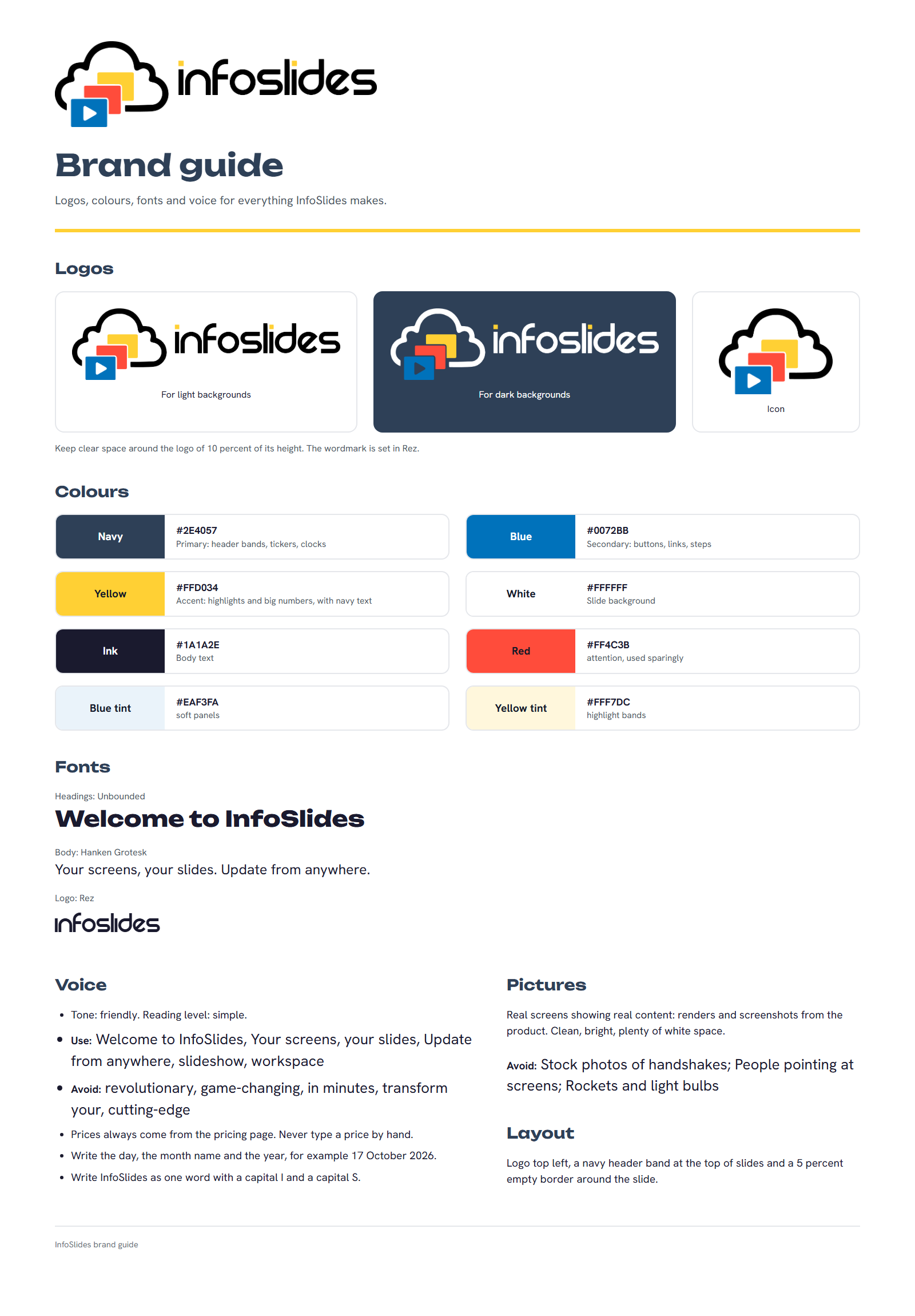
The guide as a document
Write Your Guide With an AI Assistant
This one-page sheet is InfoSlides’ own brand guide. It is the reference file attached to our guide, so everyone in the workspace can open it.
You do not need a designer to write a guide like it. Give an AI assistant such as Claude or ChatGDP your logos and your colours, and ask it for a one-page brand guide with the colours, fonts, voice and layout written out. Attach the result as your reference file, then check the sample slides.
An assistant connected to your workspace through the command line or the API can also send the values to the Brand page as a draft, so you do not have to copy them by hand. It cannot confirm the guide. You review the draft and confirm it yourself.
See it first
Check the Result Before Anyone Relies on It
The Brand page draws eight sample slides from the values on the page: a title, a text slide, a big-number slide, a picture slide, a logo on a light and on a dark background, a ticker and a clock. They are drawn from what you have typed, saved or not, and nothing is stored.
A guide starts as a draft. Slides keep using the last confirmed version until an admin confirms the new one. Every confirmed version is kept, and you can restore an earlier one as a draft.
Edit freely, look at the samples
Confirmed
A numbered version that slides use
Where the Guide Shows Up
Once a guide is confirmed, these follow it.
Dynamic Slides
Templates can use the guide’s colours, fonts and logos. The live boards and the built-in templates that do so change when the guide changes, and affected slideshows are queued to render again.
Designed Slides and AI Studio
Slides drawn by AI Studio, by the Slide Designer and by an assistant take the guide’s colours, font, logo and header band. AI-written text follows the tone and leaves out the phrases you ban.
Ticker and Clock
The ticker and the on-screen clock take their colours from the guide, unless your workspace or slideshow sets its own.
Assistants and Scripts
The assistants that connect to your workspace, the command line and the API read the same guide. They can propose changes as a draft, and a person confirms them on the Brand page.
Spot a Slide That Drifts
A slideshow page can show where its slides leave the guide. The check is advice: it never stops a slide from playing.
Five Checks, Each One Switchable
Colours outside the palette, text that is hard to read, a missing logo, banned phrases, and fonts that are not the guide’s. Turn off any check on the Brand page.
Keep Content Managers Inside the Guide
An admin can switch on a setting that limits content managers in the Slide Designer to the guide’s colours and fonts, and refuses to save a designed slide that fails the check. Admins are never limited.
What It Covers
Designed slides and dynamic slides. Slides inside an uploaded presentation keep the look they came with and are not checked.
Brand Guide: Common Questions
Does a brand guide restyle the presentations I upload?
No. A slide inside an uploaded PowerPoint or Google Slides file keeps the look it came with. The guide drives dynamic slides, slides drawn in the Slide Designer, AI Studio drafts, and the colours of the ticker and clock.
Does a draft change what my screens show?
No. Slides use the last confirmed version of the guide. A draft changes nothing until an admin confirms it, and you can look at the sample slides first.
Can I use my own font?
Yes. Upload a woff2, TTF or OTF file on the Brand page and confirm that you hold a licence to use it on the web and on displays. Dynamic slides and the sample slides use it. Slides drawn in the Slide Designer and by AI Studio use the built-in fonts.
Who can change the guide?
Workspace admins. Everyone in the workspace can read it and look at the sample slides.
What if I do not write a guide?
Slides keep using your workspace logo, accent colour and AI tone, as they do now.
Can an assistant change my brand guide?
An assistant can read it and send a changed draft. It cannot confirm it, switch on the setting that keeps content managers inside the guide, or upload a font. A person confirms the draft on the Brand page.
Give Your Screens Your Own Look
Open the Brand page, fill in what you have and check the sample slides. Nothing changes on your screens until you confirm the guide.
Start Your Brand Guide