
The Audit Trail is the history book of your workspace. Every important action is written down with the time, what happened, who did it and where it came from. Use it to answer questions like "who deleted that slideshow?", "when did this screen get paired?" or "what changed in our settings last week?".
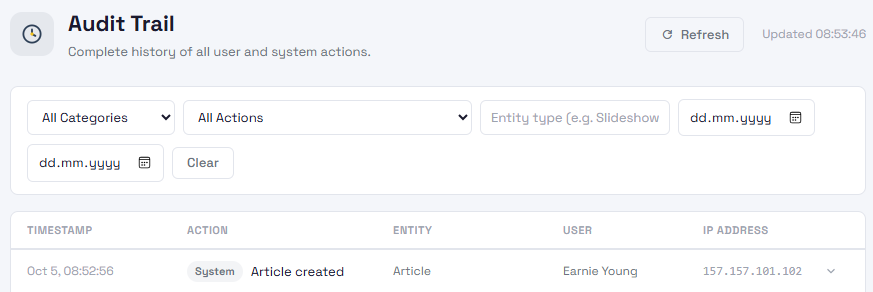
The Audit Trail page showing the filter bar and a list of events with coloured category badges, with one row expanded to show its details.
Where to find it
Click Workspace in the left sidebar to open the group, then click Audit Trail. The Workspace group is shown to Tenant Admins.
Reading the list
Newest events come first. Each row shows:
- Timestamp. When it happened, in your local time.
- Action. What happened, with a coloured tag for the area it belongs to, such as Slideshow, Device, Schedule, User, Billing or Settings.
- Entity. What it happened to, for example a slideshow or a device. If you can open it, the name is a link.
- User. Who did it. "System" means InfoSlides did it automatically, for example a scheduled refresh.
- IP address. Where the request came from, when it is known.
Click a row to open it. You then see the exact time (in UTC) and the full details of the event, such as which settings were changed.
Finding what you need
Use the filters above the list. You can combine them:
- Category. Narrow the list to one area, such as Slideshow or Device.
- Action. Show only one kind of event.
- Entity type. Type a type such as Slideshow and press Enter.
- From and To dates. Look at one day or one period.
- Clear. Remove all filters.
Some pages in the app, such as a slideshow or a device, have a "view history" link that opens the Audit Trail already filtered to that one item.
The list shows 25 events per page. Use Prev and Next at the bottom to move between pages, and Refresh at the top to load the latest events.
Restoring a deleted slideshow
If someone deleted a slideshow by mistake, find the deletion event, open the row and click Restore Slideshow. The slideshow comes back. Deleted slideshows are kept for a limited time, so do this soon after the deletion.
Good to know
- The Audit Trail is a record, not a control. You can read it but not edit or delete entries.
- Events are kept for a limited period (about a year), then removed automatically.
- It is the best place to check what an AI agent or connected app has changed. Look at the entries around the time the agent was working.
Troubleshooting
- "No events found". Either nothing has happened yet, or your filters hide everything. Click Clear and try a wider date range.
- I cannot find a recent event. Click Refresh, and check that the date filter includes today.
- The time looks different from what I expected. The list uses your computer's local time. The opened row also shows the exact UTC time.