
The Brand page holds your workspace's brand guide: your logos, colours, fonts, way of writing, picture style and layout rules, written down once. When a guide is confirmed, dynamic slides, slides made in the Slide Designer, AI Studio drafts, the ticker and the clock follow it, and the assistants that work in your workspace read the same guide. A slide that drifts from it can be flagged on the slideshow page.
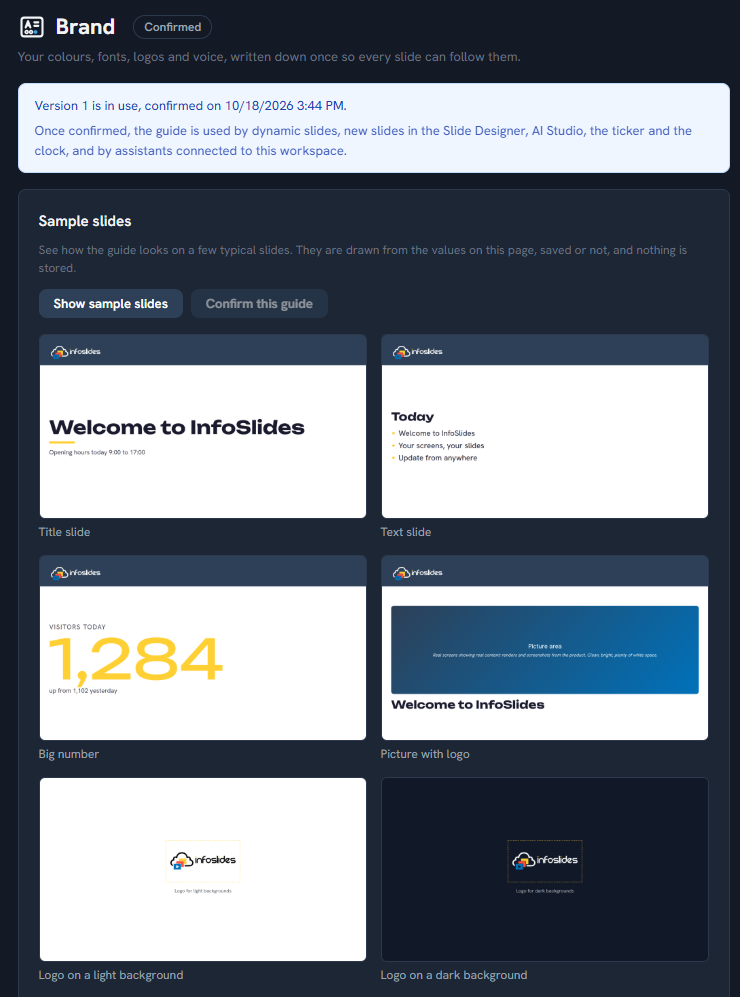
The Brand page with the status line at the top and the Sample slides card
Where to find it
Click Workspace in the left sidebar to open the group, then click Brand. Roles that do not see the Workspace group (for example content managers and viewers) get a Brand link of its own in the sidebar, so everyone can read the guide.
Who can do what
Tenant Admins and the SuperUser can edit, confirm and restore. Everyone else can read the guide, look at its versions and draw the sample slides, but the fields are locked. In a read-only support session the page is read-only too.
Draft, confirmed and versions
A guide starts as a draft. Each card has its own Save draft button, and saving stores the whole page as one draft. Slides keep using the last confirmed version until you confirm the new one, so you can edit freely without changing anything on your screens.
When the sample slides look right, click Confirm this guide. It becomes the next numbered version, and that is the one slides use. The status line at the top says which version is in use and who confirmed it. Confirming queues the slideshows that contain dynamic slides to render again, so the new look reaches your screens.
The Versions card at the bottom keeps every confirmed version. Restore as draft puts an older version back as the working draft. If you have unconfirmed changes, you are asked first, because the restore replaces them. A restored version is used only after you confirm it, and it becomes a new version.
See it before you rely on it
Show sample slides draws eight typical slides from the values on the page, saved or not: a title, a text slide, a big number, a picture slide, your logo on a light and on a dark background, a ticker and a clock. Nothing is stored. If a value has a problem, such as a colour that is not a six-digit hex code, the button is disabled until you fix it.
The cards, one by one
Colours
Primary, secondary, accent, background and text colours, each as a colour picker and a hex code such as #2e4057. Under them you can add extra colours with a name and a role, for example "Red, attention". You get a warning, not a block, when your text colour is hard to read on your background (below the 4.5 to 1 contrast that reads well on a screen).
Fonts
Choose a heading font and a body font. The list has the built-in fonts and any fonts you have uploaded.
Your own fonts lets you upload a woff2, TTF or OTF file (up to 2 MB, up to 8 fonts per workspace). Before you can choose the file you tick that you hold a licence to use the font on the web and on displays. We keep a record of who ticked it and when. Uploaded fonts are private to your workspace, count toward your storage quota, and cannot be removed while the guide's draft or the confirmed guide uses them.
Uploaded fonts are used by dynamic slides and the sample slides. Slides made in the Slide Designer and by AI Studio use the built-in fonts only, and so do the ticker and the clock.
Logos
One logo for light backgrounds, one for dark backgrounds, and a small icon, each an image up to 5 MB. Each slide gets the one that reads on its background. Clear space is the margin around the logo as a percentage of its height.
Voice
A tone, a language and a reading level, phrases to use and phrases to avoid (one per line), and notes on how you write prices, dates and names. AI Studio is given all of this, and banned phrases are removed from the text it writes.
Pictures
Describe the look of the photos you want, and list subjects to avoid, one per line. AI Studio is given both when it drafts a slide.
Layout
Where the logo sits (top or bottom, left or right), how much empty border slides keep (0 to 20 percent), and Coloured band at the top of slides, which adds a band in your primary colour that carries the logo.
Brand checks
Five switches decide what the brand check looks for: colours outside the palette, text that is hard to read, slides without the logo, banned phrases, and fonts that are not the guide's. All five are on by default. The check only advises, it never stops a slide from playing.
Keep content managers inside the guide goes further. Once the guide is confirmed, the Slide Designer offers content managers only your palette colours and your fonts, and a slide that fails the checks cannot be saved, with the reasons shown. Tenant Admins are never limited.
Reference file
Attach a PDF or an image of up to 10 MB, for example your brand manual, so people in the workspace can download it. The system does not read it.
Copy from another workspace (SuperUsers)
A SuperUser can copy another workspace's confirmed guide into this one as a draft. Logos and the reference file are not copied, because they belong to the other workspace, and the keep-content-managers setting stays as this workspace has it. Nothing is used until you review it and confirm.
Where the guide shows up
- Dynamic slides. Templates that use the brand placeholders take your colours, fonts and logos. After you confirm, the affected slideshows render again.
- The Slide Designer. A new slide starts on your background colour, with your header band, your font (when it is a built-in one) and your text colour, and your palette comes first in the colour swatches. You can still change all of it on the slide, unless you have kept content managers inside the guide.
- AI Studio and assistants. Slides they make take your colours, font, logo and header band, and the text follows your voice.
- Ticker and clock. Their colours come from your primary colour, unless your workspace or slideshow settings set their own.
- Assistants and scripts. The CLI, the API and connected assistants read the same guide and can send a changed draft. They cannot confirm it, change the keep-content-managers setting, or upload a font. You confirm on this page.
Checking a slideshow
When the workspace has a confirmed guide, a Brand guide check panel on the slideshow page lists the slides that drift from it, by slide number, or says that the slides follow the guide. It covers slides made in the Slide Designer and dynamic slides. Slides inside an uploaded presentation keep the look they came with and are not checked.
Workspace logo and accent colour
Before you confirm a guide, the Branding card on Workspace Details lets you set a workspace logo and an accent colour. Once a guide is confirmed that card becomes a summary with a link to this page, because the guide now decides. The workspace logo and accent colour remain as the fallback for anything the guide leaves empty.
Tips
- Fill in the logos and colours first, then press Show sample slides before you write anything else. Those two make the biggest difference.
- Confirm when the samples look right, not before. A confirmed guide changes what your screens show.
- Use hex codes from your brand manual. A colour that is close is not the same colour.
- Keep an eye on the banned phrases. They are removed from AI-written text, so a short list of words you never want on a screen is enough.
- Attach your brand manual as the reference file so anyone who makes a slide can open it.
Troubleshooting
- My screens did not change after I saved. Saving only stores a draft. Click Confirm this guide, then wait for the slideshows to render again.
- Restore as draft seems to do nothing. If you have unconfirmed changes, a dialog asks you to confirm the replacement first. Click the button in the dialog.
- Show sample slides is disabled. A value on the page has a problem. Look for the red message under the card and fix it.
- I cannot remove a font. The draft or the confirmed guide still uses it. Choose another font, save, confirm, and then remove it.
- The font upload was refused. The file must be a woff2, TTF or OTF font of up to 2 MB, and you must tick the licence box. You can keep 8 fonts, and the file must fit in your storage quota.
- My Slide Designer slides are not in my font. Designed slides use the built-in fonts only. Choose a built-in font in the guide if you want the Slide Designer to start with it.
- I do not see the Save buttons. Only Tenant Admins can edit the guide. Everyone else can read it.