
The Connected Applications page lists every AI assistant and app that you have allowed to work with your InfoSlides workspace, and lets you cut off any of them with one click. If you have asked ChatGPT, Claude, Microsoft 365 Copilot or another assistant to "put the lunch menu on the lobby screen", this is the page that shows which assistants can do that for you, what they are allowed to do, and where you take that permission away.
From this page you can:
- See every assistant or app connected to your account in this workspace
- Check what each one is allowed to do
- See when each connection was made
- Disconnect an app immediately
What is a connected application?
A connected application is an AI assistant that works inside InfoSlides on your behalf. Instead of opening the InfoSlides website and clicking through pages, you tell the assistant what you want in plain language, for example "which of my screens are offline?" or "hide the Christmas slide", and it carries out the request in your workspace.
Examples are ChatGPT, Claude, Microsoft 365 Copilot, and tools built on the Model Context Protocol (MCP), an open standard that lets assistants use other products.
A connection is created when you approve it once on an InfoSlides consent page. You do not give the assistant your password. InfoSlides gives the assistant its own limited access instead, and this page is where you manage it.
Connected applications and agents that use an API key
Not every assistant that works in your workspace is listed on this page. This page lists only assistants you approved on the consent page above (the ones that "sign in" to InfoSlides on your behalf).
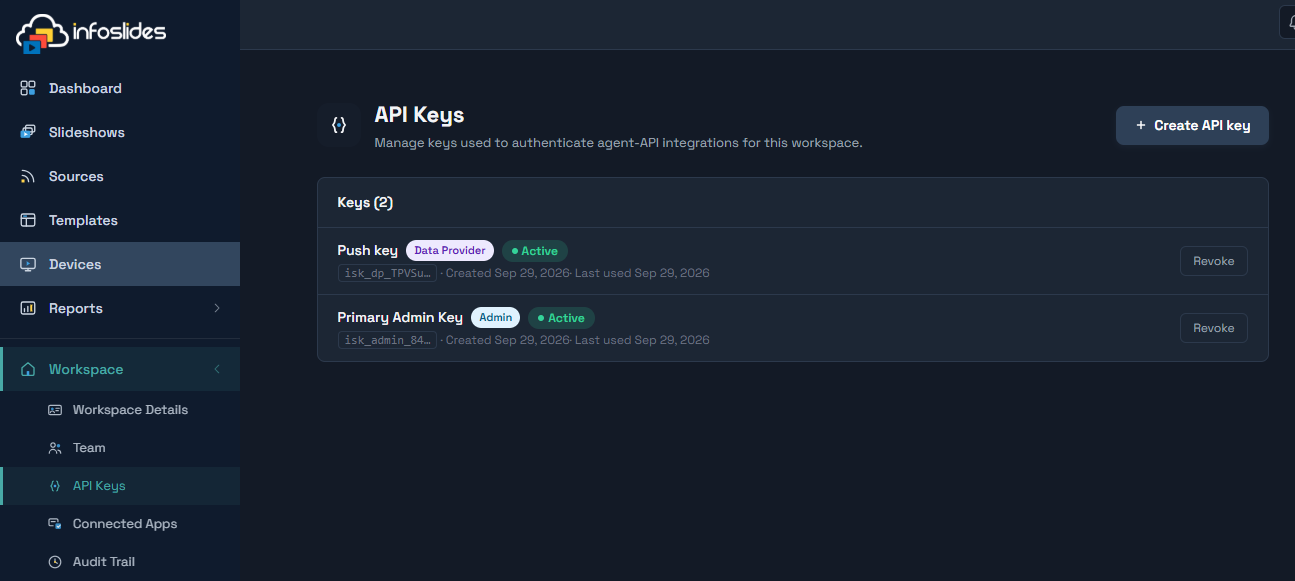
Some AI agents work differently. An agent can create a workspace through the InfoSlides API and receive an API key for it, and then work in the workspace with that key. Such an agent does not appear on the Connected Applications page, because it never went through the consent page. Look for it in these places instead:
- API Keys (Workspace → API Keys). Every key is listed with its name, when it was created and when it was last used. Revoking a key stops the agent that holds it, just as Disconnect does here.
- Team (Workspace → Team). An agent that signed up with its own email address and then invited you appears as a team member, so you can see it and remove it there.
Keep in mind that a key is more powerful than a connection. A connected application has the limits described below, and you choose them. An API key with full access works on the whole workspace, and an agent holding one can do more than a connected application can, including creating further keys. Treat keys like passwords, give them clear names, and revoke the ones you no longer need.
Where to find it
Click Workspace in the left sidebar to open the group, then click Connected Apps. The Workspace group appears for Tenant Admins.
How an app gets onto this page
You do not add apps from this page. They appear after you connect them from the assistant's side:
- In the assistant (for example ChatGPT or Claude), you add InfoSlides as a connector or app.
- The assistant opens an InfoSlides page asking you to sign in. Sign in as you normally do.
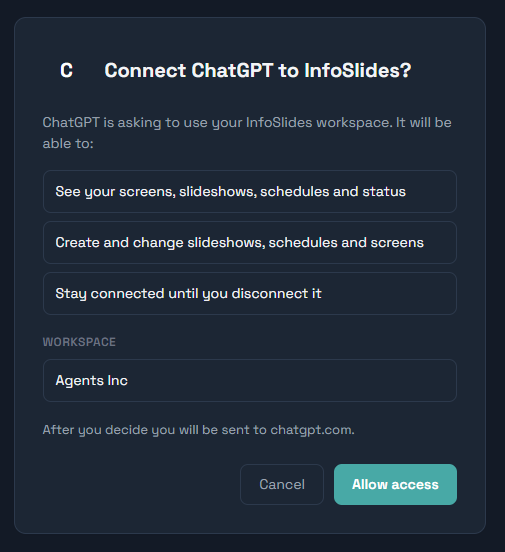
- InfoSlides shows a Connect an application page. It names the assistant, lists what it will be able to do, and shows which workspace it will use. If you belong to more than one workspace, you can choose here.
- Click Allow access. The assistant now works with that workspace, and the connection shows up on this page. If you click Cancel, nothing is connected.
Some apps run on your own computer rather than in the cloud, such as a coding assistant or a developer tool. For those, the consent page shows a yellow warning: "This application runs on your own computer. Only continue if you started it yourself." If you did not just start such an app, click Cancel.
Reading the list
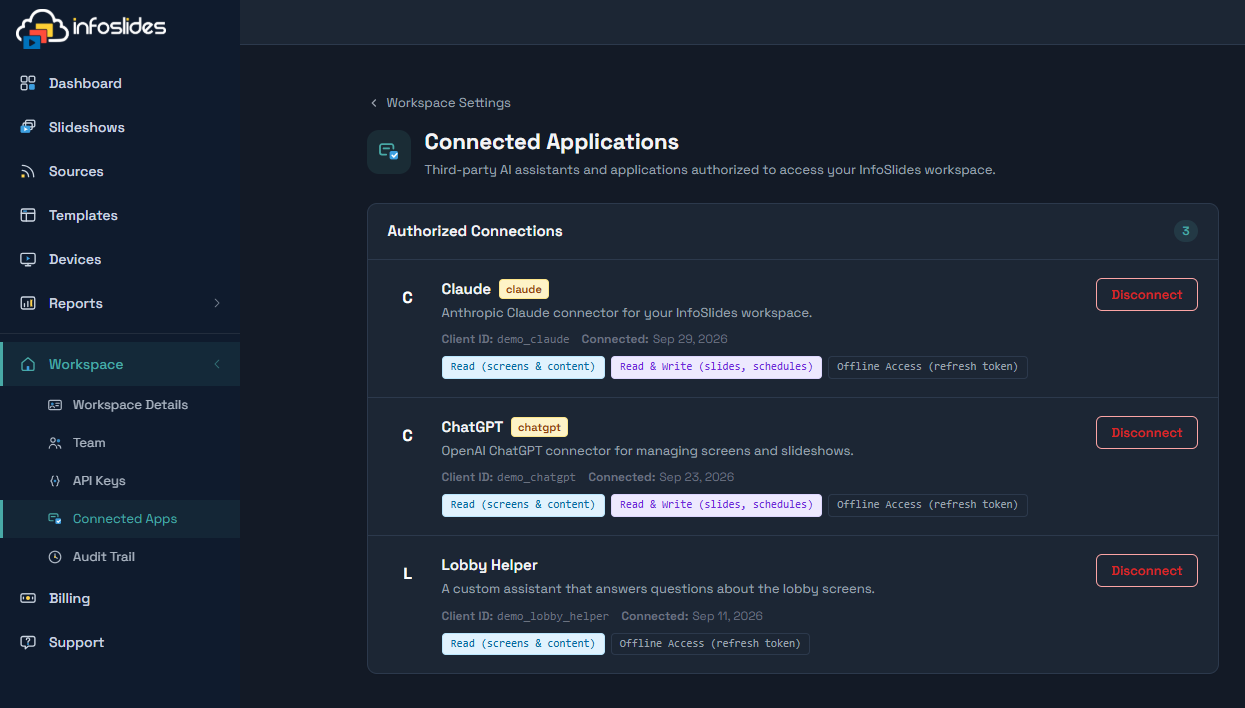
Every connection is a row under Authorized Connections. The number next to the heading is how many connections you have. Each row shows:
- App name and logo. The name the assistant gave itself. If it has no logo, the first letter of its name is shown instead. A small tag next to the name shows the kind of assistant, such as chatgpt.
- Description, when the app provided one.
- Client ID. A technical identifier for the app. You rarely need it, but it is useful if you contact support about a connection.
- Connected. The date you approved the connection.
- Permissions. One coloured chip per permission the app was granted, explained in the next section.
- Disconnect. The button that ends the connection.
You only see the connections that you made yourself in the workspace you are currently signed in to. A colleague's connections, and connections in your other workspaces, do not appear here.
What the permissions mean
When you approve an app you give it one or more permissions. They show as chips on each row:
- Read (screens & content). The app can look but not touch. It can see your screens and whether they are online, what each one is playing, slideshows and slides, schedules, content sources, templates and media, and the health of your workspace. It cannot change anything.
- Read & Write (slides, schedules). Everything in Read, plus changes. It can create and edit slides, change schedules, start a temporary takeover of a screen, pair a new screen, push new live data, and undo its own recent changes.
- Offline Access (refresh token). The app may stay connected between your chats without asking you to approve it again each time. Without it the app would have to ask again after about an hour.
What a connected application can and cannot do
The limits below apply to connected applications, meaning assistants you approved on the consent page. They do not apply to agents that use an API key. A connected application always works as you, with your role in the workspace. It can never do more than you can do yourself, and it cannot reach any other workspace.
Connected assistants are also kept away from the sensitive parts of InfoSlides on purpose. They cannot:
- change your plan, start a subscription, or see or change billing details
- create or revoke API keys
- read files from your computer or upload files from it
If an assistant needs one of these, it will tell you to do it in the InfoSlides web app.
When an assistant changes something, it can undo that change if you say "undo that". An undo works for up to 24 hours after the change.
Disconnecting an app
Disconnect an app when you no longer use it, when you connected it by mistake, or whenever you are unsure what it is.
- Find the app in the list and click Disconnect.
- A confirmation asks "Disconnect Application?" and names the app. Click Disconnect again to confirm, or Cancel to keep it.
- The app disappears from the list.
The effect is immediate. From that moment the app can no longer see or change anything in your workspace, and any request it makes is refused. This includes a chat that is still open in the assistant.
Things to know:
- Disconnecting does not undo what the app already did. Changes it made stay in your workspace. Check the Audit Trail if you want to review them.
- It does not delete the conversation. The chat with ChatGPT, Claude or another assistant is stored by that assistant. Manage it in that assistant's own settings. InfoSlides does not receive your chat history.
- You can connect the app again at any time. Start the connection from the assistant as before and approve it again.
How long a connection lasts
A connection stays active while the assistant uses it. If an assistant is not used for about 30 days, the connection expires by itself and the assistant will ask you to connect again the next time you use it. You do not need to do anything for this to happen.
Connections you disconnect, and ones that expire, are cleaned out of our records automatically after a further 30 days.
When there is nothing in the list
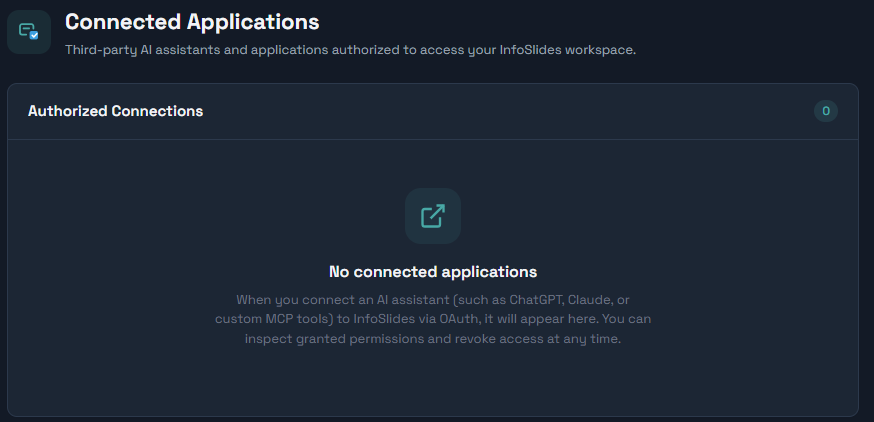
If you have not connected any assistant yet, the page shows "No connected applications" with a short explanation. This is normal. Apps appear here only after you approve them as described above.
Privacy and security
- You never give an assistant your InfoSlides password. It receives its own access, which you can withdraw here at any time.
- InfoSlides does not store your conversations with assistants. We store only the details shown on this page: which app, which permissions, and when.
- When you ask an assistant to generate a slide with AI, your description is sent to an AI provider to do the work. The Privacy Policy explains this in the section on AI assistants and in the section on data sharing.
Read the full details in our Privacy Policy.
Troubleshooting
- I connected an app but it is not in the list. This page shows only your own connections in the workspace you are signed in to. Check that you are in the right workspace, and that you clicked Allow access and did not cancel.
- The assistant says it cannot reach InfoSlides or is not authorized. The connection was probably disconnected or has expired. Connect InfoSlides again from the assistant.
- The assistant can look but cannot change anything. It was probably approved with Read access only. Disconnect it and connect again, and approve the Read & Write permission on the consent page.
- The assistant refuses a task such as upgrading the plan or creating an API key. That is by design. Do those in the InfoSlides web app.
- An agent is working in my workspace but it is not in this list. It most likely uses an API key or is a team member. Check API Keys and Team in the same sidebar group.
- I do not recognise an app in the list. Disconnect it. If you were not the one who connected it, change your password or sign-in method and contact support.
- A change made by an assistant is wrong. Ask the assistant to "undo that" within 24 hours, or fix it by hand in the web app.
Tips
- Connect with Read access first if you only want the assistant to answer questions such as "what is playing on the lobby screen?".
- Clean up now and then. Disconnect assistants and tools you tried once and no longer use.
- Use the same page when you change roles or leave a workspace. Connections follow your account, so removing an old connection takes only a click.
- Not sure what an assistant changed? Open the Audit Trail from the same sidebar group.