
The dashboard is the page that is displayed after login. There you have a quick overview of the slideshows and devices in your workspace. The options on the dashboard are controlled by your role, this means that a device manager does not have access to slideshows and a content manager cannot add or edit device settings. Use the dashboard to jump directly to a device that is offline, or a slideshow.
The Dashboard provides a real-time overview of your workspace's activity and health.
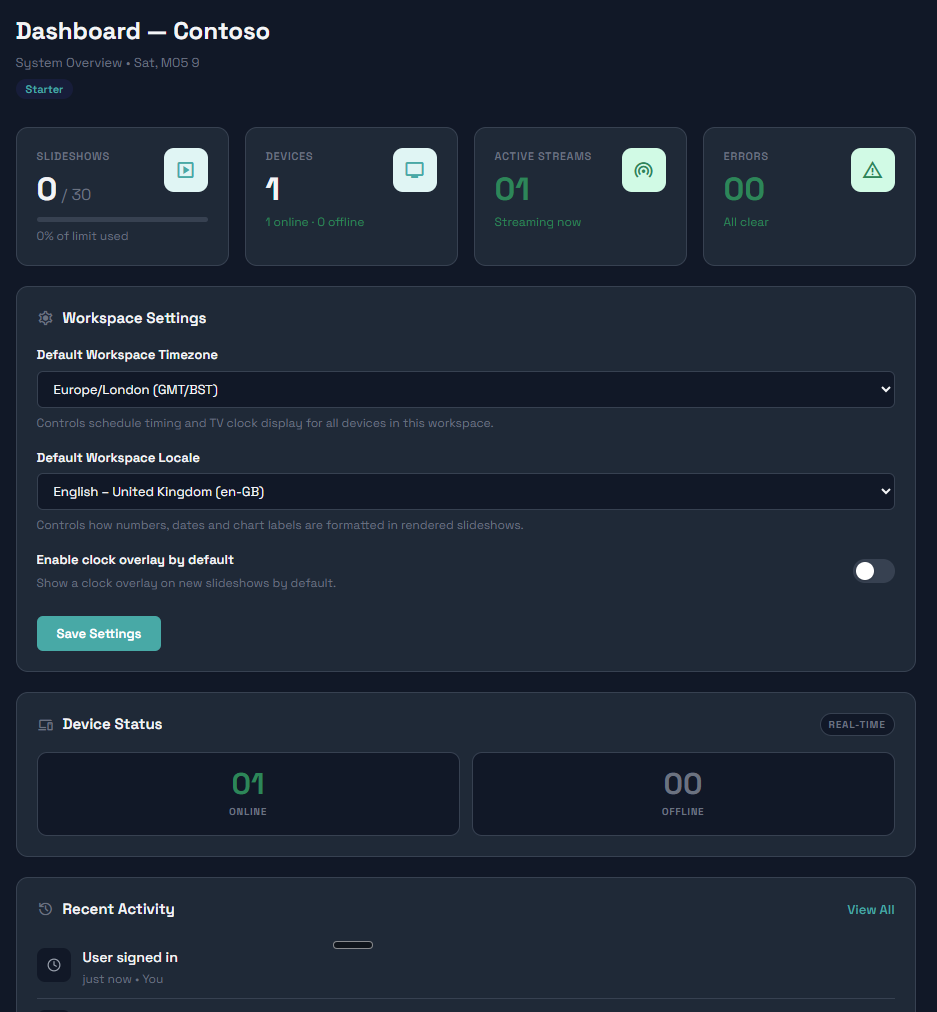
What you can see here:
- Slideshows — total number of slideshows in your workspace, with a usage bar showing how many of your plan's slots are used
- Devices — total device count, broken down into online and offline
- Active Streams — how many devices are currently streaming content
- Errors — a count of recent system errors (visible to Workspace Admins and above only)
- Device Status panel — a real-time breakdown of online vs offline devices, with a list of offline devices and when they were last seen
- Recent Activity — a short feed of the latest events in your workspace (visible to Workspace Admins and above), with a link to the full Audit Trail
The stat cards are clickable and navigate directly to the relevant section (e.g. clicking the Slideshows card takes you to the Slideshows page).
A trial status badge is shown beneath the page title if your workspace is on a free trial, including the expiry date.
The locale setting is important i.e. if you are uploading slideshows that contain dates or financial details. The locale is used to preserve date and currency formats among other things.