
A dynamic slide is a slide that isn't fixed content — it's a template that pulls live data from a content source (an RSS feed, a weather feed, a calendar, and so on) and renders it fresh whenever the deck re-renders. Change the underlying data and the slide updates with it, with no need to edit the slideshow by hand.
Dynamic slides are available on Starter and higher plans. On Free, the Add Dynamic button doesn't appear at all — this is a deliberate hidden-not-disabled choice so the page never shows a control you can't use. If you reach the wizard some other way on a Free plan, you'll get a toast: "Dynamic slides are available on Starter and higher plans. Upgrade to unlock live data slides."
Where to find it
On a slideshow's detail page, click Add Dynamic in the slide toolbar, or click directly on an existing dynamic slide's card to edit it.
Step 1 — pick a template
A grid of available slide templates — thumbnail, name, category. Templates come in two kinds:
- Global templates, maintained centrally and available to every tenant. They're read-only, but a Clone & Customize button forks a private, fully editable copy into your own workspace.
- Your own templates, including anything you've cloned, which are editable directly.
Editing an existing dynamic slide skips this step entirely and drops you straight into configuration.
Step 2 — configure the slide
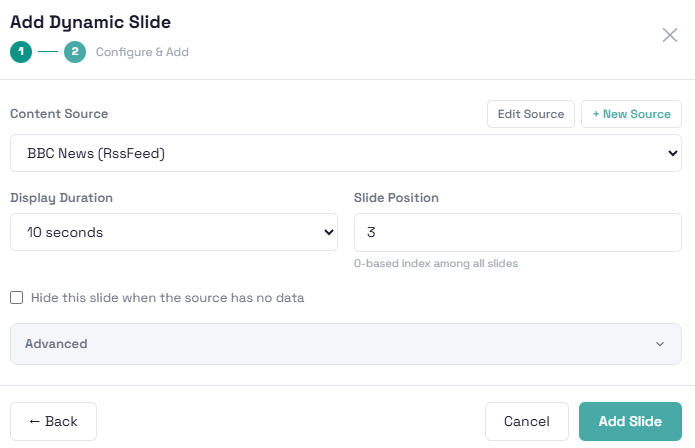
- Content Source — a dropdown filtered to sources matching the template's required content type. Optional unless the template specifically requires one, in which case leaving it empty shows an inline red hint.
- Display Duration and Slide Position (0-based) — how long the slide shows and where it sits in the deck.
- Hide this slide when the source has no data — an optional checkbox so an empty feed doesn't leave a blank or broken-looking slide in rotation.
- Countdown Overlay — for templates that support a countdown, this is auto-detected and configured per overlay as either a fixed date/time, a daily recurring time, or a value pulled straight from a field on the content source. Templates built specifically for countdown content configure this automatically.
Advanced (collapsed by default)
- Field Mapping — a table binding fields from the source's data (e.g. a feed item's title, or a weather reading's temperature) onto the template's own properties.
- Override Data — a raw JSON textarea. Anything set here takes precedence over the field mapping, for one-off tweaks that don't need a permanent mapping change.
Creating a source without leaving the wizard
Inline + New Source and Edit Source buttons (visible to SuperUsers, Tenant Admins and Content Managers) open the source form right there, so you don't have to abandon the wizard to go set one up on the Sources page first.
Content source tiers
Which adapter types you can pick from depends on your plan, and the list you see is already filtered server-side — there's no separate "upgrade to unlock" message inside the wizard itself, the option simply isn't in the dropdown:
- Tier 1 sources are available on every plan.
- Tier 2 sources need Professional or higher.
- Tier 3 sources need Business or higher.
If a source type you expect isn't in the list, that's the first thing to check.
The "no content source" warning
Back on the slide grid, a dynamic slide whose template requires a source but doesn't have one linked shows an inline "⚠ No content source. Click to fix." warning right on the card. Click it to jump straight into the edit wizard.
Tips
- Use Override Data sparingly — it's meant for a quick one-off check, not as a substitute for a proper field mapping. It's easy to forget it's there and wonder later why a slide isn't reflecting live data anymore.
- Clone & Customize a global template rather than building one from scratch if it's close to what you need — you keep the original's structure and only change what's actually different.
- Turn on Hide this slide when the source has no data for anything tied to a feed that can legitimately go empty (an RSS feed with no new items, a calendar with nothing upcoming), so the deck doesn't show a blank slide when that happens.
- If a content source type is missing from the dropdown, it's a plan limit, not a bug — check the tier table above.