
Media is any photo, video or graphic you want to put on screen — as its own slide, or as the background for something built in the Slide Designer. There are two separate places media shows up, and it helps to know which is which:
- The Media page (in the sidebar, or via Upload Media on a slideshow) is the full library — upload, organise, share and delete assets.
- The Insert Media panel described here is a read-only, insert-only view of that same library, docked onto the Slideshow Details page so you can drop an asset straight into the deck you're building.
If you need to upload something new, go to the Media page first (or click Upload Media, which deep-links there filtered to the current slideshow). This panel only places what's already there.
Where to find it
On a slideshow's detail page, click Insert Media in the slide toolbar. A 320px panel docks in next to the slide grid.
Reading the panel
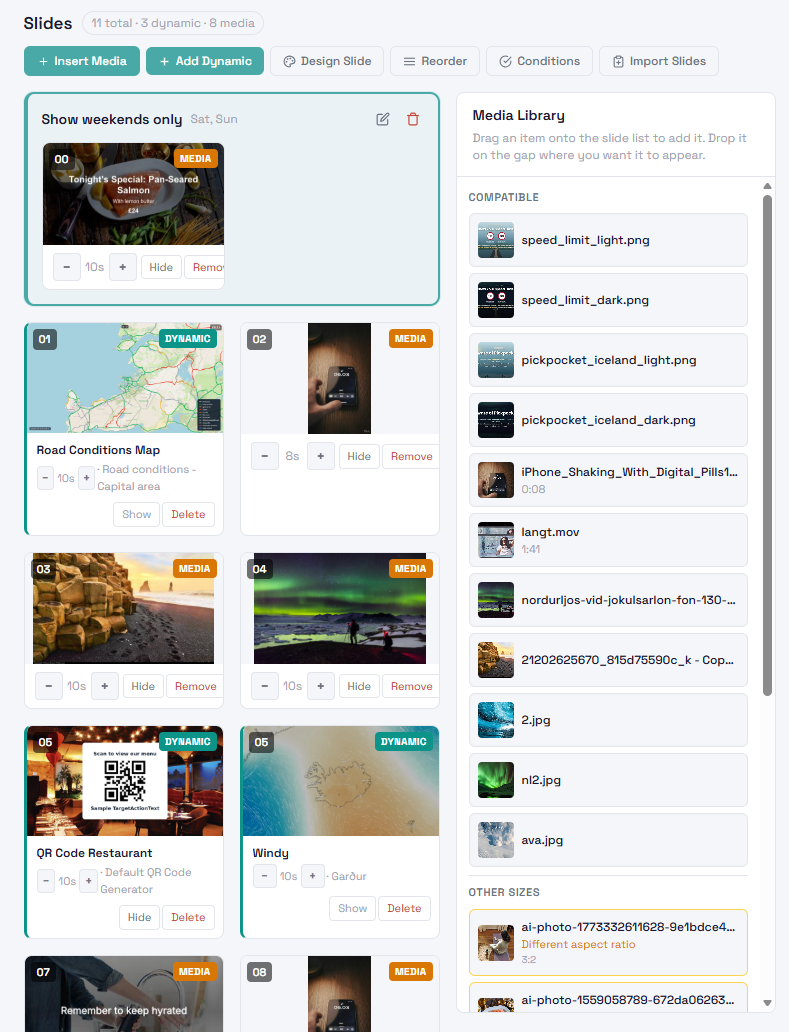
Your own assets are split into two sections:
- Compatible — assets whose aspect ratio matches this slideshow's stream resolution. These will fill the screen properly with no letterboxing.
- Other Sizes — everything else, each row flagged with an amber Different aspect ratio label. These still work, but the player will letterbox or pillarbox them to fit.
Below both, a Media shared by other users section lists assets other people in your tenant have made available, split the same way by compatibility.
An asset that's still transcoding is dimmed and shows Transcoding… in place of a drag handle — it isn't insertable yet. If nothing's been uploaded, the panel says "No media assets yet."
Inserting an asset
On desktop, drag a row from the panel onto the slide grid; drop zones appear between existing cards as you drag, marking exactly where the new slide will land. On mobile, where dragging is awkward, each row has a + tap target instead that inserts it at the end.
If you insert something from Other Sizes, a confirmation dialog warns you first — "This asset's aspect ratio doesn't match the slideshow. It will be letterboxed or pillarboxed…" — since a mismatched insert is easy to do by accident and only obvious once it's already on screen.
Tips
- Check Compatible first. An asset from Other Sizes isn't wrong, but it will show letterboxed bars on the actual screen, which is easy to miss until you look at it playing.
- A row stuck on Transcoding… for a long time is worth checking on the Media page directly — it may be a large file or a processing issue, not just a slow moment.
- Use Media shared by other users to reuse an asset someone else already uploaded, rather than uploading your own copy of the same file.
- To manage assets themselves — rename, delete, re-share, check processing status in detail — go to the Media page. This panel only inserts.