
A slide condition shows or hides a range of slides based on a rule — the date, the time of day, the day of the week, or whether a content source currently has data. It's how you build a deck that behaves differently on its own, without anyone having to remember to edit it: a happy-hour slide that only appears from 4pm to 6pm, a promotion that runs until a set date, a slide that only shows when the linked feed actually has something to say.
Where to find it
On a slideshow's detail page, click Conditions in the slide toolbar.
The Manage Conditions modal
Lists every condition already set up on this slideshow — its name, whether it's currently Active, Inactive, or not yet evaluated, and the slide range it covers — with Edit and Delete on each. Below that, a checklist of the deck's slides lets you select a range and click Create Condition (or Add Without Selection to build one and set the range afterward).
Active conditions also render directly on the slide grid: the covered slides get a bordered band around them with the same status dot, so you can see at a glance which parts of the deck are being controlled by a rule.
Building a condition
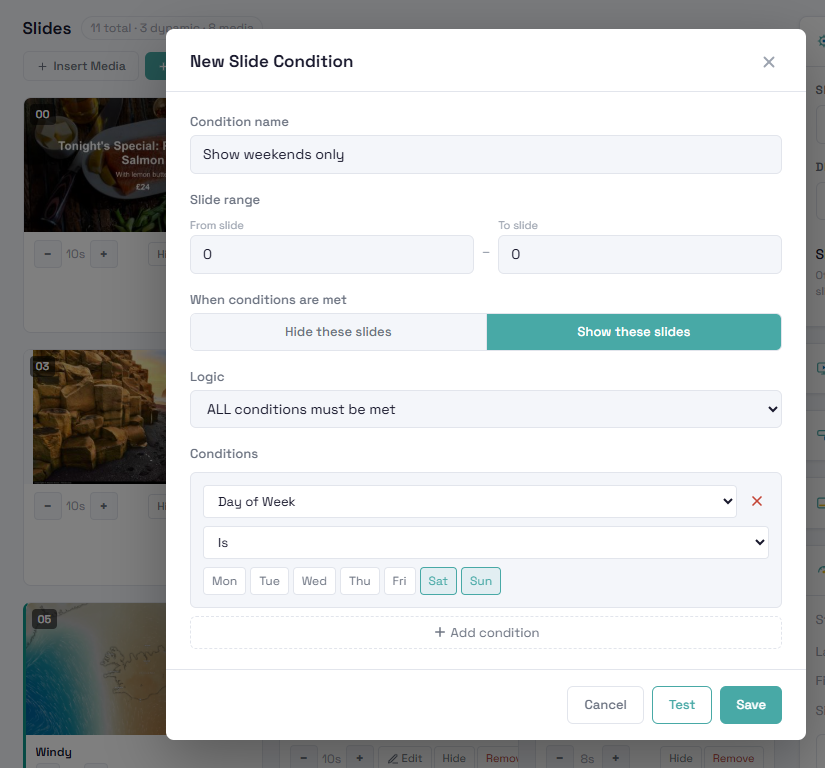
- Condition name — a label of your choosing; leave it blank and InfoSlides generates one from the first condition type you add.
- Slide range — From slide / To slide, by position. Ranges can't overlap another condition already on the deck — the editor tells you which one collides if you try.
- When conditions are met — Hide these slides or Show these slides. Hide is the default: the range plays normally until the condition becomes true, then drops out of rotation.
- Logic — ALL conditions must be met, or ANY one of them, when you've added more than one.
Condition types
- Date — before, after, or between two dates, evaluated in a timezone you choose per condition (it defaults to your browser's).
- Time of Day — between or outside a start and end time, also with its own timezone.
- Day of Week — is, or is not, one or more days, picked from a row of day chips.
- Content Has Items / Content Is Empty — whether a chosen content source currently has data at all. This is what powers "hide this slide if the feed is empty" without needing the field-level checkbox that dynamic slides have built in.
- Content Match — whether a source's Title or Body field contains (or doesn't contain) a specific piece of text.
Add as many conditions as the rule needs with + Add condition; each one gets its own row with type-specific fields.
Testing before you save
Click Test to evaluate the rule as written, right now, without saving it. It reports "Would be active now" or "Would be inactive now" — the fastest way to catch a logic mistake (an inverted operator, the wrong day) before it goes live on a screen.
Deleting a condition
Open an existing condition and click Delete condition. You'll be asked to confirm — the affected slides simply return to always-visible, nothing about the slides themselves is touched.
Tips
- Always Test before saving, especially for date and time conditions — it's the only way to know the rule does what you meant without waiting for the actual date or time to arrive.
- If a condition's status dot won't move to Active when you expect it to, check its timezone first. A time-of-day condition set to the wrong timezone is the single most common reason a slide shows or hides at the wrong hour.
- Use Content Is Empty to hide a whole range of related slides when a feed dries up, rather than relying on each dynamic slide's own "hide if empty" checkbox individually.
- A range that won't save because it "overlaps" an existing condition means exactly that — two conditions can't both claim the same slide. Narrow one of the ranges first.