
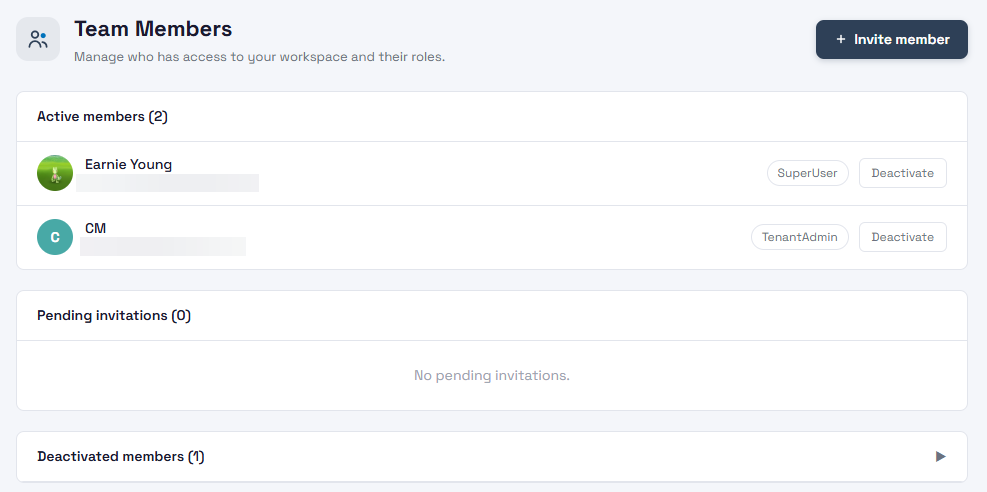
The Team page shows everyone who has access to your workspace and what each person is allowed to do. From here you can invite new people, take access away from someone who has left, and bring them back later if needed.
Where to find it
Click Workspace in the left sidebar to open the group, then click Team. The Workspace group is shown to Tenant Admins, and only Tenant Admins can invite, deactivate or reactivate people.
What is on the page
- Active members. Everyone who can sign in to your workspace right now, with their role.
- Pending invitations. People you have invited who have not accepted yet. Each shows the role they were invited as and the date the invitation expires.
- Deactivated members. People who no longer have access. Click the heading to open or close this list.
The roles
Every person has exactly one role. Pick the smallest role that lets them do their job.
- Tenant Admin. Full control of the workspace: team, settings, billing, devices, slideshows and API keys. The person who created the workspace is a Tenant Admin.
- Content Manager. The everyday editor. Creates, edits and publishes slideshows, pairs screens and manages schedules. Cannot manage the team or workspace settings.
- Device Manager. Looks after the screens: pair, rename and move them. Can see slideshows and schedules but cannot create or change them. A good fit for IT staff.
- Viewer. Read-only. Can see the dashboard, screen status, slideshows and schedules, and cannot change anything. A good fit for managers who just want to keep an eye on things.
Adding a team member
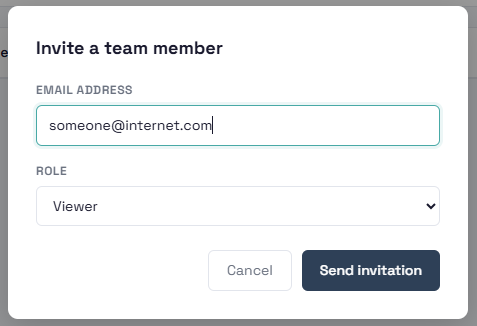
- Click Invite member at the top right.
- Type their email address.
- Choose a role. The role is pre-set to Viewer, so check it before you send.
- Click Send invitation.
InfoSlides emails the person a link. They click it, sign in with their own account (Google or Microsoft, or email and password) and they are in. The invitation appears under Pending invitations until they accept.
Good to know:
- An invitation is valid for 7 days. After that it expires and you can simply send a new one.
- If you invite the same email again, the older pending invitation is replaced by the new one.
- You cannot invite someone who is already a member. InfoSlides tells you if the address is already on the list.
- The email must be the address they will sign in with.
Cancelling an invitation
Find it under Pending invitations and click Revoke. The link in the email stops working straight away. Do this if you typed the wrong address or chose the wrong role. Then send a new invitation.
Removing access: deactivate and reactivate
When someone leaves or no longer needs access, click Deactivate next to their name. They cannot sign in any more, and they move to the Deactivated members list. Nothing they created is deleted. Their slideshows and history stay in the workspace.
To give access back, open Deactivated members and click Reactivate.
A workspace must always keep at least one active Tenant Admin. If you try to deactivate the last one, the page refuses and tells you so.
AI agents as team members
A team member does not have to be a person. An AI agent can work in your workspace too, and there are three ways it can end up there:
- The agent set up the workspace for you. It signs up with its own email address and then invites you as a Tenant Admin. You accept the invitation like any other, and from then on you are both admins. The agent shows up on this Team page as a member, so you can see it, change who has access, or deactivate it here.
- The agent holds an API key. It works with a key you created, not with a user account. It does not appear on this page. You manage it on the API Keys page (Workspace → API Keys). See the article about API keys for how to create, scope and revoke them.
- You connected an assistant such as ChatGPT or Claude. That assistant works as you, and you manage it on the Connected Apps page.
Rule of thumb: if the agent has its own login, look here. If it uses a key, look at API Keys. If it signs in on your behalf, look at Connected Apps.
Tips
- Keep at least two Tenant Admins, so the workspace is never stuck if one of them is away or leaves.
- Check the list now and then and deactivate people who have moved on.
- Invited the wrong role? Revoke the invitation and send a new one, or ask an existing admin to correct it. Whoever accepts gets exactly the role in the invitation.
- Want to know what a team member did? The Audit Trail shows actions by person.
Troubleshooting
- The invited person did not get an email. Ask them to check their spam folder and confirm the address is spelled right. If it is wrong, revoke the invitation and send a new one.
- The link says it has expired. Invitations last 7 days. Send a new one.
- "This email address is already a member of this workspace". They already have access. If they cannot sign in, check the Deactivated members list and reactivate them.
- "Failed to deactivate user". You are probably deactivating the last active Tenant Admin. Invite or promote another admin first.
- I cannot see the Invite member button. Only Tenant Admins can invite people.