
AI Studio is a chat panel built into InfoSlides that turns what you describe into finished slides. You type, speak, photograph, paste a link, or upload a file, and it hands back a slide ready to add to your slideshow. Nothing is ever added automatically — you always preview and confirm first.
This article explains how the panel works and how to get good results. Each agent has its own short article with worked examples, linked at the bottom.
Where to find it
AI Studio opens from two places, and it behaves differently in each.
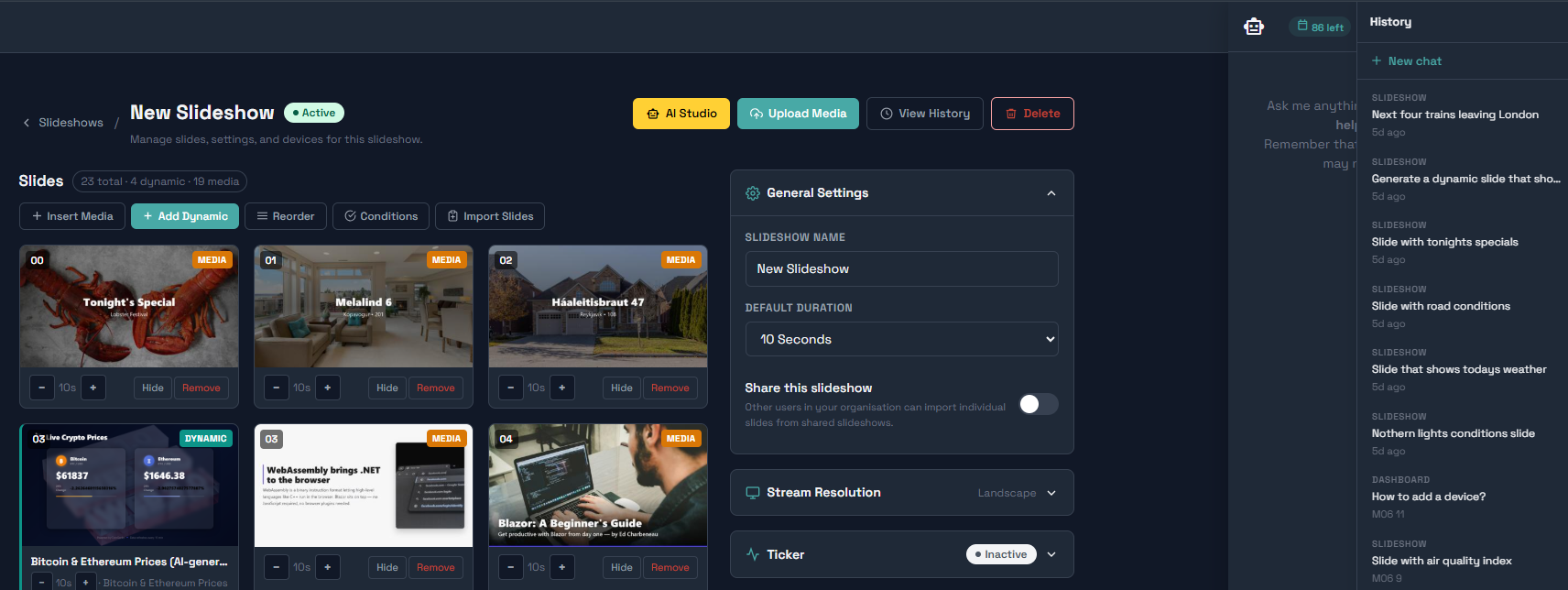
Inside a slideshow it is a slide maker. This is where you create slides. Open a slideshow and look for the AI Studio button.
On the dashboard it is a support assistant. Ask it how to do something ("How do I pair a TV?") and it finds the right help article and can take you straight to the page. Slide creation is turned off here on purpose — open a slideshow to make slides.

Two ways to use it: free-text or guided wizard
You can type a prompt in plain language ("Tonight's special: lamb chops, £28, from 6pm") and get a slide
back in one step. Or you can use the guided wizard — a step-by-step flow that asks you the right
questions for the agent you're using. To launch any wizard, type help in the composer, or click the
rescue ring icon (⭕) in the composer toolbar — either opens the wizard menu as clickable buttons, no
credits consumed. Click a wizard to start it immediately.
Wizards are especially useful the first time you use an agent, when a result came out wrong and you want to correct specific fields, or when the input is structured (a spreadsheet, a document) and you want control over the field mapping. Every wizard offers an escape, "Just let me type it instead", that returns you to free-text with the right agent already pinned.
The golden rule: supply the facts
AI Studio is a faithful copywriter, not a fact-finder. It will phrase your message well, but it will never invent a price, a time, a date, a phone number, or a name. Give it the real details and it copies them exactly. Leave a detail out and it simply won't appear on the slide. "Tonight's special: lamb chops, £28, from 6pm" works far better than "make something about our food."
Static slides vs. dynamic slides
Most agents produce a static slide — a finished PNG image rendered once and inserted into your slideshow. To change it, edit it through the agent again. This covers generate-slide, voice-to-slide, photo-to-slide, url-to-slide, document-to-slideshow, and spreadsheet-to-slides. These slides are also added to your media library so it is easy to reuse them.
The Build a live data slide agent works differently. It creates three things: a content source (the live feed), a slide template, and a dynamic slide that re-renders automatically every time the source updates. The result is always fresh, and updates automatically.
How a static slide is built
Every text-style slide goes through the same three steps behind the scenes: it writes concise copy from your input, picks the best-fitting layout from a curated library, then renders a finished image at your slideshow's resolution. The agent's job is deliberately narrow; write the words, pick the layout, decide how much text and whether a photo helps. Fonts, colours, spacing and contrast are guaranteed by the templates, so you can't end up with an off-brand or unreadable design from a styling mistake.
Branding
Branding is off by default. Say "on brand", "use our logo" or "our colours" to turn it on for a slide, and set your logo and accent colour in workspace settings first, or the slide comes out in a clean neutral style. The agent never makes up a brand it doesn't have.
Session history
A history button in the panel header lists your recent conversations across both surfaces — title, surface, and how long ago. Click one to rehydrate it. "New chat" starts fresh. Conversations are retained for 14 days.
Attaching files from your media library
The media library button in the composer opens your existing library so you can attach an image or document without re-uploading. Filters to images or documents depending on context.
Editing and options
To change a slide, use Edit and ask for the specific change ("shorten the headline", "change the price to £30"). Only what you asked for changes; the layout and the rest of the copy stay pinned. This is far more predictable than re-typing your prompt, which produces a fresh slide from scratch.
If you'd rather choose, turn on "show options" before you generate. You'll get two genuinely different designs of the same slide; keep one, keep both, or discard.

Rating results
After any result, you can rate it thumbs up or down. A thumbs-down on a result that had a clear intent offers a guided wizard for that same request — useful when a result came out structurally wrong and you want to rebuild it properly rather than keep patching it. Ratings also help improve output quality over time.
Plans and limits
AI Studio is available on Starter and higher plans. On the Free plan the buttons are visible but prompt you to upgrade. Each plan includes a monthly allowance of generations; you can see your usage in workspace settings. Copy and transcription use a fast, cheap model, so everyday slide-making goes a long way. More credit tokens can be bought, either on the Dashboard or on the Billing page.
A few habits that help
State facts plainly and let the agent phrase them. Keep one idea per slide. Feed clean inputs, a sharp, straight-on photo; a public link; a text-based (not scanned) document; a spreadsheet with clear headers. Name the subject when you want a background photo. And preview every slide before adding it.