
The Workspace Details page is where you set the ground rules for your whole workspace: its name, its timezone, and the starting look of every new slideshow (slide length, ticker, clock and more). You set a value once here, and every slideshow in the workspace follows it, unless a single slideshow has its own value for that setting.
Where to find it
Click Workspace in the left sidebar to open the group, then click Workspace Details. The Workspace group is shown to Tenant Admins.
Defaults, and what "blank" means
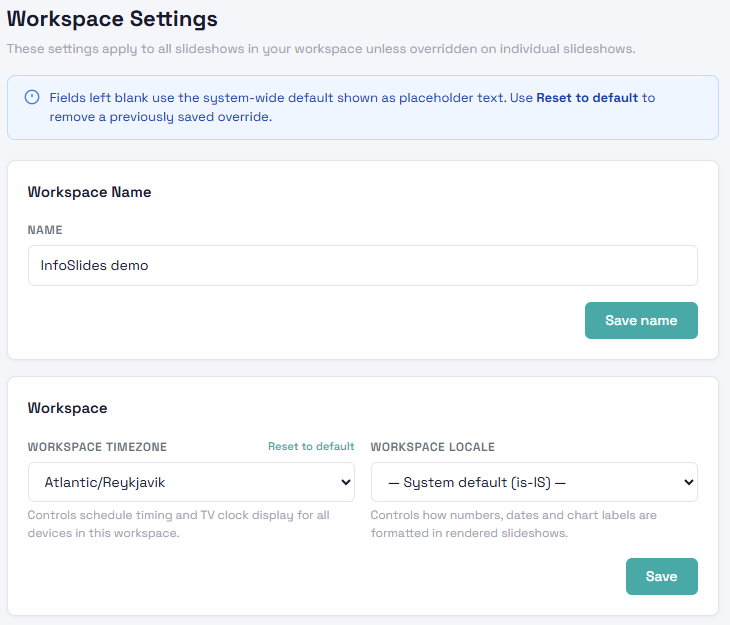
Almost every setting on this page starts out empty. An empty field is not a mistake. It means "use the standard InfoSlides value". The standard value is shown in grey as placeholder text inside the field (or as "System default: on/off" under a switch), so you can always see what you are getting.
- Leave a field blank and your workspace follows the standard value. If InfoSlides ever improves a standard value, you get the improvement automatically.
- Type or pick a value and that value becomes your workspace's own choice. It stays that way until you change it.
- Click Reset to default (the small link next to a field, shown once you have changed it) to throw your own value away and go back to following the standard.
Using the defaults is a perfectly good choice. Most workspaces only change the name, the timezone and maybe the ticker or clock.
Defaults versus a single slideshow
The settings here are the workspace-wide starting point. A single slideshow can still set its own slide length, ticker, clock or playback mode in its own settings, and that always wins for that slideshow. Think of this page as "what every slideshow does unless told otherwise".
A change you save here reaches a slideshow the next time that slideshow is rendered, for example after you edit its content or when its next scheduled refresh runs. Slideshows that are already playing keep showing their last rendered version until then.
Saving
Each card has its own Save button, and they all do the same thing: they save every setting on the page except the workspace name. You can change several cards and press any one Save. Unsaved changes are lost if you leave the page. The Workspace Name card has its own Save name button.
The settings, card by card
Workspace Name
The name of your workspace, shown in the app and in emails. It cannot be empty and can be up to 100 characters. Changing it does not affect your slideshows, screens or team.
Workspace (timezone and locale)
- Workspace timezone. This is the clock your workspace lives by. It decides when schedules start and stop, which time the clock overlay on your screens shows, and when time-based slide rules (such as "only show this slide at lunchtime") switch on. If your screens are in a different place from the standard timezone, set this first, because a wrong timezone makes schedules fire at the wrong hour. Standard: Atlantic/Reykjavik.
- Workspace locale. This decides how numbers, dates and chart labels are written on your slides, for example 1.234,50 or 1,234.50, and the order of day and month. Pick the country whose style your viewers expect. Standard: Icelandic (is-IS).
Device Offline Alerts
InfoSlides can email you when a screen goes offline. Quiet hours let you say "do not bother me during this window", for example overnight when screens are switched off on purpose.
- Enter a start and an end time (in your workspace timezone). A screen that is offline inside the window does not trigger an email. If it is still offline when the window ends, the alert is sent then.
- An end time earlier than the start time simply runs past midnight, so 22:00 to 07:00 works as you would expect.
- Leave both blank for no quiet hours, which means alerts can be sent at any time. This is the standard.
- Quiet hours apply to screens that have no schedule of their own. A screen with a schedule is only checked during its scheduled hours anyway.
Slideshow Defaults
- Default slide duration (seconds). How long each slide stays on screen, from 1 to 300 seconds. Standard: 10 seconds. A slideshow or slide can still set its own length.
- Stream resolution. The shape and size of the picture your screens receive: landscape or portrait, at different sizes. Pick the card that matches how your screens are mounted. Standard: landscape 1080p (Full HD). Choose portrait only for screens that are physically turned on their side.
Playback Mode Default
How your slideshows reach the screen. There are three choices, plus Follow system default (the standard, which currently means video stream):
- Auto. Slideshows play as live web pages wherever every screen can, and switch to video on their own when a screen or app cannot show web pages. This is the recommended choice.
- Video stream. Slideshows are turned into a continuous video. It works with any video player, TV app or signage box.
- HTML. Slideshows are live web pages that stay current without being re-created. This needs a compatible player: the browser player, or the Android TV app (version 1.2.0 or newer). Screens that cannot do it fall back to video. A slideshow in this mode has no video link, so third-party players such as OBS or other signage boxes cannot show it.
Changing this does not redo slideshows you already have. They keep their last version until they are rendered again.
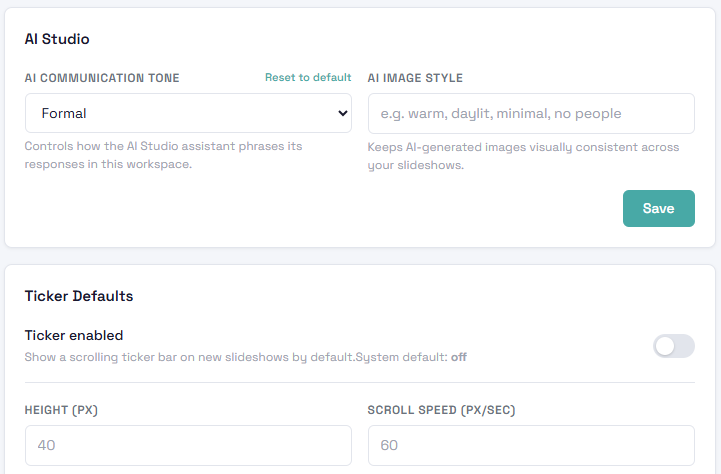
AI Studio
- AI communication tone. How the AI assistant words its suggestions and slide text for your workspace, for example friendlier or more formal. Standard: Friendly.
- AI image style. A short description such as "warm, daylit, minimal, no people". It is added to image requests so pictures made by AI look like they belong together. Blank means no style guidance.
Ticker Defaults
The ticker is the scrolling bar along the bottom of a slideshow that shows headlines or other live content. These settings are the starting look for new slideshows.
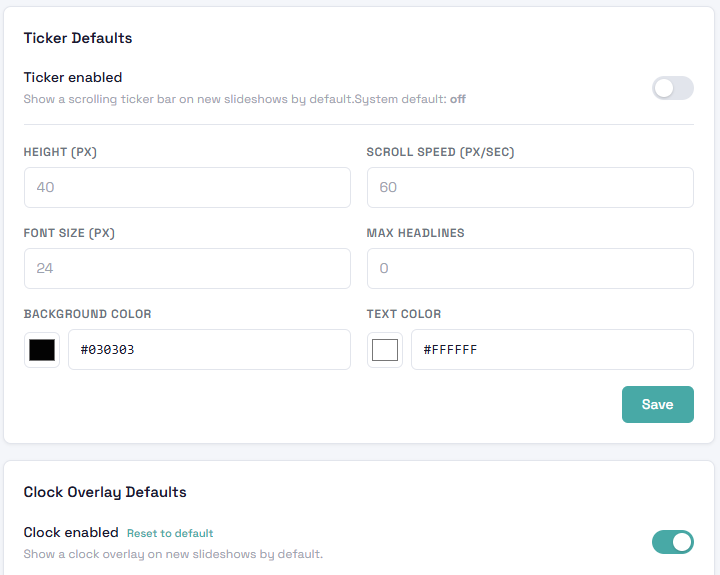
- Ticker enabled. Whether new slideshows get a ticker. Standard: off.
- Height (px). How tall the bar is, 20 to 200. Standard: 80.
- Scroll speed (px/sec). How fast text moves, 10 to 500. Standard: 60.
- Font size (px). 10 to 80. Standard: 18.
- Max headlines. How many items the ticker cycles through, 1 to 100. Standard: 10.
- Background color and Text color. Standard: dark navy background with white text.
Clock Overlay Defaults
A small clock shown on top of the slides. Its time uses your workspace timezone.
- Clock enabled. Standard: on.
- Show date. Show the date next to the time. Standard: on.
- Position. Top left, top right, bottom left or bottom right. Standard: top right.
- Background color and Text color. Standard: a see-through black background with white text.
Tips
- Set the timezone before you build schedules. It is the single setting most likely to cause "why did it switch at the wrong time?" questions.
- Only override what you need. The fewer overrides you have, the easier it is to see why a slideshow looks the way it does.
- If a slideshow looks different from what you set here, check whether that slideshow has its own setting for the same thing.
- Not sure who changed something? The Audit Trail in the same sidebar group records settings changes.
Troubleshooting
- My change did not show on the screen. The slideshow shows its last rendered version until it is rendered again. Edit the slideshow or wait for its next refresh. Also check that the slideshow does not have its own override.
- Schedules start an hour early or late. Check the workspace timezone, and remember that the standard is Atlantic/Reykjavik, not your local zone.
- I do not see the Workspace group in the sidebar. It is shown to Tenant Admins. Ask an admin in your workspace to change your role or make the change for you.
- "Could not save settings". Check that every number is inside the allowed range shown above, then try again.