
It is 12:15 on a Thursday. The kitchen has just sold the last portion of the salmon. In the back, someone types a note into the system the staff already use to track stock: salmon, sold out.
Out front, the digital menu board still shows the salmon for another half hour. Three guests order it. Three times the person at the counter says sorry.
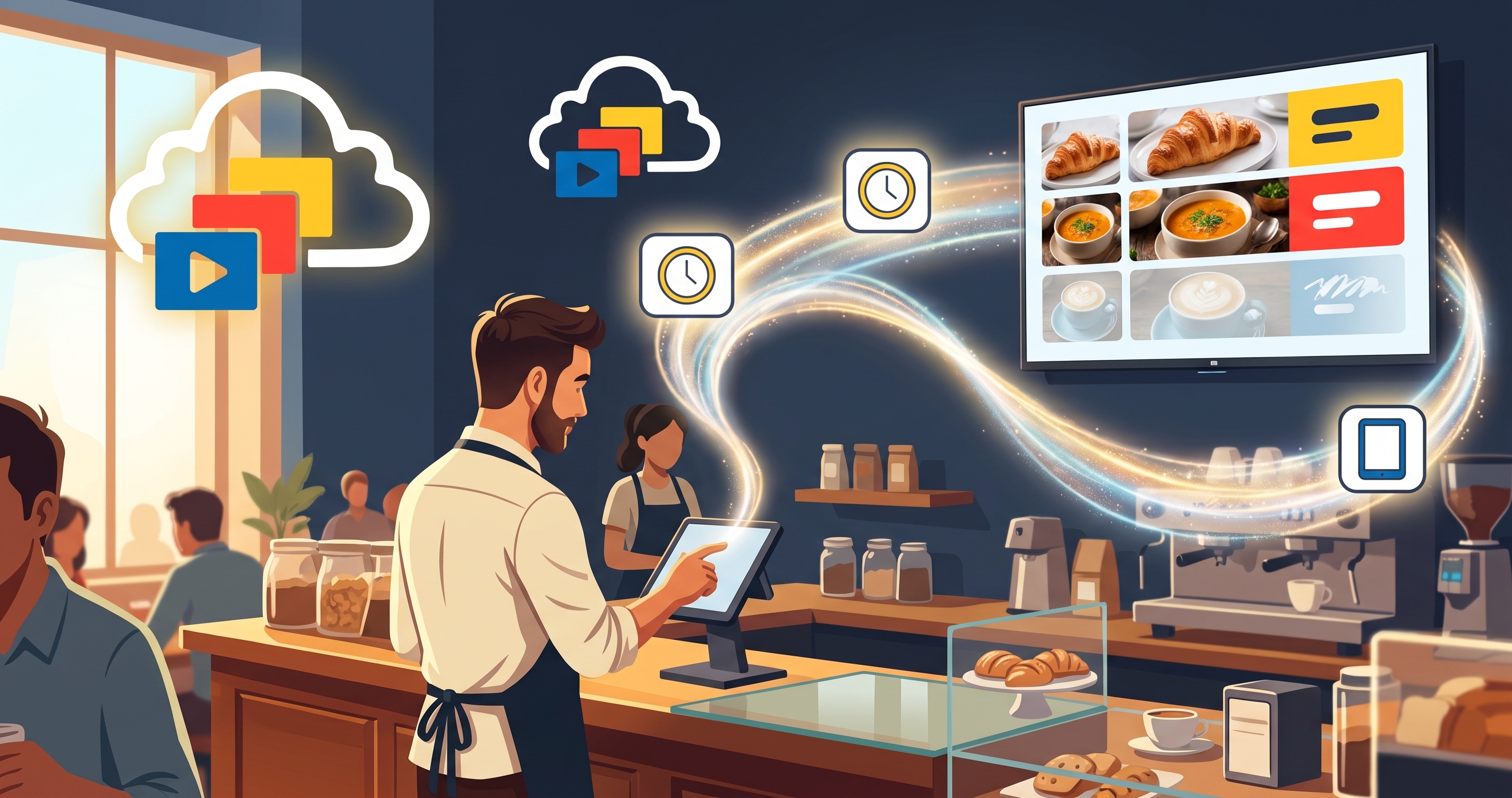
Nothing was wrong with the screen. It just did not know what the kitchen knew. A live menu board closes that gap: it updates automatically, so the screen shows what is true right now and nobody has to remember to change it.
Digital signage that listens to the systems you already use
Most places already have something that knows things. The till knows what sold. The queue ticket machine knows who is next. The booking system knows who arrives today. The stock list knows what is left. A thermometer in the cold room knows the temperature.
Today, a person usually carries that information to the screen by hand, if anyone has time. With live digital signage slides, the system sends it directly. You set it up once. After that, a change in your own system shows up on the TV without anyone opening a slide editor.
Here are some ways this plays out:
- The café. The kitchen marks a dish as sold out. The line disappears from the board. If you run a restaurant, our page on digital menu board software for restaurants shows more boards like this.
- The hotel lobby. The booking system knows who checks in today. The welcome screen welcomes this afternoon's arrivals, and tomorrow it shows tomorrow's. See also digital signage for hotels.
- The clinic or the repair shop. The ticket machine calls number 42. The waiting room screen says "Now serving 42, Room 2".
- The warehouse. The shift counter reaches 1,200 packages. The wall screen shows how the team is doing against today's target.
- The sports bar. A score feed reports a goal. The screen shows the new score.
In each case the screen is not a separate job. It is another place your own information shows up.
How a screen that updates automatically works
You design a slide once, with blanks in it: "Now serving ____", "Salmon: ____". InfoSlides gives that slide a private address and a key, like a mailbox with a lock. Your system, or whoever looks after your IT, sends the answer to that mailbox. The slide fills in the blanks.
If you do not have anyone technical, there are two simpler routes. Some information comes in by itself with no setup beyond choosing the town, and a good example is weather. Our post on adding live weather to a lobby TV shows that route. Or an AI assistant can set up the connection for you and hand your web shop or booking system the address and key. Our more technical post on live data templates and the digital signage API goes into how those slides are designed and connected, if you or your IT person want the details.
See one working: a live queue board
This is a queue board for a clinic reception, the kind that also suits a pharmacy, a service desk or a repair counter. It shows the ticket being served and the room to go to, the queue behind it and the state of each room. The queue system sends a small message each time something changes, and the board follows. Nobody types anything on the screen.
A menu board works the same way. Swap "Now serving 42" for "Salmon: sold out" and the idea does not change.
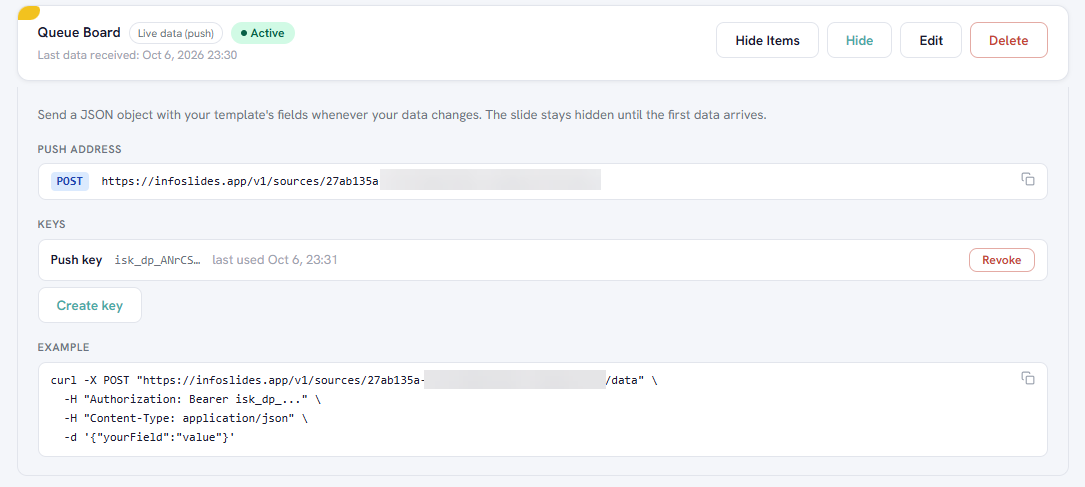
Data source as configured for the slide above.
Real-time display, honestly: about a minute
Quickly, but not instantly, and that is on purpose. We timed it on a real screen. From the moment the information was sent to the moment the new slide was showing, it took under a minute.
Here is why it takes that long, because it affects how you will use it:
- InfoSlides takes in the new information and rebuilds the slide almost at once.
- Each screen checks for changes every so often, so it picks the change up on its next check.
- The screen then lets the slide that is currently showing finish before it swaps.
That last step is a choice we made deliberately. A screen that cut a slide off halfway to show you the update would look broken. Guests would see a price flash and vanish mid-read. So the new version waits for the right moment and slips in between slides, with no flicker and nothing cut short.
If your slides are ten seconds each and you have six of them, the wait is short. If you have a long loop, the change may take a little longer to appear. A good rule: within about a minute, and never in the middle of a slide.
For a sold-out dish, a queue number or a lobby welcome, that is fast enough that nobody notices the gap. If you need something to change in the same second, a screen is probably the wrong tool for that job.
What live slides need: a screen that can run the player
Live slides run in a player that your display has to be able to open, such as a browser or a recent Android screen. Not every older TV or media box can do that. For content that only changes now and then, like a weekly menu or a welcome screen, the regular video stream plays on almost any screen and remains the right choice. We keep it as the default for that reason. The page on real-time digital signage explains how to choose between the two.
A good first live menu board to try
Pick the one piece of information that people keep walking over to ask about. The wait time. Whether the soup is still available. Today's opening hours at the second location. Start with that one slide, connect it to wherever the answer already lives, and see how it feels to stop updating it by hand.
Create your free InfoSlides account →
The free plan covers one screen, which is enough to try a live slide.