
An API key is a long secret code that lets a program or an AI agent work in your workspace without signing in as a person. If you want an AI agent to manage your screens, push live data into a slide, or connect another system to InfoSlides, you give it a key. The API Keys page is where you create those keys, see which ones exist, and cut one off when you no longer want it to work.
Where to find it
Click Workspace in the left sidebar to open the group, then click API Keys. Tenant Admins can see, create and revoke keys. Other roles cannot open this page.
Think of a key as a password
Anyone, or anything, that holds a key can act in your workspace as far as the key allows. Keep keys out of emails, chats and shared documents. Give each key to one agent or one system, and give it a name that says which. If a key may have leaked, revoke it.
The two kinds of key
When you create a key you choose how much it can do. This choice is the key's access scope, and it cannot be changed afterwards. To change it, create a new key and revoke the old one.
Admin key: full access
An Admin key can do nearly everything a Tenant Admin can do in the workspace: upload and edit slideshows, pair and manage screens, change schedules, read and push live data, and more. This is what an AI agent needs when you want it to run your signage for you. It is also the more powerful choice, so use it only for an agent or system you trust.
An agent holding an Admin key can also create further keys. Keep this in mind when you decide who gets one.
Data Provider key: one job only
A Data Provider key can only push live data into the specific slides you choose, for example today's lunch menu or a live price. It cannot read the rest of your workspace, change slideshows or touch screens. Use this when you connect a data feed or a small script and want to be sure it cannot do anything else. When you create one you must pick at least one live data slide for it.
| Admin | Data Provider | |
|---|---|---|
| Best for | An AI agent that manages your workspace | A feed or script that only sends live data |
| Can reach | The whole workspace | Only the slides you pick |
| Can change slideshows, screens, schedules | Yes | No |
| Risk if it leaks | High | Low |
Giving an AI agent access
There are two ways. Choose the one that matches how much you want to hand over.
- Connect the assistant to you (Connected Apps). For assistants such as ChatGPT or Claude, you approve a connection once, and the assistant works as you. You choose Read only or Read and Write, it cannot touch billing or create keys, and you can disconnect it with one click. This is the safer choice when it is available. See the Connected Apps article.
- Give the agent an API key (this page). For agents that run on their own, such as a hosted agent or an automation script, create a key and give it to the agent. Use an Admin key if the agent should manage the workspace, or a Data Provider key if it only supplies live data.
An agent can also create its own workspace and receive a key for it. Such an agent will appear in this list, and if it invited you as an admin it also appears on the Team page.
Creating a key
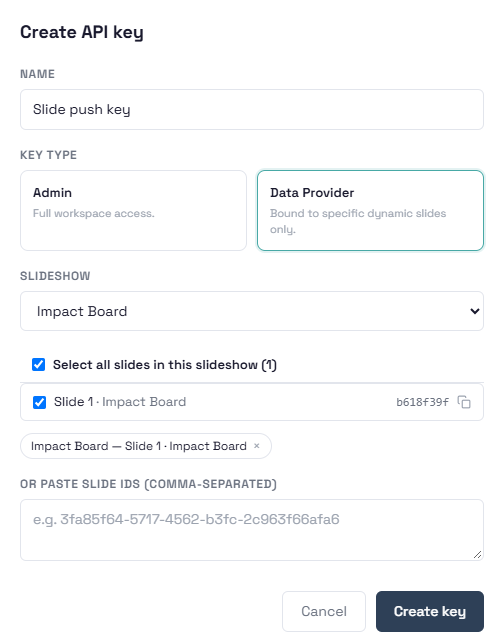
- Click Create API key.
- Give it a name that says what it is for and who holds it, for example "Menu board feed" or "Muse agent".
- Choose the key type: Admin (full workspace access) or Data Provider (bound to specific dynamic slides only).
- For a Data Provider key, pick a slideshow from the list, then tick the live data slides the key may update. To allow all of them, tick Select all slides in this slideshow. You can add slides from several slideshows before you create the key. If you already have slide ids, paste them into the box at the bottom.
- Click Create key.
Copy the key now, you only get one chance
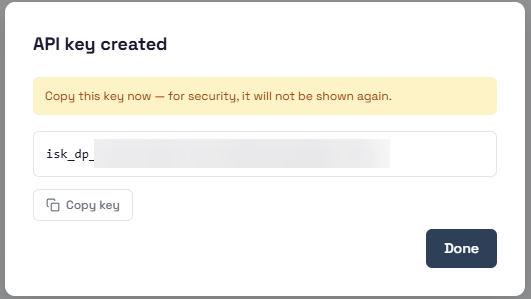
Right after you create a key, a window shows the full key once. Click Copy key and put it straight where it will be used, such as the agent's settings or a password manager. When you close the window, InfoSlides shows only the first few characters of the key, enough to recognise it in the list but not enough to use it.
A lost key cannot be recovered. Revoke it and create a new one.
Reading the list
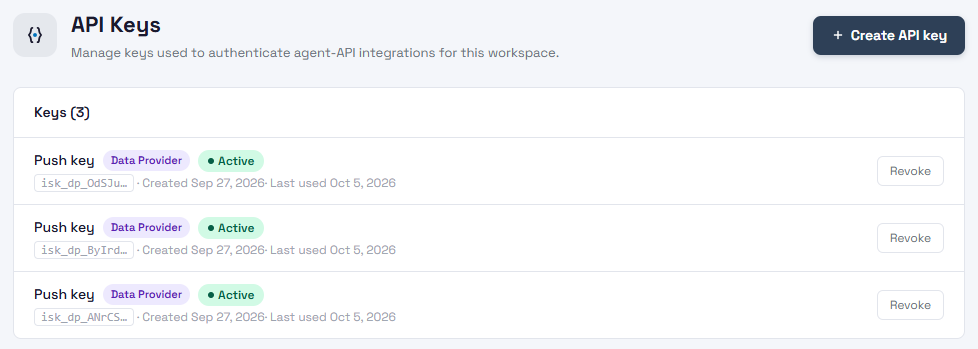
Each row shows:
- Name and type (Admin or Data Provider).
- Status. Active, or inactive if it has been revoked.
- The first characters of the key, so you can match it with the one an agent is using.
- Created and last used dates. A key that was never used, or not used for a long time, is a good candidate to revoke.
- Bound slides. For a Data Provider key, how many slides it can update.
Revoking access
Click Revoke on the key's row. Access ends immediately: anything that still uses the key is refused from that moment. Revoking cannot be undone. The key stays in the list marked inactive, so you keep a record, and you can create a new key if the agent should get access again.
Revoke a key when:
- the agent or system is retired or replaced,
- the person who set it up has left,
- you think the key has been shared or leaked,
- it has not been used for a long time.
Revoking a key does not undo what the agent already did. Use the Audit Trail to review its changes.
Tips
- Use a Data Provider key whenever a system only needs to send live data. Small powers mean small damage if something goes wrong.
- One key per agent or system. Then you can revoke one without breaking the others.
- Rotate keys now and then: create a new one, update the agent, revoke the old one.
- Keys belong to the workspace, not to a person. A key keeps working when the person who created it leaves, so review the list when people change roles.
Troubleshooting
- The agent says it is not authorised. The key was probably revoked, copied incorrectly, or belongs to a different workspace. Create a new key and give it to the agent.
- A Data Provider key is refused for a slide. The key is only valid for the slides you picked. Create a new key that includes that slide.
- I lost the key. It cannot be shown again. Revoke it and create a new one.
- "Data provider keys need at least one bound slide id". Pick or paste at least one live data slide before creating the key.
- I see "Access restricted". Only Tenant Admins can view API keys.