

The TV in your reception or café needs small changes all the time: a slide to hide for the day, a new notice, a quick check that the screen is still on. If you already use Grok, you can run that digital signage from Grok itself. Add InfoSlides as a custom connector, sign in once, and ask in plain words: "what is on the lobby screen?", "hide the breakfast slide", "undo that".
Last updated October 2026.
The connector uses InfoSlides' hosted server at https://infoslides.app/mcp. You do not install a program or copy a key. Grok opens an InfoSlides page, you sign in, and the connection is tied to your own account and the workspace you choose.
Before you start
- A Grok account. You add the connector at grok.com on a computer or your phone. On Grok Business and Enterprise, a team admin has to make the connector available before members can use it.
- An InfoSlides workspace with at least one screen. If you do not have one, create a free workspace and pair your TV first.
Add InfoSlides to Grok as a custom connector
- Go to grok.com/connectors and choose New Connector.
- Choose Custom.
- Give it the name
InfoSlidesand enter the addresshttps://infoslides.app/mcp. - Save. Grok sends you to an InfoSlides page to sign in.
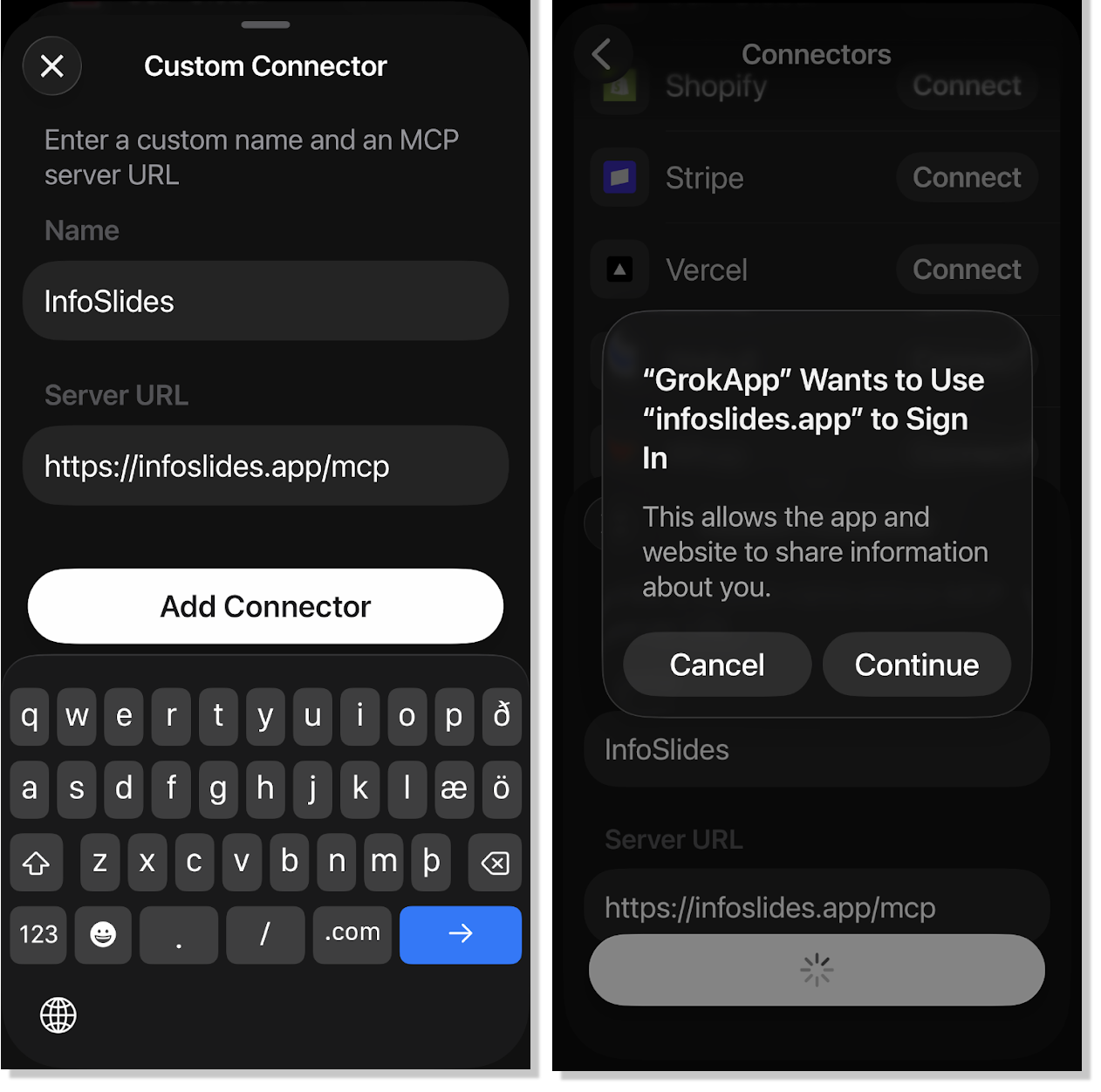
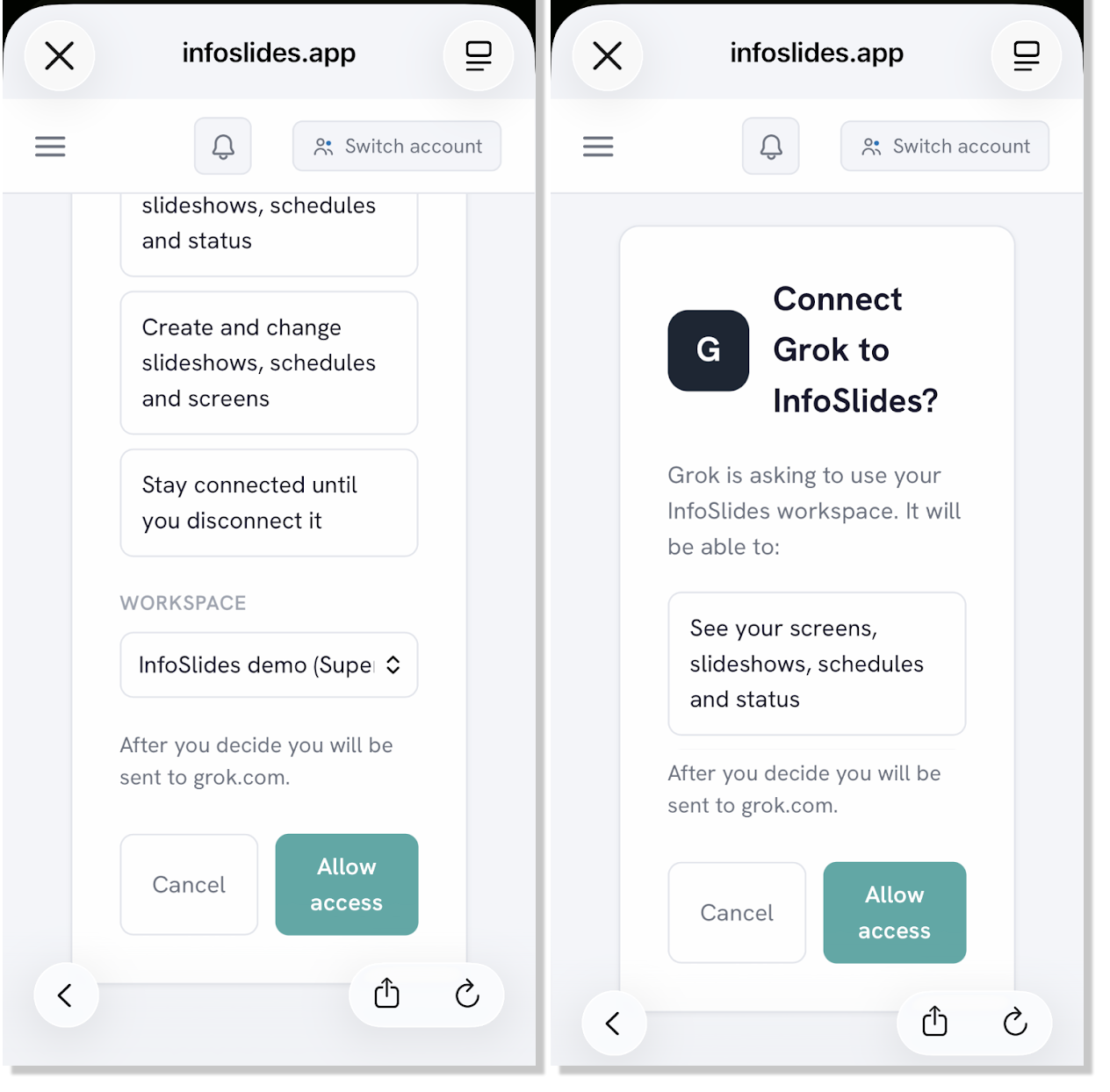
- Sign in to InfoSlides with the account you use for your screens.
- If you belong to several workspaces, pick the one Grok may use.
- Read what the connection asks for and approve it. Grok can read your screens and slideshows and make changes in that one workspace.
Back in Grok, InfoSlides shows up among your connectors with its tools, about forty-five of them. Grok uses them when a question is about your screens.
Ask Grok about your screens
Each of these is something a person actually says. Grok finds the screen or slide by the name you use, so you do not need an ID.
- "List my screens."
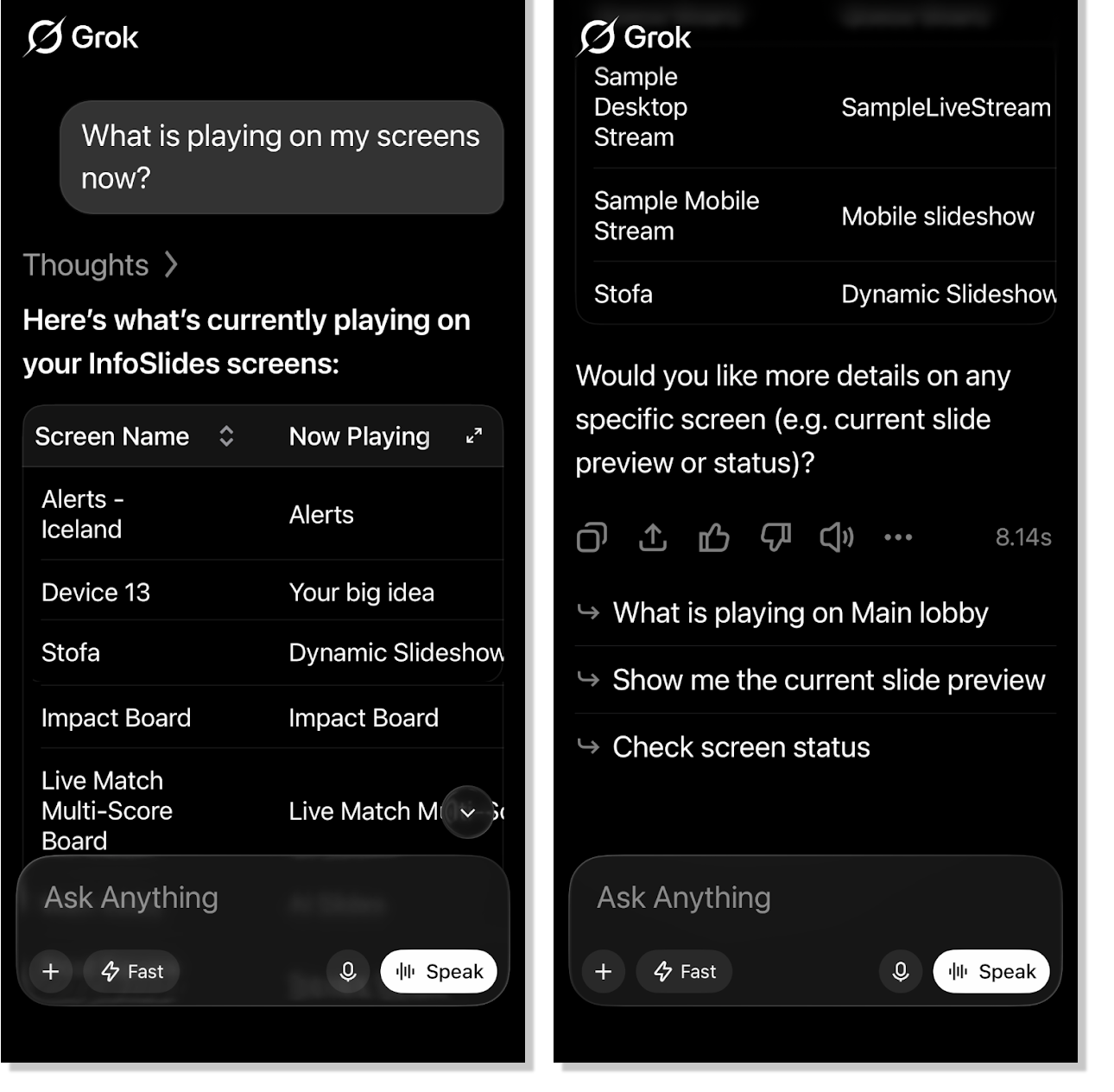
You get each screen's name, the slideshow it plays and whether it is online. - "What is on the lobby screen right now?"
Grok looks the screen up and tells you what it plays. - "Hide the breakfast slide in the Café slideshow."
The slide stops playing but stays in the slideshow, so you can bring it back. - "Undo that."
The last change is reverted. Undo is available for 24 hours after a change. - "Add a slide to the Café slideshow saying we close at 15:00 on Friday."
InfoSlides designs the slide, and Grok adds it to the slideshow. - "Why is the screen in the staff room black?"
Grok checks the screen and tells you what it found and what to try.
Read what Grok says it is about to do before you let it change something, the same way you would check a colleague's change.
Check the result
Grok describes what it did, and it can be wrong about the details. InfoSlides chooses the layout when it designs a slide, so a colour or a position in your request is a wish, not an instruction. Look at the slide, or ask Grok to show what the screen is playing, before you rely on it, and fix what you do not like in the InfoSlides dashboard.
Pictures
You are responsible for having the right to use the pictures on your screens. If you give Grok the address of a picture, or name the image library you use, it uses that. If you ask it to find a picture online, ask where the picture came from and check the licence. For a stock photo with a photographer credit on the slide, ask for a slide with a background photo of the subject and let InfoSlides choose it.
What the connector does not change
- No uploads from your computer. The connection cannot read files on your disk, so a photo or slideshow goes in by web address. Putting a new PowerPoint on your screens works best from the dashboard.
- Your plan stays the same. If you ask for something that is not on your workspace's plan, Grok tells you so, and a workspace admin can change the plan in InfoSlides account settings.
- Account settings stay in the dashboard. Team members, billing and API keys are managed in InfoSlides, not from Grok.
If you want the full set of tools with uploads, the InfoSlides program runs in a terminal and connects to agents such as Claude Code, Cursor and Gemini CLI. See our post on the InfoSlides CLI and MCP server and running your screens from Gemini and Antigravity.
You stay in control
- Your own sign-in. Every request goes to InfoSlides with your own credentials. Grok can do what your role in the workspace allows, and nothing more.
- Undo. Most changes can be reverted for 24 hours.
- Disconnect any time. Remove the connector in Grok, and remove the connection under Connected Apps in your InfoSlides settings.
Questions people ask
Can Grok control my digital signage?
Yes. Add InfoSlides at grok.com/connectors as a custom connector with the address https://infoslides.app/mcp, sign in, and ask Grok about your screens.
Do I need an API key to connect Grok to InfoSlides?
No. You sign in to InfoSlides in the browser and approve the connection. If you prefer a key for your own agent, see how to connect an AI agent to your digital signage.
Does it work on the free plan?
Yes. The InfoSlides free plan includes one screen, and the connector works on every plan. Features that are not on your plan are reported as not on the plan.
Can Grok delete something by mistake?
It is asked to check with you before it deletes anything, and most changes can be undone for 24 hours.
Which other assistants can run InfoSlides?
The same address works in Claude, ChatGPT, Gemini, Microsoft 365 Copilot and other assistants that support MCP connectors. Ask your agent to run your screens covers the idea in more detail.
For developers and agents
InfoSlides' tools are a standard MCP server with OAuth sign-in. The API documentation describes the underlying REST calls, and agents.md is the guide written for agents.