
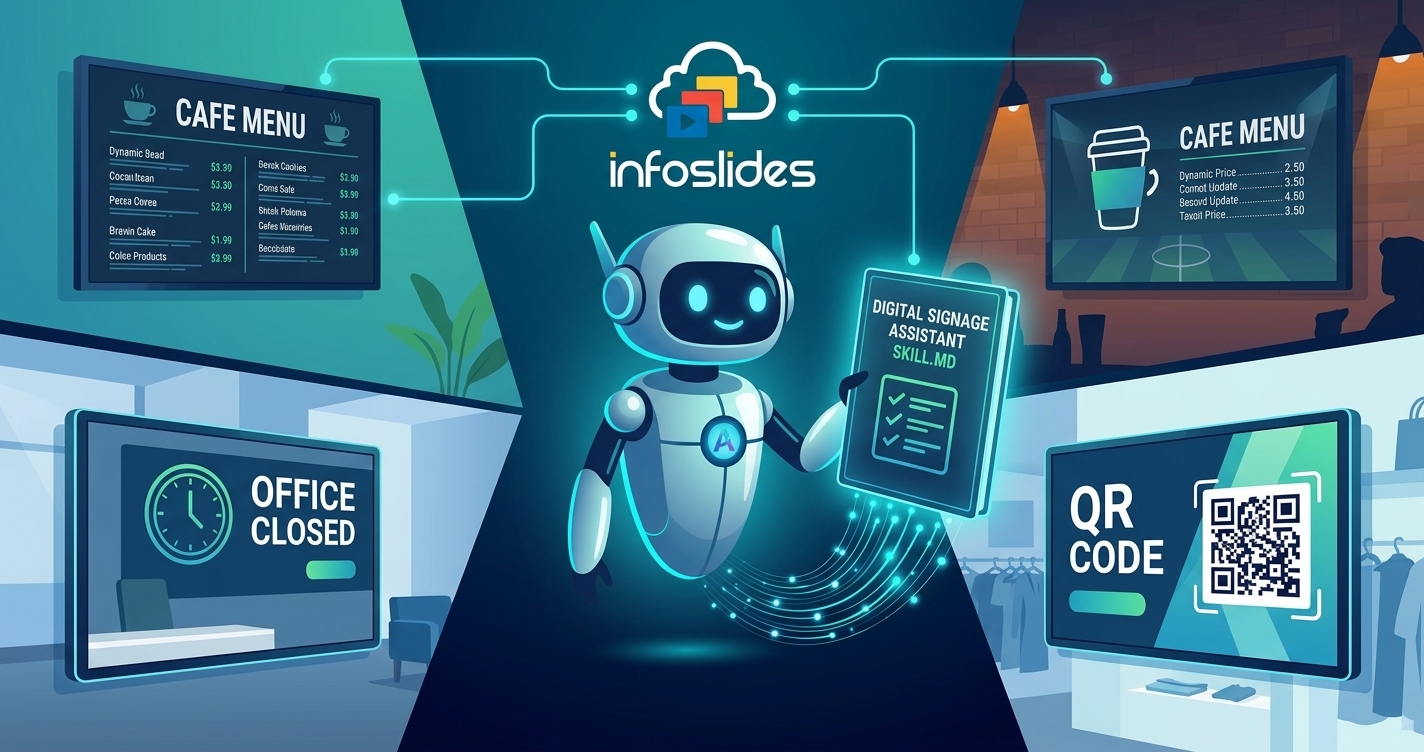
An AI agent can already run your InfoSlides screens. It can pair a TV, put a slideshow on it, hide a slide or take over every screen in an emergency, all through our API and MCP server. Knowing which calls exist is one thing. Knowing which one to make when someone says "put the lunch menu on this TV", what to ask first, and how to check it worked is another.
That second part now has a home: the InfoSlides Digital Signage Assistant skill. It is a short guide, written for AI agents, that turns an agent that can use InfoSlides into one that is good at it.
What a skill is
A skill is a folder of instructions an agent loads when a task calls for it. At its heart is one file, SKILL.md, with a short description that tells the agent when to use it. The detail sits in reference files the agent reads only when it needs them, so a quick "turn off the ticker" costs almost nothing, and setting up a whole cafe gets the full playbook.
The format started with Claude, but a skill is plain Markdown on a public web address. Any agent that can read a web page can use it.
What is inside
| File | What the agent learns |
|---|---|
SKILL.md | The working loop (understand, find, act, confirm, offer undo), the first call for about 25 everyday requests, how to talk to the person, and the judgement calls |
getting-started.md | Creating a workspace, getting content in, and walking someone through pairing the TV in front of them |
everyday-edits.md | Finding a screen or slide by name, then changing it: hiding, timing, ticker and clock, schedules, takeovers, reports and undo |
making-slides.md | Designing a new slide at the right size for the screen, showing it to you, and only then putting it up |
live-data.md | Slides that update themselves, from your own system or from weather, news and calendars |
ai-studio.md | When to let AI Studio design the slides instead |
scenarios.md | 25 worked conversations, request by request: what the person says, what the agent does, and what it says back |
What it changes for you
You will not see the skill itself; you notice it in how your agent behaves.
- It asks the one question that matters. Is the TV on the wall, or standing on its end? A menu made for the wrong shape looks broken. Your agent now asks before building anything, and does not pester you with questions for a small change.
- It finds things the way you name them. You say "the lobby screen" or "the Christmas slide", never an ID. The agent looks them up, and asks when two things match.
- It makes slides the right size, and shows you first. Ask for "a slide saying lunch moved to 1pm" and the agent designs it for the exact screen it will play on, shows you the draft, changes it until you are happy, and only then puts it up.
- It checks the result on the screen. It waits until the change has reached the screen before it tells you it is done, and gives you a link to see for yourself.
- It never promises to come back later. "Take it down on 6 January" becomes a date on the slide, which InfoSlides applies on time, whether or not your agent is running that day.
- It is honest about what it cannot do. Ask for your Instagram feed on the bar TV and it tells you plainly what works and what does not, instead of inventing something.
- It suggests the next useful thing, once. When something new becomes possible, such as your first slideshow playing or an upgrade adding news and weather, it offers one idea that suits your business: a news ticker for a hotel lobby, but not on a menu board where it pulls eyes off the food; weather for your own city. Say no and it drops it.
- It is careful with money. It tells you the plan, the price and the terms, and waits for your clear yes before anything is paid.
- You can take it back. When the agent picks something you did not name word for word, it tells you what it did and offers to undo it.
An example
"Make a slide saying the office is closed this Friday, 3 October, for a staff day, and put it on the reception screen until then."
With the skill, the agent:
- Notices that 3 October is a Saturday, and asks whether you mean Friday the 2nd.
- Looks up the reception screen and the slideshow it plays, and reads its size.
- Designs the slide for that size, leaving room for the news ticker, and shows it to you.
- Adds it as the first slide once you approve, and sets it to hide by itself after Friday.
- Checks that it is showing, and tells you: "The closing notice is the first slide on the reception screen now, and it hides by itself after Friday."
How much difference it makes
Before publishing it, we tested the skill the way it will be used. Agents got seven realistic requests: setting up a new bakery, a PDF menu on a TV mounted sideways, the closing notice above, pairing a TV through smart glasses, a black screen, and two unusual ones (a 40-store franchise that wants its menu to switch at sunset, and a bar that wants customers to vote for the next song). Each request ran once with the skill and once with our earlier agent guide alone, and every answer was checked against a list of things a good assistant should do.
| With the skill | Agent guide only | |
|---|---|---|
| Checks passed | 41 of 42 (97%) | 34 of 42 (82%) |
The biggest gains came where it matters most: designing a slide for the right screen, being honest about the unusual requests instead of guessing, and not starting a payment before the person had said yes.
How to install it
Any AI agent
Point your agent at the skill's address and ask it to use it when you talk about your screens:
https://infoslides.app/skills/infoslides-assistant/SKILL.mdAgents that start from our agent guide or llms.txt find it there too.
Claude Code
Download the folder into your skills directory. Claude then loads it by itself whenever you mention your screens:
base=https://infoslides.app/skills/infoslides-assistant
dir=~/.claude/skills/infoslides-assistant
mkdir -p "$dir/references"
curl -fsSL "$base/SKILL.md" -o "$dir/SKILL.md"
for f in getting-started everyday-edits making-slides live-data ai-studio scenarios; do
  curl -fsSL "$base/references/$f.md" -o "$dir/references/$f.md"
done
To share it with everyone working in one project, use .claude/skills/ inside the project instead.
The Claude app
Download infoslides-assistant.zip and upload it under Settings, Capabilities, Skills. It holds the same files as the folder above.
With the InfoSlides MCP server
Nothing extra is needed to connect: the skill names its calls the same way as the MCP tools and the OpenAPI document, so update_slide in the skill is the update_slide tool. The few older tools with a different name are listed in the skill, so your agent maps them by itself. If you have not set up the MCP server yet, the CLI and MCP post shows how.
Your agent can tell us what it thinks
The skill also asks agents to talk back to us. When an agent cannot do something you asked because of InfoSlides itself, it sends us a short report of what you wanted and where it got stuck, without your personal details, so we can fix the gap. When a job goes well, it can leave its own verdict on working with InfoSlides. We read every one, and the ones we pin appear on our home page as the agent's words, credited to it ("Claude, AI agent") with the job it did. Nothing about you or your workspace is shown, and we never present an agent's verdict as a customer review.
And if you are happy with the result, your agent may ask you once whether you would leave a review of InfoSlides on a site such as Capterra. It will never write the review for you, and saying no is fine.
Read next
- Ask your agent to run your screens: what you can ask for, and what happens behind the scenes.
- Live data templates: automate TV screens with your digital signage API: screens that update themselves from your own systems.
- Agents guide to the InfoSlides galaxy: designing a live data template, with a worked example.
- InfoSlides dynamic template data schema: the four ways to describe the data a template shows.
- The "Squint Test": designing for distance: why screen slides need bigger text than you think.
Try it free
The free plan includes a screen and a live data slide, with no card and no end date, so your agent can set up a real screen and hand it to you before anyone pays anything. Install the skill, pair a TV, and ask your agent to put something on it.
Or give your agent the skill and let it do the setup.