

ISE published an overview of how AI is entering digital signage this week. It covers audience analytics, programmatic advertising, AI-written content, and agentic AI in digital signage as the part that is still emerging. We have been running that last part for a while, so here is what it looks like in practice and what we learned building it.
Last updated November 2026.
What an agent does with your screens
InfoSlides has an MCP server at https://infoslides.app/mcp. Add it to Claude, ChatGPT, Gemini or another assistant that supports MCP connectors, sign in, and the assistant can work on your workspace from a chat:
- "Pair the TV in front of me. The code under the QR code is swift-oak-42, and it should play the lobby slideshow." The TV's pairing screen shows that short code under its QR code. With the code and the slideshow, the assistant connects the screen and it starts playing. Leave out the slideshow and the assistant asks which one.
- "Add a slide to the lobby slideshow saying the lift is closed until Friday, mornings only." The assistant designs the slide, adds it and sets when it plays.
- "What is on the lobby screen right now?" It looks up the schedule and shows you the slide that should be playing.
- "Why is the staff room screen black?" It lists the likely causes, most likely first: offline since a given time, nothing scheduled, every slide hidden.
- "Undo that." The last change is taken back.
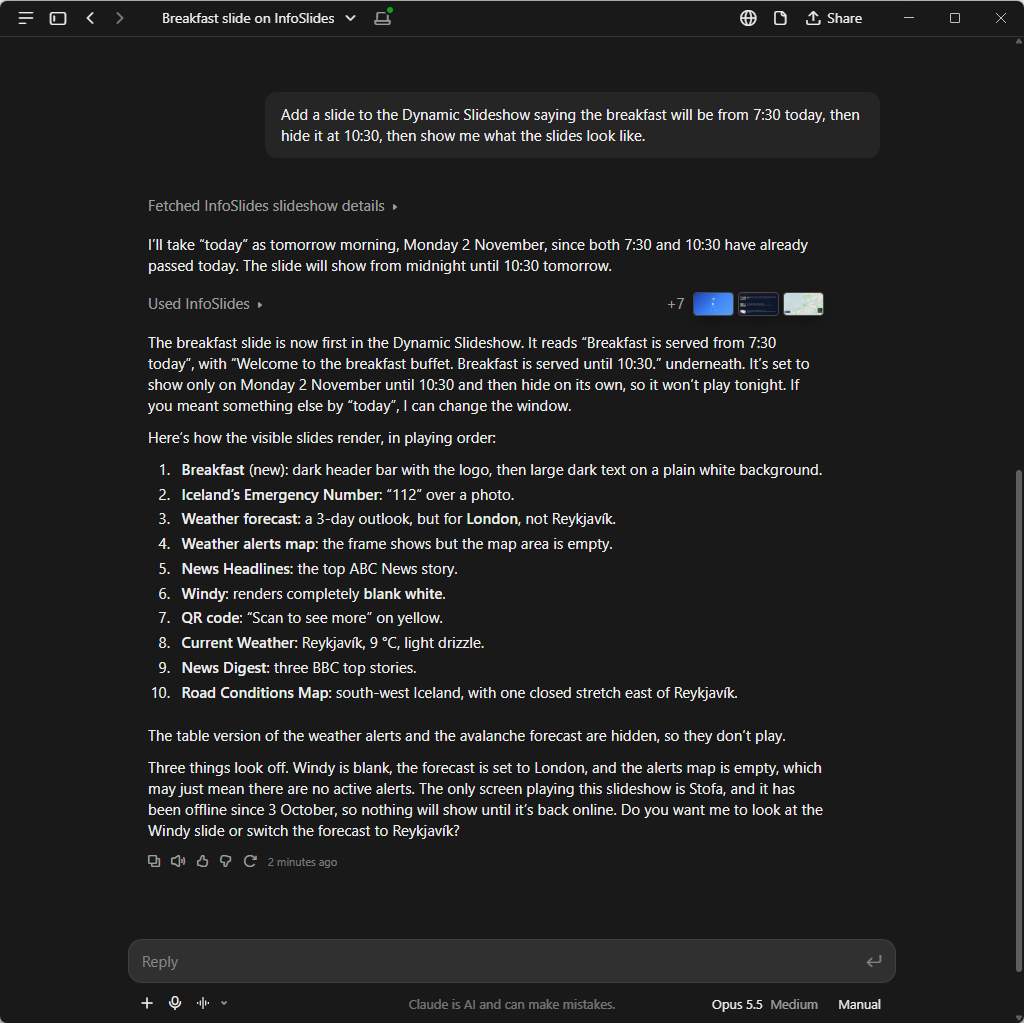 With the InfoSlides skill, Claude can help with most tasks on your screens.
What mattered more than generating content
Every change comes with its own undo
A person in a chat has no undo button. So every change the agent makes comes back with the exact request that reverses it, valid for 24 hours. If someone changed the same thing again in the meantime, the undo stops and asks instead of overwriting their work. Deleting a slideshow, slide, schedule entry or source always needs a yes from you first.
The agent checks the screen before it says it is done
An agent that only reports what it sent will tell you a change worked when it did not. InfoSlides lets it render the slide a screen should be playing right now, and check a slideshow for empty, failed or broken slides before it goes on a screen. Then it can tell you what it sees, not just what it asked for.
That preview is a render, not a camera. A TV that is switched off still looks fine in it, which is why the agent also checks when the screen last reported in.
Where we disagree a little
Much of the ISE piece is about cameras that estimate the age, gender and attention of the people in front of a screen. That is a fit for advertising networks. For the reception, café and staff room screens our users run, the useful data is the opening hours, the menu, the weather and the next meeting, not the viewer. InfoSlides does not point cameras at viewers.
Questions people ask
What is agentic AI in digital signage?
An AI assistant that does the work on your screens, such as adding a slide, scheduling it or fixing a black screen, instead of only writing the content for you to put up.
Which AI assistants can run InfoSlides screens?
Claude, ChatGPT, Gemini, Grok, Microsoft 365 Copilot and other assistants that support MCP connectors. Ask your agent to run your screens covers the idea, and running your screens from Grok walks through one setup.
Can an agent break my screens?
It can make a wrong change, the same as a person can. Every change can be undone for 24 hours, deletes need your yes, and the agent can only do what your own role in the workspace allows.
Do I need an API key?
Not with the hosted connector: you sign in and approve. For your own agent with a key, see how to connect an AI agent to your digital signage.
Does it cost extra?
No. The connector works on every plan, and the free plan includes one screen. AI digital signage for small businesses covers the other AI features.