
From November to early January a shop or restaurant screen has more to say than at any other time of year: Black Friday offers, the last day to order before Christmas, changed opening hours, a greeting for the new year. It is also the busiest time to sit down and design slides. Holiday digital signage in InfoSlides now starts from eight ready-made layouts that take your logo, colours and font, and each slide can get a dark evening version that plays by itself after closing time.
Last updated November 2026.
Eight holiday layouts in the Slide Designer
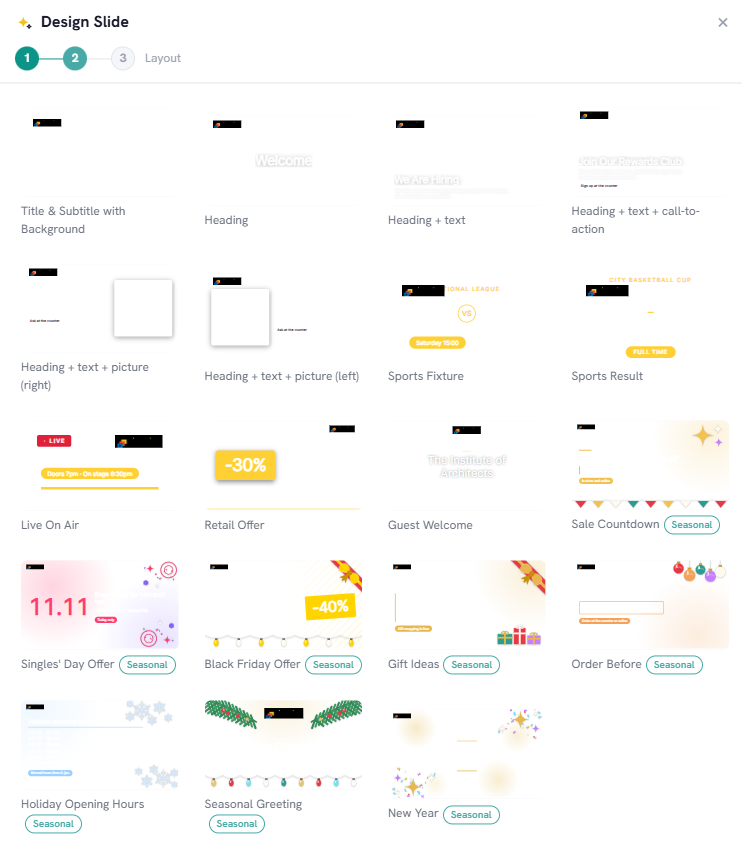
Open a slideshow, choose Add slide and then Slide Designer. On the layout step, the holiday layouts sit next to the usual ones, each marked with a Seasonal badge:
- Sale Countdown: the sale and the day it ends.
- Singles' Day Offer for 11 November.
- Black Friday Offer.
- Gift Ideas: a short list, one idea per line.
- Order Before: the last day to order for delivery before Christmas.
- Holiday Opening Hours: one day per line, with the hours lined up.
- Seasonal Greeting, with your logo.
- New Year.
Pick one, type the heading, the text and a call to action, and save. The slide joins the slideshow like any other.
If your workspace has a brand guide, the layouts use its logo, font and colours. Without one they keep their own winter colours. Keeping your screens on brand with one guide explains how to set one up. The layouts work in landscape, portrait and square slideshows, so a tall screen by the till gets the same slide as the wide one in the window; vertical and custom ratios has more on that.
A photo, your own image or a plain colour behind the text
The seasonal layouts take a background image like every Designer slide. On the first step you choose a stock photo (search for snow, candles or wrapped gifts), an image from your own media library, such as a photo of your shop window, or a plain colour. When a photo sits behind the text, a dimming slider keeps the words readable. Stock photos without a designer covers the photo search.
An evening version for dark rooms
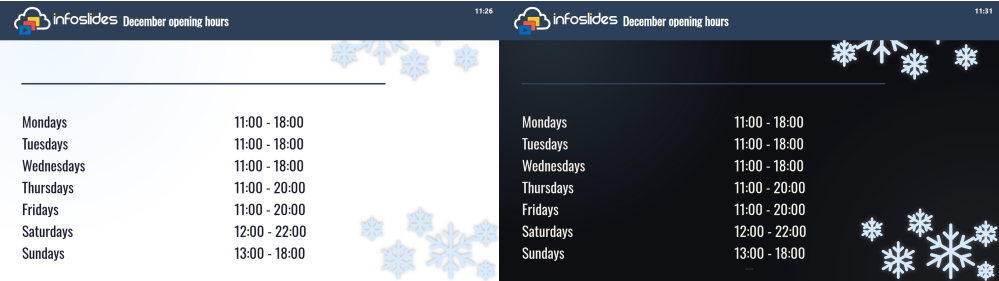
A bright festive slide that looks good at noon can glare in a dim restaurant or a shop window at 21:00. On the style step, the Evening version button turns the slide dark in one click: light text, and the same words, layout, decoration and logo.
One photo serves both. On a slide with a photo, the evening version keeps it and dims it, so the snowy street or the candles are still there, just softer. On a slide with a plain colour, the colour turns near-black. There is no second image to choose or upload.
The button works on every Designer slide, not only the holiday ones.
Let the screen switch to it every evening
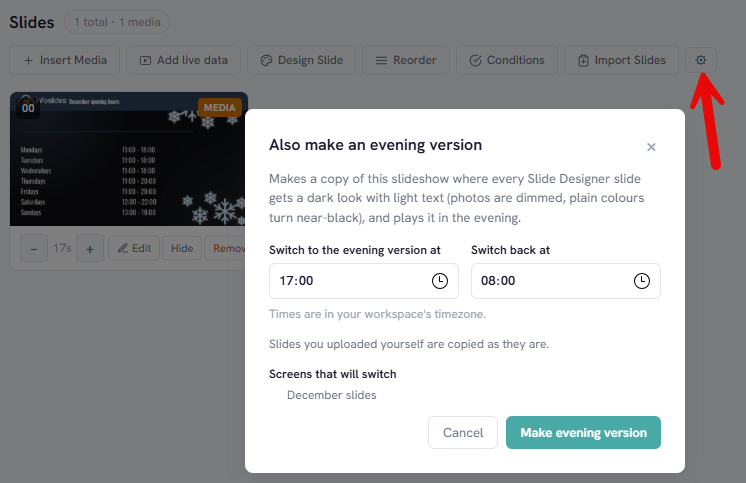
On a slideshow with at least one Designer slide, open Advanced settings with the cog icon at the end of the slides toolbar and choose Also make an evening version. It does the rest in one step:
- It copies the slideshow as "name (evening)".
- Every Designer slide in the copy gets the evening look. Images and videos you uploaded, and live data slides, are copied as they are.
- It schedules the copy on every screen that plays the original, from an evening time (17:00 unless you change it) to a morning time (08:00), in your workspace's timezone.
After that the screens change between day and evening by themselves. If a screen already has a timed schedule entry at those hours, nothing is created and the dialog names the screen, so you can move one of them first.
The evening slideshow is a copy, so later changes to the day slideshow do not carry over. Edit both, or make a new evening version when the day one changes a lot.
See the layouts before you sign in
The public templates page has a Holiday season section with live previews of all eight layouts. Signed-in users also see a note about the holiday slides at the top of the Dashboard during the season.
What it does not change
- The layouts are offered from 1 November to 6 January. After that they leave the layout step until next November. Slides you already made keep playing, and you can still open and edit them, so you take them down when it suits you.
- The evening slideshow counts as a slideshow against your plan's limit. When you are at the limit, the dialog says so.
- Uploaded slides keep their colours. The evening look applies to Slide Designer slides only, so a slideshow made only of PowerPoint slides, images or videos has no evening version option.
- A locked brand guide turns it off. When your workspace keeps slides inside the brand guide, the option is not shown.
- A directly assigned screen moves to a schedule. If a screen plays the slideshow because it was assigned to it directly, making the evening version gives that screen a schedule instead: the day slideshow plays by default and the evening copy at the evening hours.
- No switch at sunset. The evening version starts and ends at the times you set.
- The wording is yours to type. The layouts carry no fixed text, so they work in any language your customers read.
Which plans include it
The eight layouts, the Evening version button and the automatic evening slideshow are on every plan, the free plan too. A live countdown that ticks down on screen uses the Countdown Timer data source, which is on the paid plans. On the free plan, Sale Countdown and Order Before show the end date you type in. Prices and limits are on the pricing page. For more ideas for a shop screen, see digital signage for retail.
Questions people ask
How do I put Christmas slides on my shop TV?
Open your slideshow in InfoSlides, choose Add slide, then Slide Designer, and pick one of the Seasonal layouts. Type your text and save; every screen playing that slideshow shows it.
Can I use my own photo behind a holiday slide?
Yes. Choose an image from your media library on the Designer's first step, or search the stock photos. A plain colour works too.
Does the evening version use a different picture?
No. It keeps the same photo and dims it, and makes the text light. A slide with a plain colour turns near-black.
How do I make the screen switch to a darker slideshow at night?
Open the slideshow's Advanced settings (the cog icon), choose Also make an evening version, set the evening and morning times, and InfoSlides schedules the dark copy on the same screens. The option is there when the slideshow has at least one Slide Designer slide; a slideshow made only of uploaded PowerPoint slides, images or videos does not offer it.
What happens to my holiday slides after New Year?
They keep playing until you remove or hide them. Only picking the layouts for new slides stops on 6 January.