

Most companies have a brand manual somewhere: a PDF with the logo, the colours and the fonts. Their digital signage branding rarely follows it. On the screens in reception, the canteen or the shop window, one slide was made in a hurry, another came from a template, a third was drafted by AI, and each one uses a slightly different blue.
The new Brand page in InfoSlides is where you write that manual down once, as a brand guide for your digital signage. When the guide is confirmed, the slides InfoSlides makes for you follow it: dynamic slides, slides from the Slide Designer, AI Studio drafts, the ticker and the clock.
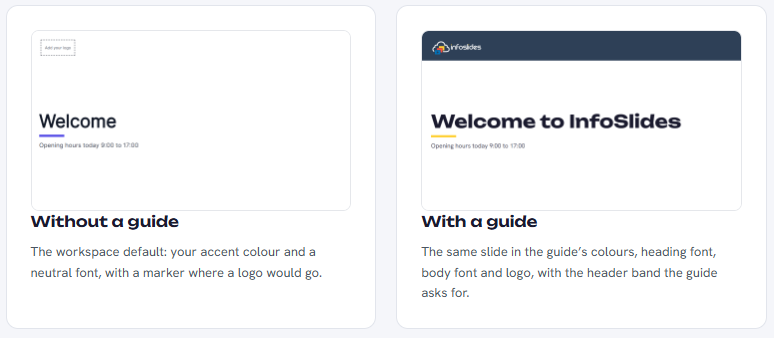
What your digital signage branding covers
Open Workspace in the sidebar and click Brand. The page has one card for each part of the guide.
- Logos. One for light backgrounds, one for dark backgrounds, and a small icon. Each slide gets the logo that reads on its background, and a logo on a coloured header band follows the band's colour.
- Colours. Primary, secondary, accent, background and text, as hex codes, plus extra colours with a name and a role such as "Red, attention". You get a warning when your text colour is hard to read on your background.
- Fonts. A heading font and a body font from the built-in list, or your own. You can upload up to eight woff2, TTF or OTF files, once you confirm you hold a licence to use the font on displays.
- Voice. Tone, language and reading level, phrases to use and phrases to avoid, and how you write prices, dates and names.
- Pictures. The look you want in photos and the subjects to leave out.
- Layout. Where the logo sits, how much border slides keep, and an optional band in your primary colour across the top that carries the logo.
- Reference file. Attach your brand manual as a PDF or image so anyone in the workspace who makes a slide can open it.
See it before your screens do
Show sample slides draws eight typical slides from what is on the page, saved or not: a title, a text slide, a big number, a picture slide, your logo on light and dark backgrounds, a ticker and a clock. It is the quickest way to see whether the colours and logos work together.
Saving only stores a draft. Your screens keep using the last confirmed version until you click Confirm this guide, so you can try things without anything changing on a TV. Confirming makes a new numbered version and queues the affected slideshows to render again. Every confirmed version is kept, and an older one can be restored as a draft.
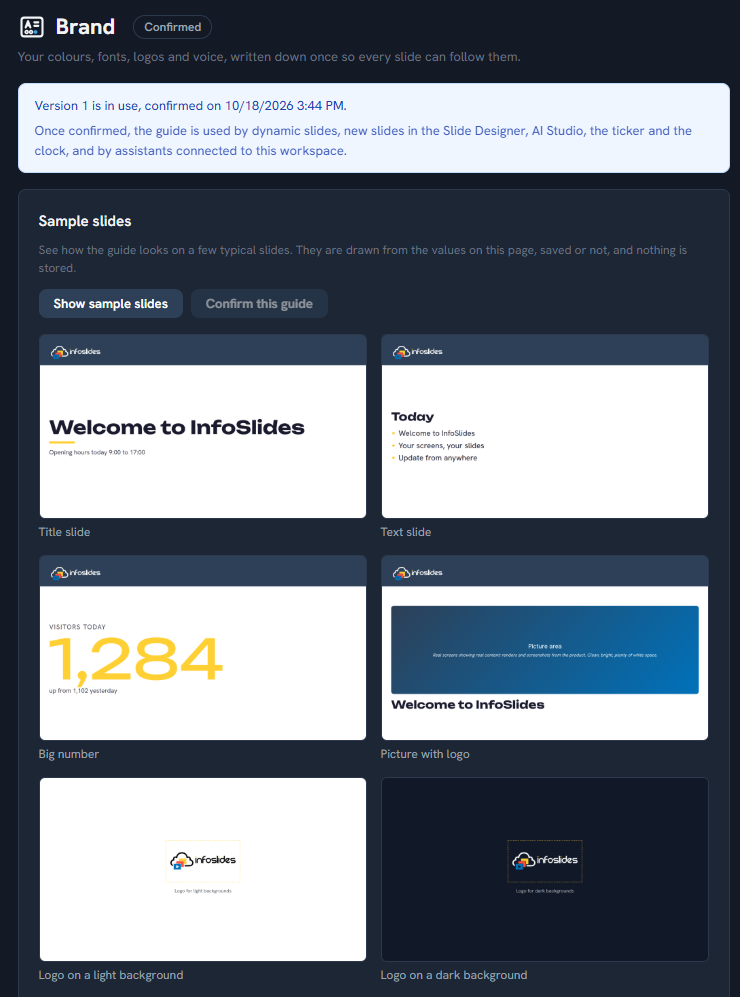
Where the guide shows up
Live data slides
Live data templates, such as menus, weather, room status and dashboards, take your colours, fonts and logos. This is also where uploaded fonts are used.
The Slide Designer
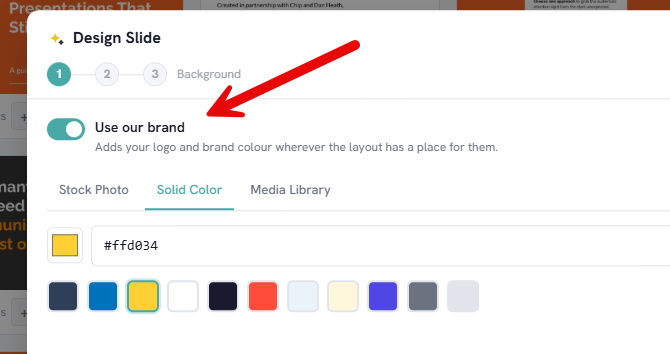
In the Slide Designer, a new slide starts on your background colour, with your text colour, your built-in font and your header band when the guide asks for one. Your palette comes first in the colour swatches. A Use our brand switch on the first step adds your logo and accent colour wherever the layout has a place for them, in landscape and portrait alike, and the preview updates as you toggle it.
AI Studio and assistants
AI Studio is given the whole guide when it drafts a slide: the colours, fonts and logo, and also your voice and picture style. Phrases on your avoid list are removed from the text it writes. Assistants connected to your workspace and the InfoSlides CLI can read the guide, draw the sample slides and send a changed draft, but only a person can confirm it on the Brand page.
Ticker and clock
Their colours come from your primary colour, unless a workspace or slideshow setting gives them their own.
Check a slideshow against the guide
Once a guide is confirmed, the slideshow page shows a Brand guide check panel. It lists slides by number where something drifts from the guide: a colour outside the palette, text that is hard to read, a missing logo, a phrase you avoid, or a font that is not yours. The check gives advice only and never stops a slide from playing. Five switches on the Brand page decide what it looks for.
If several people make slides, Keep content managers inside the guide goes a step further. The Slide Designer then offers content managers only your colours and fonts, and a slide that fails the check cannot be saved until it is fixed. Workspace admins are never limited.
What it does not change
An uploaded PowerPoint, PDF or Google Slides presentation keeps the look it came with, and its slides are not checked. Uploaded fonts reach dynamic slides and the sample slides. Slides from the Slide Designer and AI Studio, the ticker and the clock use the built-in fonts, so pick a built-in font close to yours if you want those to match too.
Getting started with your brand guide
Fill in the logos and colours first and press Show sample slides before anything else, because those two make the most difference. Add the voice and picture notes when you start using AI Studio. Confirm when the samples look right. A brand guide keeps the colours consistent, but each slide still has to be readable from across the room; the squint test covers that part.
The Brand page is available on every plan, the free plan included. You can see InfoSlides' own guide and more sample slides on the brand guide for digital signage page, and the full walkthrough is in the Brand documentation.
Questions
Can I use my own fonts on my digital signage?
Yes. Upload up to eight woff2, TTF or OTF files on the Brand page, once you confirm you hold a licence for display use. Dynamic slides use them; designed slides, AI Studio slides, the ticker and the clock use the built-in fonts.
Will the brand guide change my uploaded PowerPoint slides?
No. An uploaded presentation keeps the look it came with. The guide applies to the slides InfoSlides makes for you.
Do my screens change as soon as I edit the guide?
No. Edits are saved as a draft. Screens change only after you click Confirm this guide and the affected slideshows render again.
Can I stop other people from going off brand?
Yes. Turn on Keep content managers inside the guide, and content managers can only pick your colours and fonts in the Slide Designer.
Is the brand guide on the free plan?
Yes, the Brand page is on every plan.
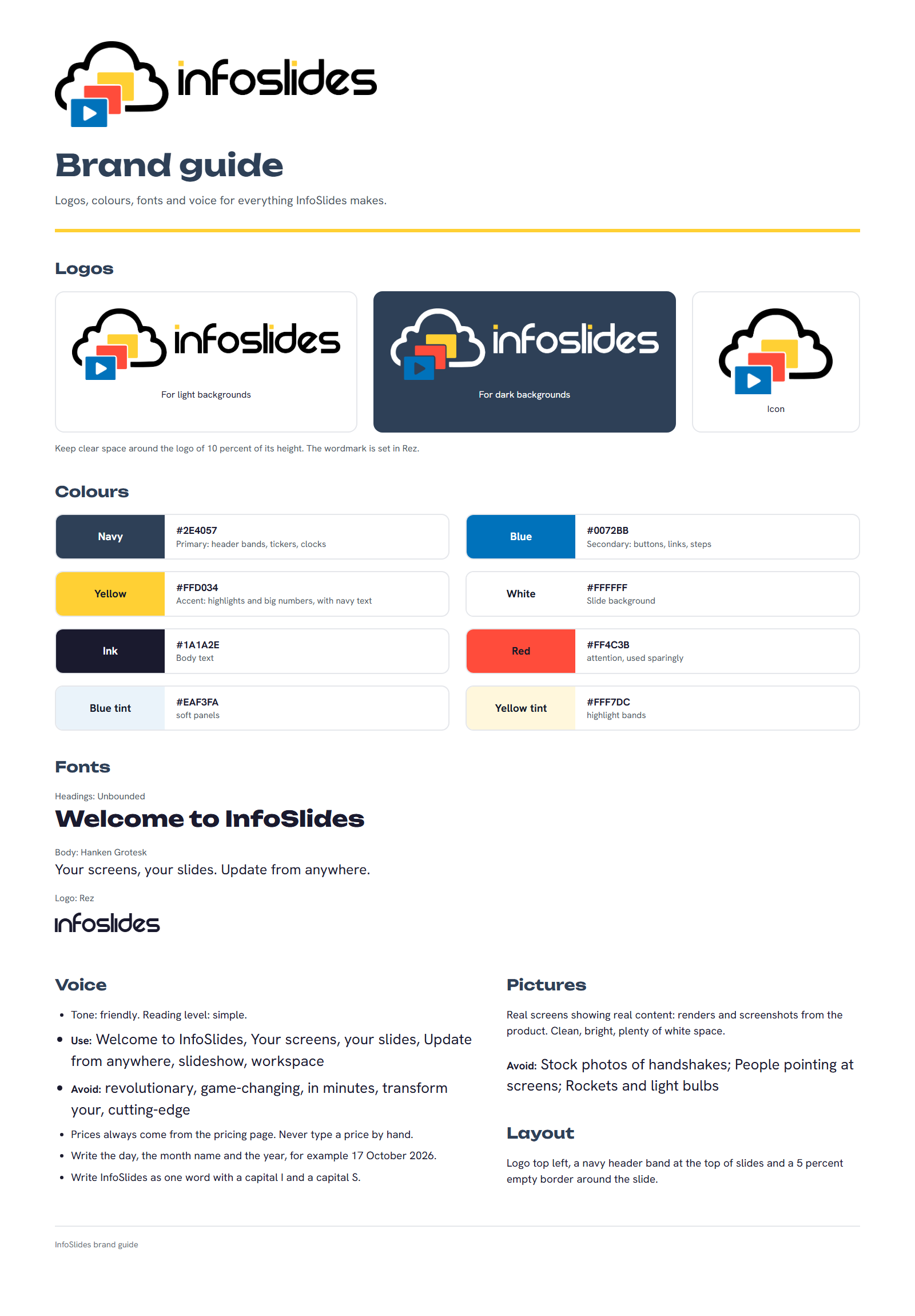
Sample brand sheet - created by Claude