
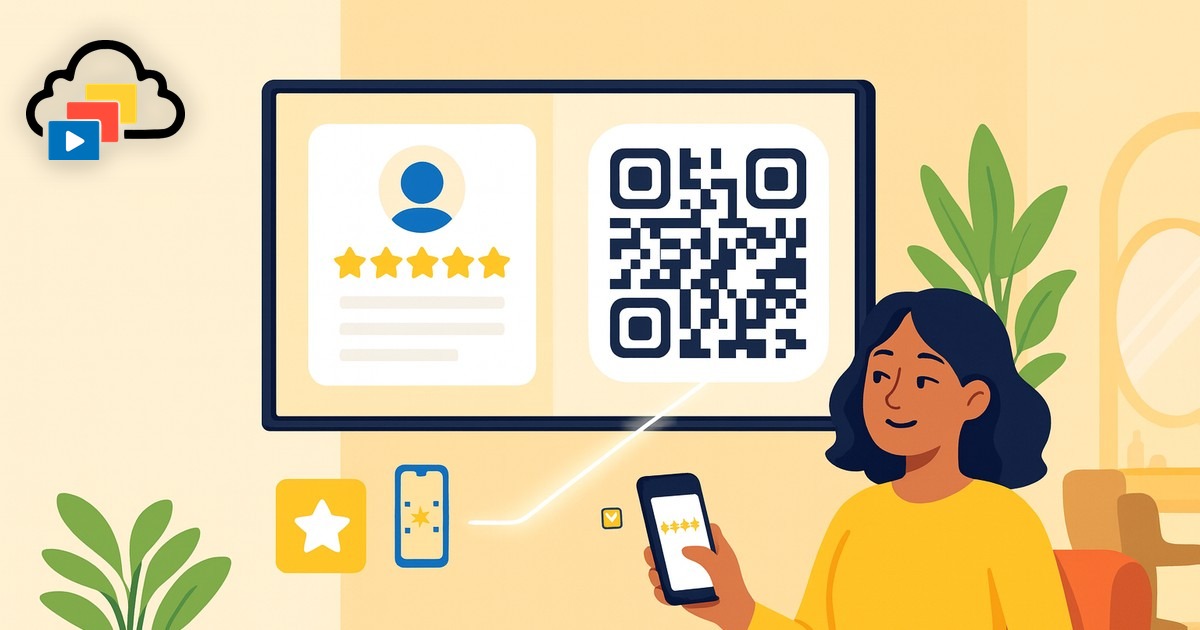
Your Google reviews do their work when someone searches for you. Once that person is standing in your shop, waiting at reception or sitting at a table, the reviews are out of sight. Putting Google reviews on your TV brings them back in front of the people who are already there, and a QR code on the next slide asks them to add one of their own.
Most customers who liked their visit never leave a review. They mean to, then they get home and forget. Asking at the counter can feel awkward, and paper cards by the till tend to end up in the bin.
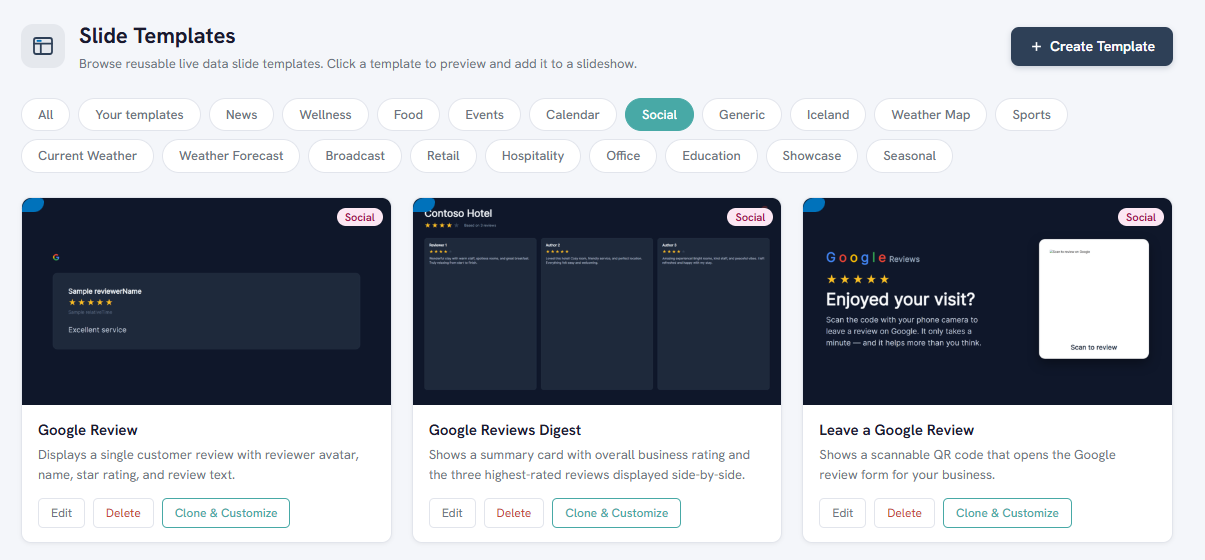
InfoSlides has three Google slides for this. Two show reviews you already have. The third collects new ones.
Three Google slides for your screen
Google Review: one review at a time
The Google Review slide shows a single review: the reviewer's photo and name, the star rating, what they wrote and how long ago. A real customer's words carry more weight with someone in the queue than any slogan you could write.
Google Reviews Digest: your rating at a glance
The Google Reviews Digest slide shows your overall Google rating and review count, with three reviews side by side underneath. It suits a screen people see for a few seconds, like one by the door.
Leave a Google Review: a QR code that opens your review form
The Leave a Google Review slide shows a large QR code. A customer points their phone camera at it and lands straight on the stars for your business. They do not have to search for you or find you on the map first.
Put it right after a review slide in the same slideshow. The first slide shows what others said; the next one asks the viewer to add theirs. Ask everyone, not only the customers you think were happy: Google does not allow businesses to collect reviews selectively.
Why a screen works better than a poster for Google reviews
A printed sign with a QR code is cheap and better than nothing. It has a few weaknesses a screen does not:
- People stop seeing posters. After a few visits a sign on the counter becomes part of the furniture. A screen that changes from slide to slide keeps getting a second look.
- The reviews keep up. InfoSlides checks Google on a schedule (every hour by default) and redraws the slide when something changes, so the screen follows what Google shows on your profile.
- Nothing to reprint. When you change your branding, you change the slide, not a stack of cards.
Size still matters. A QR code has to be big enough to scan from where people stand or sit; our piece on designing slides for viewing distance covers how far is too far.
How to set it up
Each slide is a live data slide that reads from a source. You add the source once and use it in any slideshow. The help article on live data slides walks through every field.
- Find your Google Place ID. Google's Place ID finder gives it to you for your business. It looks like
ChIJN1t_tDeuEmsRUsoyG83frY4. - Add the slide. Open a slideshow, click Add live data and pick Google Review, Google Reviews Digest or Leave a Google Review.
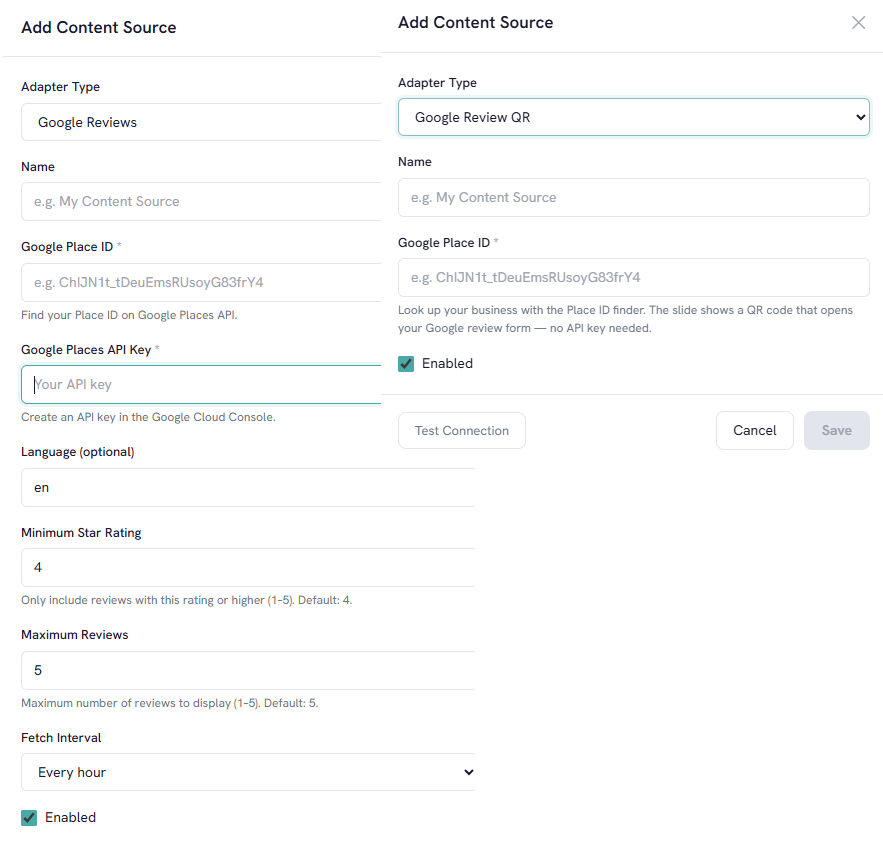
- Create the source. Click + New Source in the same step. For the QR slide, choose Google Review QR and paste the Place ID. That is all it needs. For the review slides, choose Google Reviews and add the Place ID and a Google Places API Key (see below).
- Tune the review source if you like. Minimum Star Rating (4 by default) and Max Reviews (up to 5) set what the slide draws from.
- Pair your TV. If the screen is not connected yet, our guide to installing the InfoSlidesTV app covers each TV type, and a browser on the TV works too.
About the Google Places API key
The two review slides read your reviews through Google's Places API, which needs a key from your own Google Cloud account with billing turned on. Google charges for that use on its own price list, separate from InfoSlides. A source that checks once an hour makes about 24 calls a day.
The QR slide makes no call to Google at all. It only builds the link to your review form from the Place ID, so it works without any Google Cloud setup.
What it does not do
- You cannot pick which reviews appear. Google hands out up to five reviews per business and chooses them itself. They are not always the newest. The Minimum Star Rating setting only filters within those five.
- It does not reply to reviews or track scans. Answering reviews still happens in your Google Business Profile.
- It is not on the free plan. All three Google slides are on the Professional plan and up.
If a review source comes back empty for a while, tick Hide this slide when the source has no data on the slide so the loop never shows a blank card.
Where it fits
Anywhere people wait a minute or two with a phone in their hand: a café or restaurant till, a hair salon or clinic reception, a hotel desk at check-out, a shop counter. The review slides sit in the same loop as your menu, offers or opening hours, and with dayparting you can show the QR slide only at the hours when people are paying and leaving.
The Leave a Google Review slide takes your workspace accent colour, and the Google Review slide shows your logo in the corner. Our post on keeping your screens on brand shows where those are set.
What it costs
The Google slides are on the Professional plan: €29 a month, or €23.20 a month billed annually, for up to 25 screens. The free plan covers one screen and four slideshows, so you can set up your screen and content first and upgrade when you add the Google slides. More on the small business page.
Questions
How do I show Google reviews on a TV?
Add a Google Reviews source with your Place ID and a Google Places API key, then add the Google Review or Google Reviews Digest slide to a slideshow that plays on the TV.
How do I make a QR code for Google reviews?
Add a Google Review QR source with your Place ID and use the Leave a Google Review slide. InfoSlides builds the QR code and the review link for you.
Do new Google reviews show up on the screen by themselves?
Yes, as far as Google passes them on. The source checks every hour by default and the slide is redrawn when the reviews change. Google returns at most five reviews per business and picks them itself.
Do I need a Google API key for the QR code?
No. Only the slides that show reviews need a Places API key. The QR slide works from the Place ID alone.
Can I hide bad reviews?
The Minimum Star Rating setting decides which of the reviews Google returns are shown on screen. It does not change anything on Google itself.
Set up your screen on the free plan, then add the Google slides on Professional.