
InfoSlides lets you import a Google Slides presentation directly from Google Drive and play it on an LG, Samsung or Android smart TV as digital signage, with no media player box or HDMI stick. You pick the deck in Google's own file picker, and the TV plays it full screen in a loop.
The whole route has three steps:
- Import. Click Import from Google Slides on the upload page and pick the presentation in the Google Picker.
- Pair the TV. Open the InfoSlides TV app, or infoslides.app/pair in the TV's browser, and connect it with a six-character code or a QR code.
- Schedule and combine. Choose when the deck plays, and add live weather or news slides between your own if you want them.
The rest of this post goes through each step, what InfoSlides can see in your Google Drive, and what the import leaves out.
Step 1: Import a Google Slides deck from Google Drive
- Open Slideshows and click Upload Slideshow.
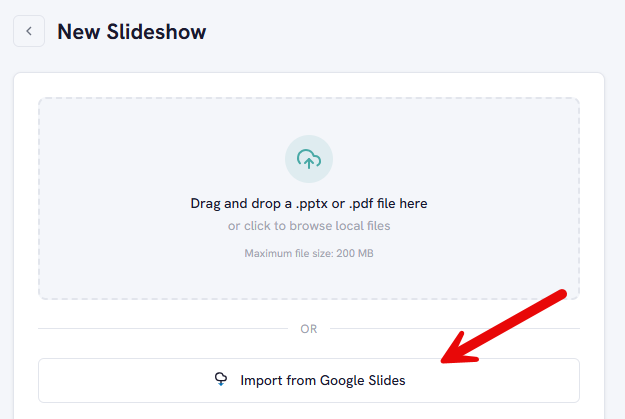
- Below the drop zone, click Import from Google Slides.
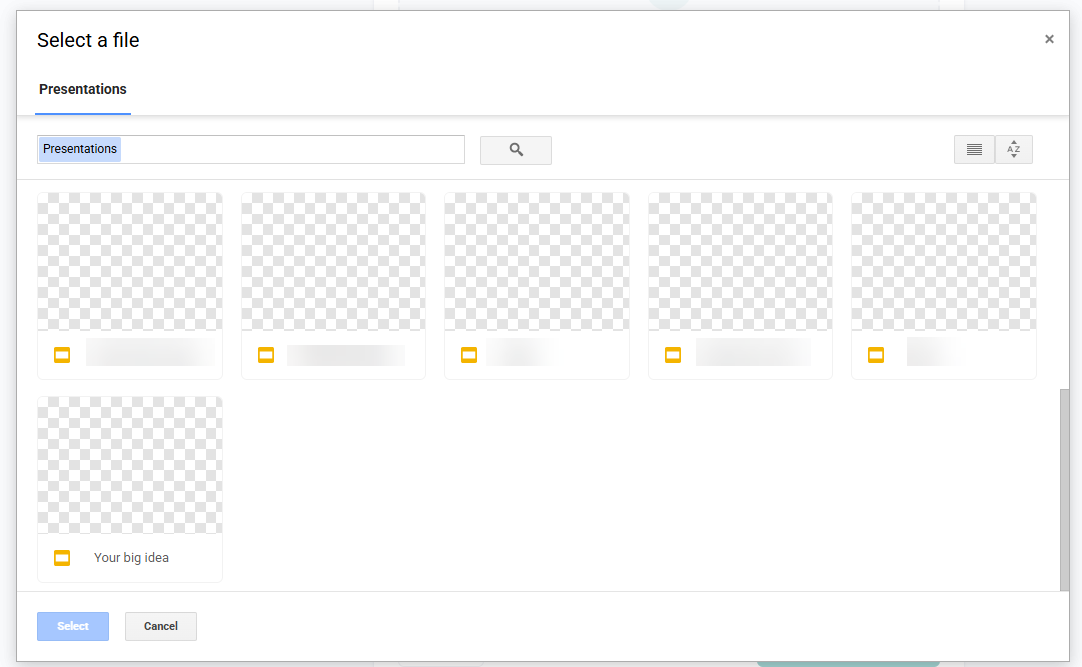
- Google's file picker opens and lists your Google Slides presentations. Pick one.
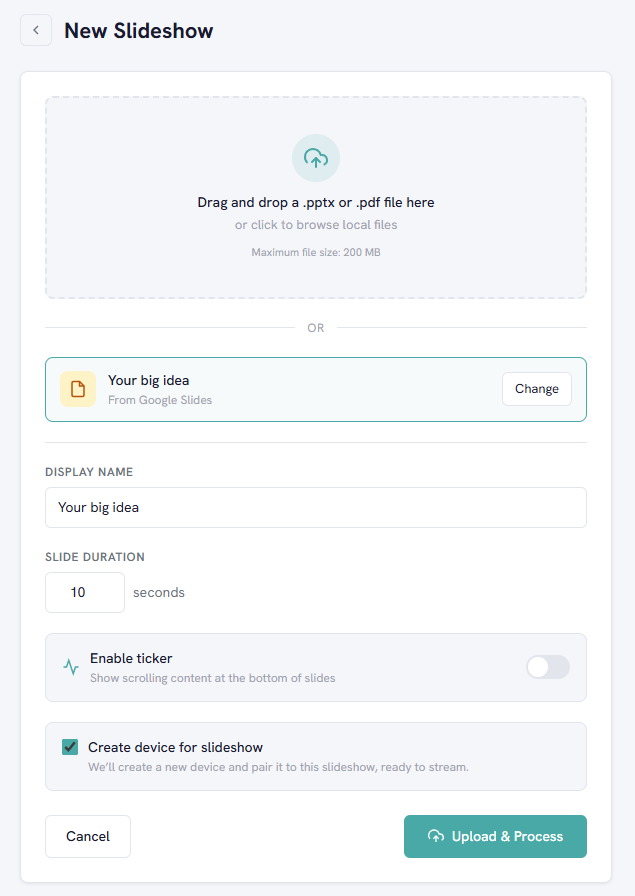
- The button is replaced by a row that says From Google Slides with the presentation's name, and the Display name is filled in for you. Click Change if you picked the wrong deck.
- Set the Slide duration, and turn on Enable ticker if you want scrolling content along the bottom.
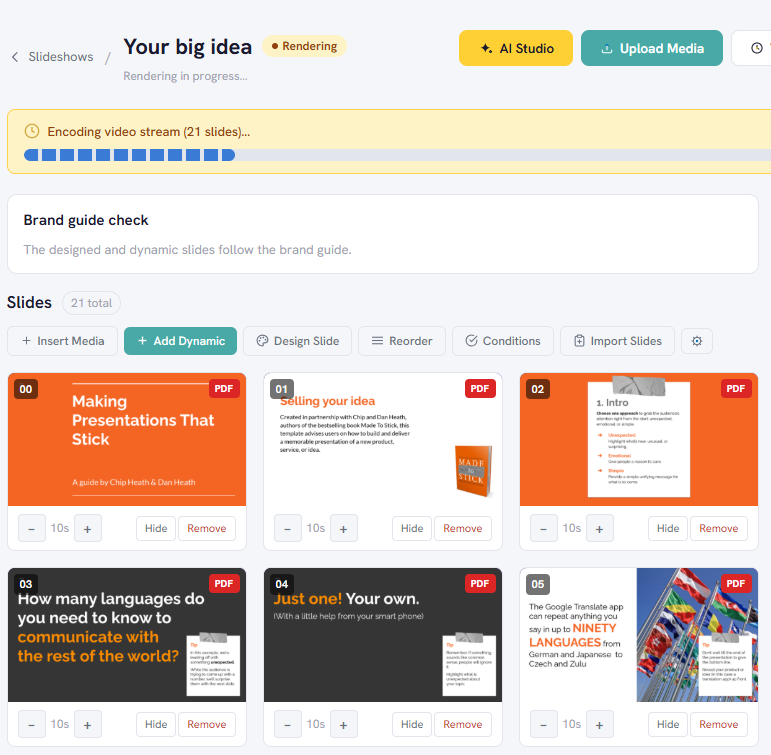
- Click Upload & Process. The button says Importing from Google Drive… while Google prepares the file.
What happens to the file
InfoSlides asks Google Drive for a PDF of the presentation and keeps that PDF as the slideshow, one slide per page. Google allows up to 10 MB for this export. A larger deck, usually one with many big photos, can be downloaded as a PDF from Google Slides and uploaded on the same page instead; uploaded files can be up to 200 MB.
Because InfoSlides shows Google's own PDF, your fonts, colours and layout look the way they do in Google's PDF download. Landscape and portrait decks are both detected from the page size. If your deck is not sized for a TV yet, the guide to 16:9, vertical and custom ratios helps you set it up in Google Slides first, and the squint test helps with text that reads from across the room.
Step 2: Pair your smart TV
If this is your first slideshow, Create device for slideshow on the upload page is ticked already. InfoSlides then creates a device and pairs it to the new slideshow, so all that is left is the TV itself.
LG webOS and Android TV have native InfoSlidesTV apps. Samsung TVs pair through the built-in browser while the Samsung app is in store review, and any other smart TV with a browser can open infoslides.app/pair. The TV shows a six-character code and a QR code; enter the code in InfoSlides or scan the QR code with your phone, and the screen starts playing. Installing the InfoSlidesTV app walks through each TV.
Step 3: Schedule it and mix in live data
From the slideshow page, an imported deck works like any other slideshow. You can change how long a single slide stays up, and schedule it on a device, for example a breakfast deck until 11:00 and a lunch deck after that. Schedules follow your workspace time zone, so the switch happens at the right local time.
You can also add live data slides between your Google Slides pages: the weather, news headlines from an RSS feed, or numbers you send yourself. Weather and news slides are on paid plans; every plan, the free one included, gets one live data slide for data you push.
Why not open Google Slides in the TV's browser?
You can open a published Google Slides deck in a smart TV's browser, and for a one-off it works. For a screen that runs every day, it has a few weak points that the InfoSlides route avoids:
- Nobody signs in to Google on the TV. The Google permission is given once, on your own computer, and only for the file you pick. The TV is paired to your InfoSlides workspace, not to a Google account.
- The screen does not depend on a browser tab. A browser on a TV is built for a person with a remote. The InfoSlidesTV app plays one slideshow full screen and remembers its pairing, so opening the app goes straight back to your slides.
- The schedule changes the content for you. The breakfast deck can give way to the lunch deck at 11:00 without anyone walking up to the TV.
- Your slides can sit next to live data. A weather or news slide can play between your Google Slides pages, which a browser showing one deck cannot do.
- One dashboard for every screen. The same slideshow can play on several TVs, and you can see which screens are online from InfoSlides.
More about using Google Slides with InfoSlides, including the PDF route if you would rather not connect Google Drive, is on the Google Slides digital signage page.
What InfoSlides can see in your Google Drive
The first time
The first time you click Import from Google Slides, Google shows a permission popup. InfoSlides asks for access only to the files you pick in the picker, not to your whole Drive. After that, Google usually skips the popup and goes straight to the picker.
Separate from how you sign in
This permission is separate from signing in. You can import from Google Drive whether you sign in to InfoSlides with Google, Microsoft or an email and password. If you sign in with Google, that sign-in does not ask for Drive access, and saying no to the Drive popup does not affect it.
Nothing is kept
InfoSlides uses Google's permission once, for the import you started, and does not store it. It reads the file's name and type from Google, asks Google for the PDF, and keeps only that PDF.
What the import does not do
- It is a copy, not a live link. When you change the deck in Google Slides, the screen keeps showing the version you imported. To update it, import the deck again, or download it as a PDF and use Re-upload file on the slideshow page.
- Animations, transitions and embedded video or audio do not carry over. A PDF page has no timeline. Each slide is shown still, for the duration you set.
- Only Google Slides presentations. A PowerPoint or PDF file stored in Google Drive is not listed in the picker. Download it and upload the file instead.
- Google limits the export to 10 MB. InfoSlides tells you when a deck goes over it, and you can download the deck as a PDF from Google Slides and upload that file.
- Web app only. The import needs the Google Picker in a browser, so the InfoSlides CLI and connected AI assistants cannot run it. They can still upload a PowerPoint or PDF file.
Which plans include it
The Google Slides import is on every plan, the free plan included. An imported deck counts as one slideshow, the same as an uploaded file. The free plan has 4 slideshows and 1 device, and the import button is disabled when you have no slideshows left on your plan.
The Slideshows help article covers what you can do with the slideshow afterwards. If your content starts in PowerPoint instead, read getting your PowerPoint slides to a TV.
Questions
How do I play Google Slides on a smart TV?
Import the presentation from Google Drive with Import from Google Slides in InfoSlides, pair the TV with the six-character code or QR code it shows, and the deck plays full screen in a loop.
Do I need a media player or HDMI stick to show Google Slides on a TV?
No. InfoSlides has apps for LG webOS and Android TV, and Samsung and other smart TVs can pair through their built-in browser.
Does InfoSlides get access to my whole Google Drive?
No. Google gives InfoSlides access only to the files you pick in the picker, and InfoSlides does not keep that access after the import.
Will my screen update when I edit the deck in Google Slides?
No. The import is a copy. Import the deck again, or download it as a PDF and use Re-upload file on the slideshow page.
Do animations and videos in Google Slides play on the TV?
No. Each slide is shown as a still page for the duration you set. Animations, transitions and embedded video or audio are left out.