
You do not need a designer or a menu board maker to build a digital menu board. PowerPoint and Google Slides can both produce a menu board design that looks good on a TV. What matters is a handful of layout decisions that are easy to get wrong the first time.
This guide covers those decisions, then the setup for each of the two tools, then how to get the finished file onto a screen.
Pick the slide size before anything else
Most TVs are 16:9, so start with a 16:9 slide. PowerPoint and Google Slides both default to it. If your TV hangs upright, start with a portrait page instead of rotating a landscape one afterwards. Sizing slides beyond 16:9 explains the options.
Lay it out for a customer who is standing
- One menu section per slide. Starters, mains, drinks, desserts. A slide with forty lines is unreadable at distance.
- Prices on a clear column. Right-align them, or give them their own column, so the eye can run down the list.
- Contrast first, decoration second. Light text on a dark background, or the reverse. Avoid text over busy photos unless you dim the photo.
- Big text. Body text that fits comfortably on your laptop is probably too small. Increase it, view the slide full screen from across the room, and increase it again if you have to squint.
- Leave a margin. Some TVs crop the edge of the picture. Keep important text away from the edges.
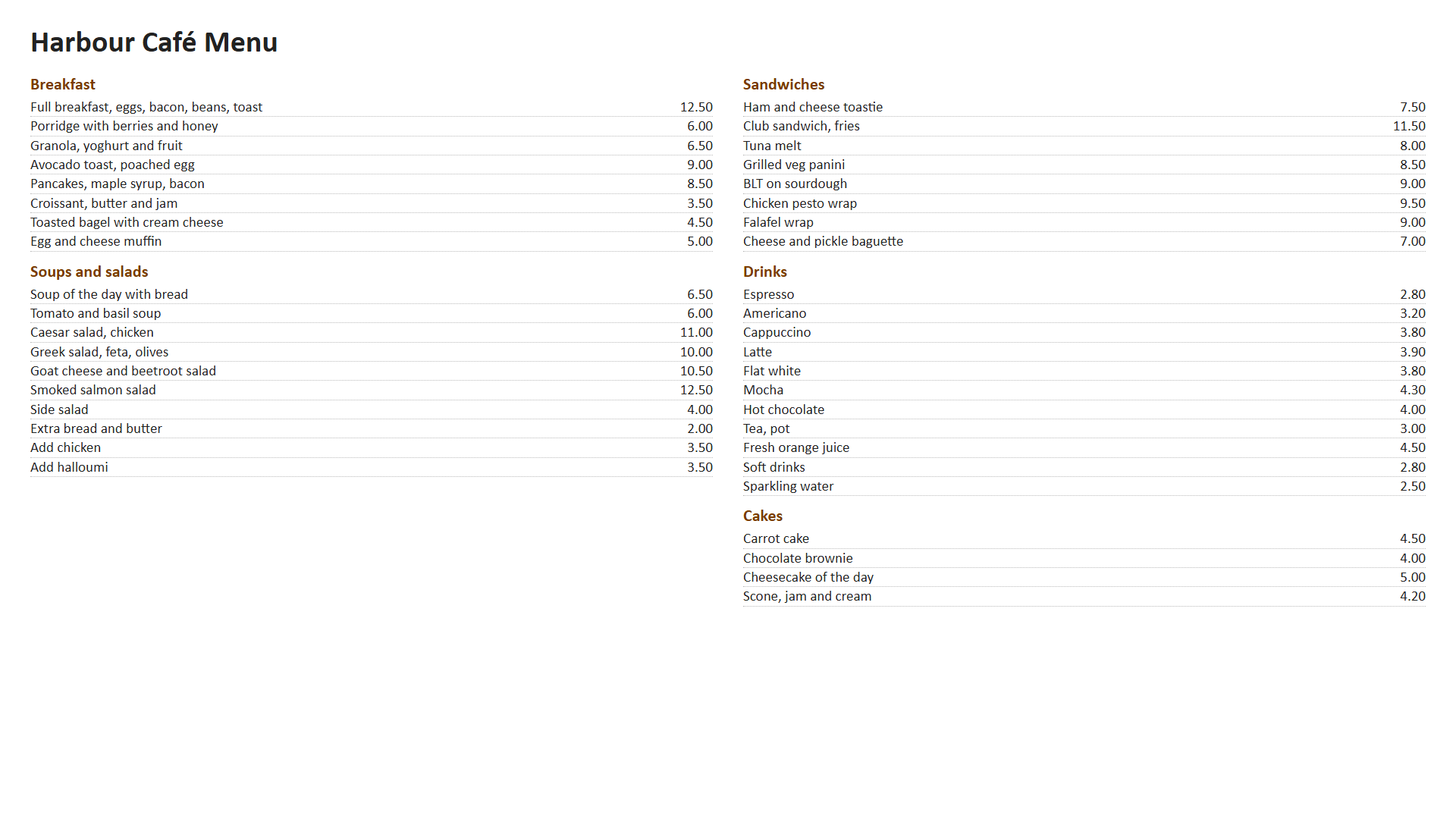
Here is the same café menu twice. The first slide holds 45 lines of small text and reads like a printed page. Nobody can read it from the queue.
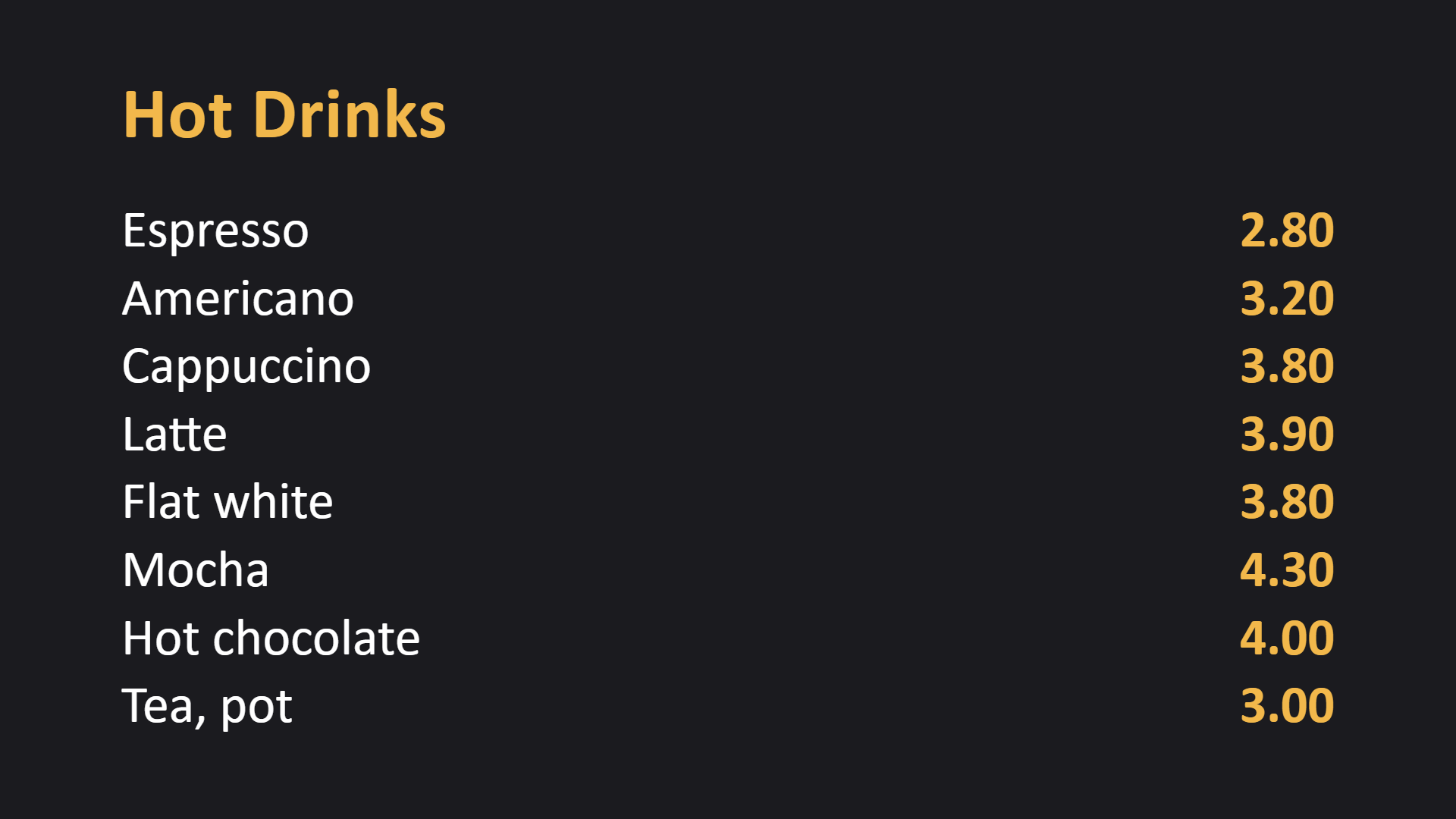
The second slide holds one section, eight lines, with large light text on a dark background and the prices on their own right-hand column.
Common mistakes
- Copying the printed menu onto a slide. A print menu is read at arm's length. A screen is read from several metres away.
- Mid-tone text. Grey on white or gold on cream fades at distance. The squint test is a quick way to check.
- Relying on animation. Each slide is shown as a still image, so animations and transitions do not play.
- Thin or decorative fonts. Fine strokes disappear on a TV. Use a plain, sturdy font.
- Text right at the edge. A cropped TV edge cuts off the price.
Make a digital menu board in PowerPoint
PowerPoint is the quickest route if you already have a menu in it.
- Open Design, then Slide Size, and choose Widescreen (16:9). For an upright TV, choose Custom Slide Size and set the orientation to portrait.
- Use a plain theme with a solid background. Set the title around 60 points or larger and the item text around 40 points or larger, then adjust after a full-screen check.
- Put each section on its own slide. Use a table with two columns for items and prices, with the price column right-aligned and the table borders turned off.
- Keep to standard fonts such as Arial or Calibri if you can. Fonts that are not available when the file is rendered are replaced with a substitute, which can change where lines wrap.
- Skip animations and transitions. If you want a special to stand out, give it its own slide.
- Save as a
.pptxfile and upload it.
Make a digital menu board in Google Slides
Google Slides is handy when several people edit the menu.
- Open File, then Page setup. The default is 16:9. For another shape, choose Custom.
- Pick a plain theme and set large text, as in the PowerPoint steps. Use a table for items and prices.
- Share the deck with the people who keep the menu up to date, with edit access.
- Either import the deck into InfoSlides from Google Drive, or download it as a PDF and upload that.
The import takes the deck as it is at that moment, so after an edit you import it again.
PowerPoint or Google Slides: which one?
| PowerPoint | Google Slides | |
|---|---|---|
| Best for | A menu you already have in PowerPoint | Several people editing |
| Upload as | .pptx | Drive import, or PDF |
| Fonts | Standard fonts are safest | Standard fonts are safest |
| Updating | Edit and upload again | Edit and import again |
Getting it onto the screen
Upload the file to InfoSlides, pair your TV by opening infoslides.app/pair in its browser, and assign the slideshow. The full steps are in How to use a TV as a digital menu board. If you would rather start from a finished design than a blank slide, the template gallery has ready-made layouts you can adapt.
Keeping it up to date
When a price changes, edit the file and upload it again, or import the Google Slides deck again. The screen follows without anyone walking over to it. If the same menu needs to switch between breakfast, lunch and dinner, give each slide a time condition. See digital menu board software for the options, or the restaurant page for how venues use it. If prices live in another system, live updates can push them in automatically.
Frequently asked questions
What size should a digital menu board slide be?
For a landscape TV, 16:9 or 1920 by 1080 pixels. For an upright TV, use a portrait page of 1080 by 1920 from the start.
Will animations and transitions work?
No. Each slide is shown as a still image. If you want motion, add a video as its own item in the slideshow.
Can I make a digital menu board for free?
Google Slides is free, and the InfoSlides free plan covers one screen with no credit card. PowerPoint is not free, so if you do not have it, use Google Slides.
How do I change prices later?
Edit the file and upload it again, or import the Google Slides deck again. The screen picks up the change on its own.
Try it on one screen
The free plan covers one screen and needs no credit card. Build one slide, put it on the TV, and look at it from the queue before you build the rest.