
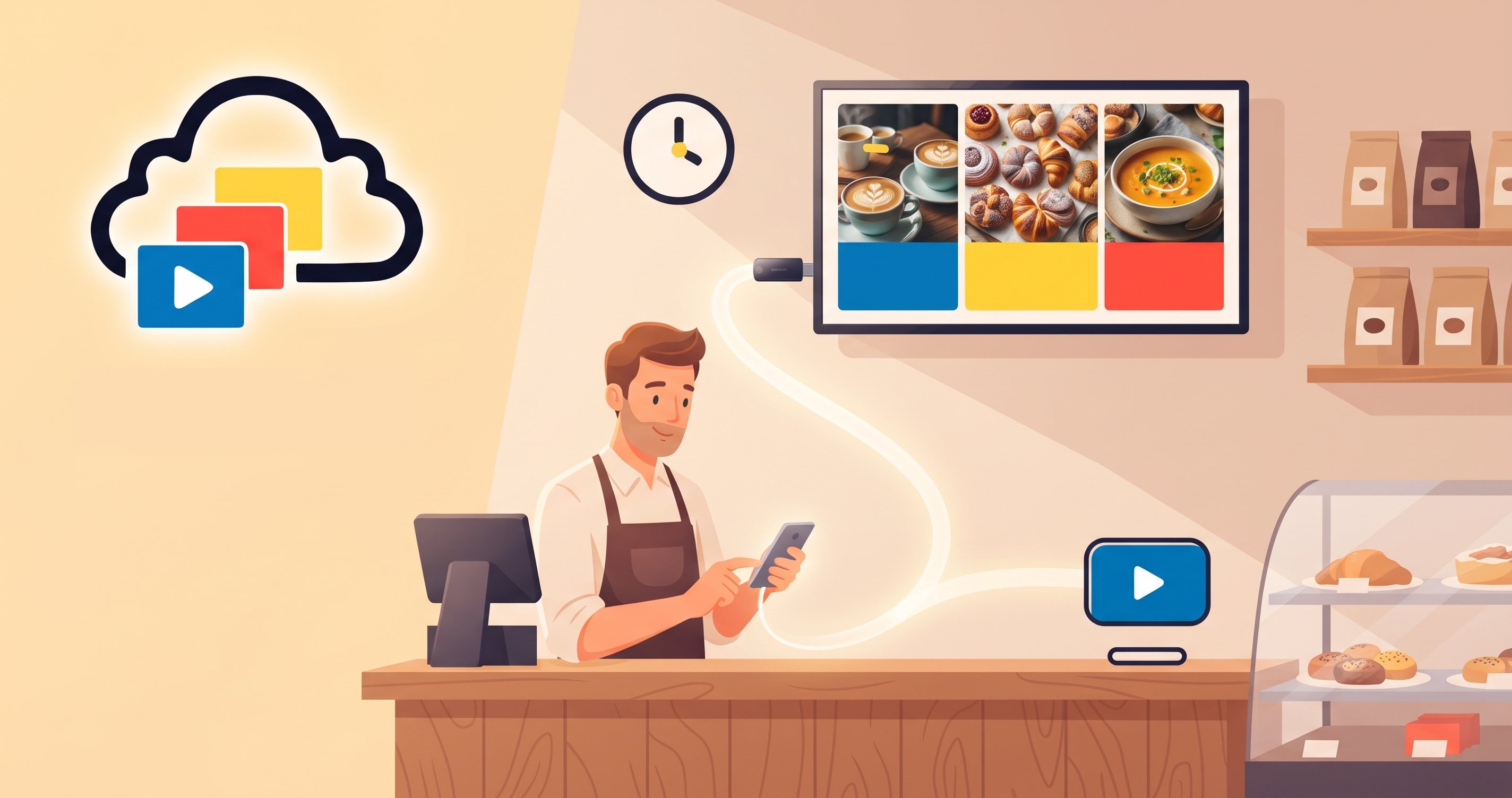
People often ask whether a digital menu board is anything more than a TV hanging on a wall. The honest answer is that the screen part is a TV, or something very close to one. The difference is everything that decides what the screen shows and when.
This guide explains what you are paying for when you buy a "digital menu board", where the hardware matters, and how to use a TV you already own, including an older one with no apps at all.
What a TV does on its own
A TV shows whatever its input sends it. Plug in a USB stick and it loops a video. Plug in a laptop and it mirrors the laptop. Cast from a phone and it shows the phone. That is all. It has no idea what time it is in your restaurant, which menu is current, or that you just ran out of the soup.
For a menu that never changes and a screen that someone watches over, a TV and a USB stick are enough. The trouble starts when the menu changes, which for most food businesses is every week.
What makes a TV a digital menu board
A menu board is a TV plus four things that a TV does not do alone.
- A source you can change from anywhere. You update the menu in a browser and the screen follows, with no walk to the wall and no USB stick. The menu itself can be a deck you already know how to edit: see how to make a digital menu board in PowerPoint or Google Slides.
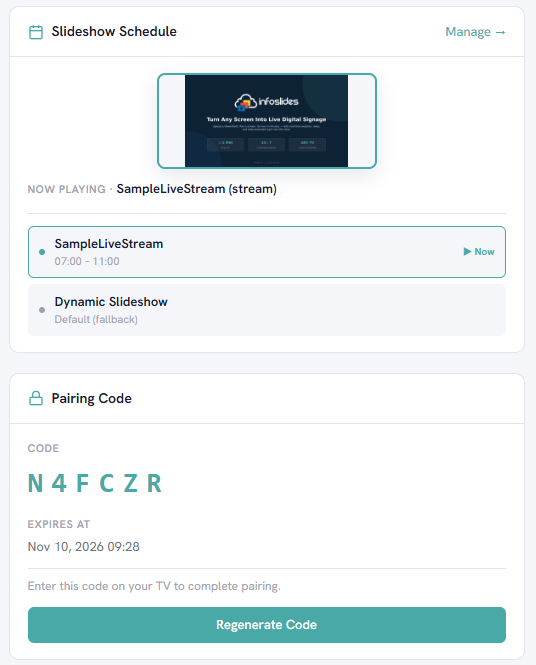
- A schedule. Breakfast, lunch and dinner each play at the right hour. Weekday and weekend menus differ. Nobody has to remember.
- Live data when you want it. A price or a sold-out flag from your till or stock system can update a slide without anyone editing it. A live menu board that updates itself shows how that works.
- One place to manage several screens. A counter screen, a window screen and a bar screen show consistent content and change together.
All four are software. None of them needs special hardware.
Where hardware does matter
The screen itself still has to suit the room.
- A consumer smart TV is a sensible choice for an indoor board that is switched off at closing time. It is cheap, it is easy to replace and it already has the browser or app a signage service needs.
- A commercial display is the safer choice if the screen runs around the clock, hangs in a window facing the sun, or lives near a kitchen. Commercial panels are built for long hours and bright light, and they cost more.
- A purpose-built menu board enclosure adds a case and a mount. It is a hardware choice, not a software one, and the same software runs on it.
Size and viewing distance matter more than the brand. A menu read from the queue needs large text and few items per slide; the squint test is a quick way to check yours.
Use the TV you already have
You probably have what you need already. Which route you take depends on the TV.
A smart TV
InfoSlides runs on LG webOS, Android TV and Amazon Fire TV through the InfoSlides app, and on other smart TVs through their browser. Samsung TVs pair through the built-in browser. How to install the InfoSlides app on your screen covers each one, and the smart TV page lists the routes in detail.
An older TV without apps: add a Fire TV Stick
A TV with no apps, or with apps its maker stopped updating, can still be a menu board. If it has an HDMI port, plug an Amazon Fire TV Stick into it and the stick becomes the player.
- Plug the Fire TV Stick into a free HDMI port and connect it to your Wi-Fi.
- Install InfoSlides from the Amazon Appstore.
- Add a screen in your InfoSlides workspace and enter its 6-character code on the TV.
The screen then plays its schedule full screen, and the app reconnects on its own after a network drop or a power cut. The same works on a smart TV whose own apps are slow or out of date.
How to decide
- Does the menu change more than a few times a year? If yes, you want software, not a USB stick.
- Does the screen run unattended all day? If yes, check that the TV is rated for the hours, or buy a commercial one.
- Is the TV old or without apps? If yes, add a Fire TV Stick rather than replacing the TV.
- Do you want prices or availability to update themselves? If yes, look for software that can take live data.
- Do you have more than one screen? If yes, choose something that manages them together.
Questions
Can I use a normal TV as a digital menu board?
Yes. Any TV with an HDMI port works. A smart TV runs the app or its browser; an older TV needs a small player such as a Fire TV Stick.
Do I need a smart TV for a digital menu board?
No. A Fire TV Stick in the HDMI port gives an older TV the app it needs. You manage the menu from a browser either way.
Do I need a commercial display?
Only if the screen runs around the clock, faces direct sun or sits in a hot kitchen. For an indoor board switched off at night, a consumer TV is fine.
Can I change the menu from the TV?
No. The TV only plays. You edit the menu, the slideshows and the schedule in the InfoSlides web app, from a laptop or a phone, and the screen follows.
Is there a free option?
Yes. The free plan covers one screen and four slideshows, with no credit card. Streams on the free plan carry a "Powered by InfoSlides" watermark.
Try it on the TV you have
The cheapest test is a menu on the TV already on your wall. How to use a TV as a digital menu board walks through the setup, and how to set up a digital menu board for your restaurant covers menus, schedules and several screens. More ideas for food businesses are on the restaurants and cafés page.